
How to invite people to your Organization
Organizations must be created (and maintained) by a top-level account, which requires a paid subscription. Admin accounts will then invite users (who’re likely to be your colleagues/ teammates), all of which will share the advanced features available to the Admin account.
How to invite people to your Organization
Section titled “How to invite people to your Organization”- Click your profile icon in the top right.

- Select Account details.
- Under My organization, click Manage team members.

- On the Team Management screen, click Invite user.
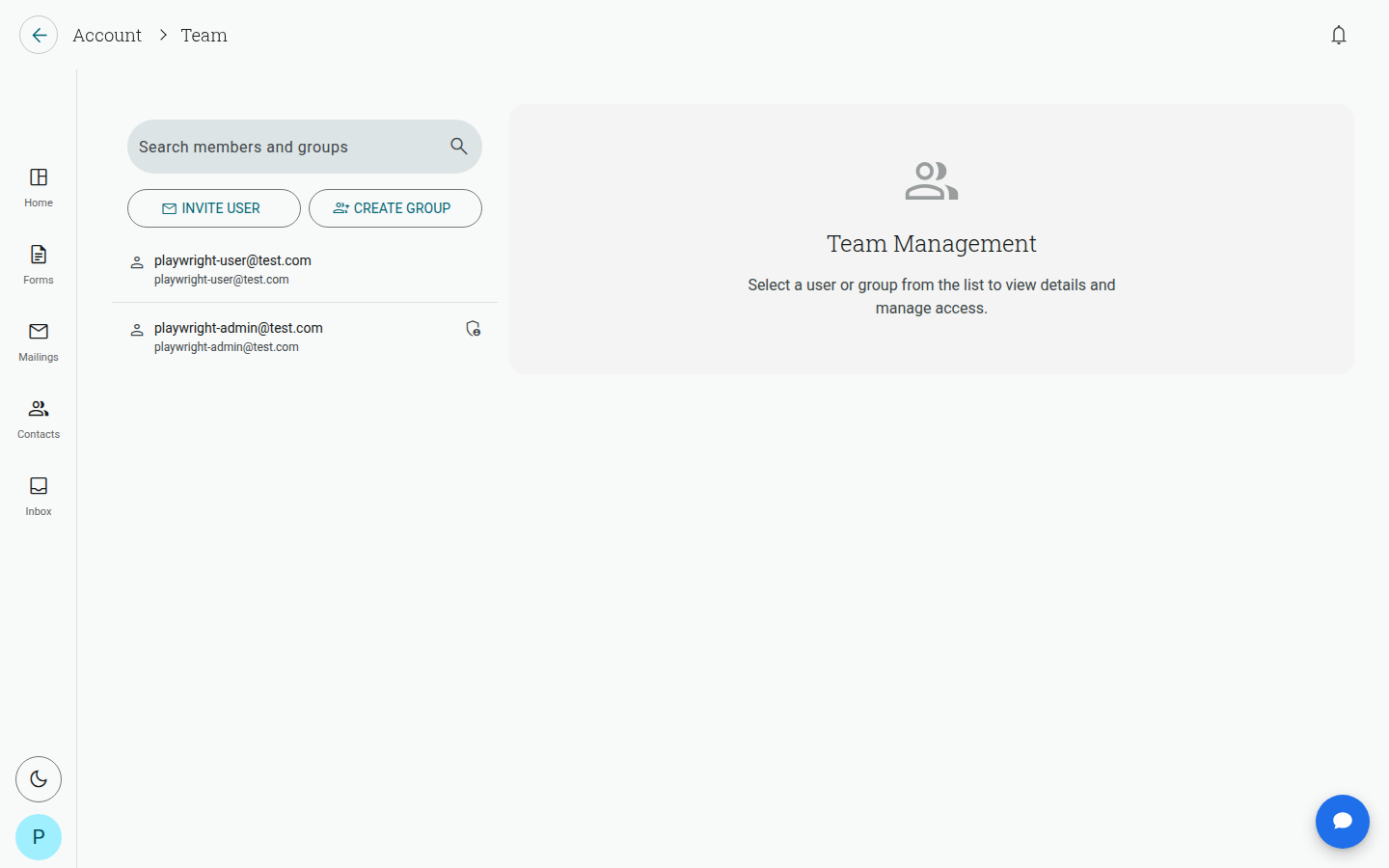
- In the Existing invitations dialog, click New invite.

- Enter the name and email address of your new user, then click Invite.
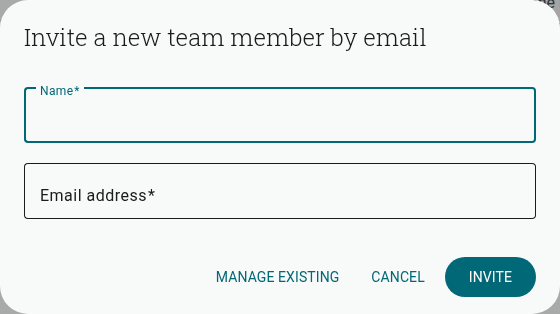
This will send them an invitation (valid for 24 hours) to join your Organization by email. They will need to accept this invitation, after which they will be asked to create a password for their account.
How to edit your organization details
Section titled “How to edit your organization details”- Click your profile icon in the top right.
- Select Account details.
- Under My organization, click Organization Details.
- Add or edit your organization’s name, address and phone number, then click Save.
Organization Member Limitations
Section titled “Organization Member Limitations”Seat limits depend on your plan, plus any extra seats you’ve purchased:
- Essentials: 1 user (no team support).
- Plus: 3 users.
- Business: 5 users included, with additional seats available for $20/month each.
You can check how many seats you’re using at any time from the “Your plan” panel on the Home dashboard.