
Segmenting Contacts
You can use contact details and campaign/form information to filter contacts into segments — saved filters you can revisit at any time. You can choose a single filter or combine multiple filters using AND/OR logic.
How to segment contacts
Section titled “How to segment contacts”- Go to Contacts
- Click the Active contacts (Status) dropdown at the top of the list
- Under Segments (Saved filters), click New
- Name your segment and click Save
You’ll be taken to the segment’s own page with a Segment filter builder.
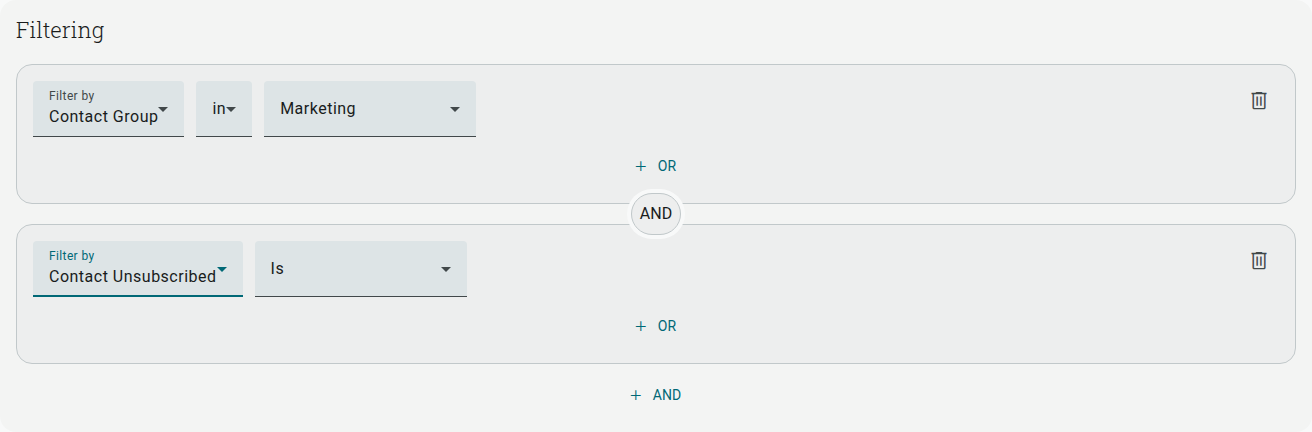
- Click the Filter by dropdown and choose a filter category
- Set the operator and value using the dropdowns that appear next to it
- Click + or underneath a rule to add another condition to the same group (matches if any condition in the group is true)
- Click + and at the bottom of the filter to add a new rule group (a contact must match every group to be included)
- Click Refresh to apply your filter and see matching contacts in the list below
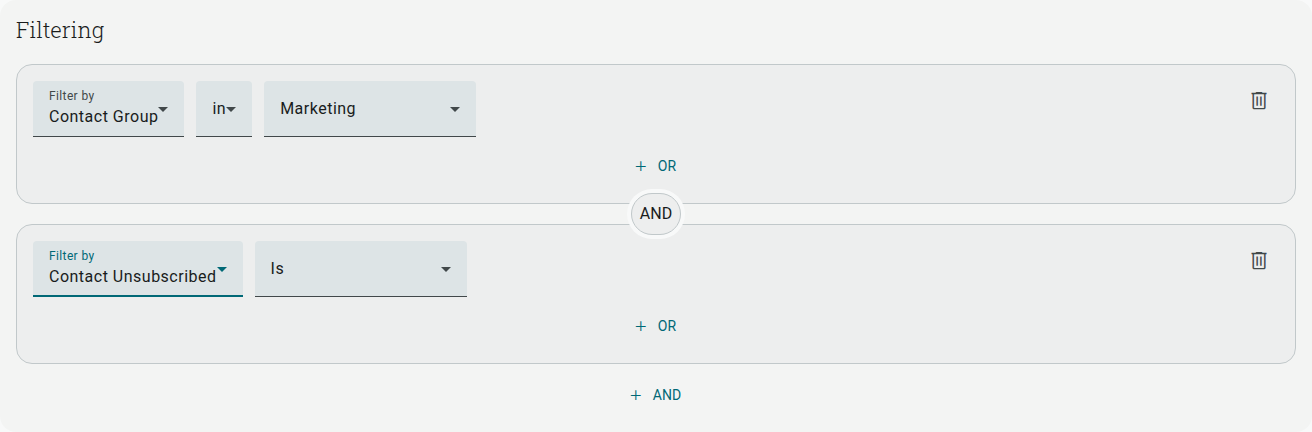
You can rename or delete the segment at any time using the Rename segment / Delete segment buttons at the top of the page. You can also build a filter first — without saving it as a segment — using Advanced in the same Status dropdown, then click Save filter as segment once you’re happy with it.
Below, we’ll go over the different filters you can use.
Available filters
Section titled “Available filters”| Filters | Description |
|---|---|
| Contact fields | Filter by the contact’s own fields (name, address, etc). |
| Contact Group | Filter by any of your existing Lists (still called “groups” internally). |
| Contact Unsubscribed | Filter by contacts who’ve unsubscribed from your mailings. |
| Contact Source | Filter by the source contacts used to subscribe to your list. |
| Contact Sign Up Date | Filter by the date contacts subscribed or were uploaded. |
| Campaigns | Filter by campaigns sent to contacts. |
| Contact Statistics | Filter by email performance statistics, such as Opens, Clicks, Open Rate, Click Rate, and Emails Sent. |
| Form Question Answers | Choose a survey/form and filter by questions. |
| Form Completion | Choose a survey/form and filter by completed or not completed. |
| Form Response Date | Choose a survey/form and filter by a date range. |
| Form Response Country | Choose a survey/form and filter by any country. |
| Calculator formula results | Filter by the result of a calculator-type form’s formula. |
Contact fields
Section titled “Contact fields”Create a segment based on the contact’s own data fields.
| Parameters | Operators | Action |
|---|---|---|
| - First Name - Last Name - Company - Address Line 1 - Address Line 2 - City/Town - State/Province - Zip/Post Code - Country - Phone number - Language - Net Promoter Score | - equals - contains - starts with - ends with | Insert search text. |
Contact Group
Section titled “Contact Group”Segment contacts based on the Lists they are/aren’t a part of.
| Operators | Action |
|---|---|
| - in - not in - in all - not in any | Choose a list from the list. |
Contact Unsubscribed
Section titled “Contact Unsubscribed”Easily identify who has unsubscribed from your list.
| Parameters | Operators |
|---|---|
| Unsubscribed | - Is - Is not |
Contact Source
Section titled “Contact Source”Segment contacts based on how they were sourced. This allows you to identify which source produces the contacts who have the highest engagement rates.
| Parameters | Operators | |
|---|---|---|
| - Added manually - Imported - API - App import - Webform - Email ticket - Live chat - Messenger | - Is - Is not |
Contact Sign Up Date
Section titled “Contact Sign Up Date”Create a segment based on the date contacts were added to your list.
| Operators | Action |
|---|---|
| - Equals (=) - More than (>) - Less than (<) - More than or equal to (>=) - Less than or equal to (<=) | Input a date. |
Campaigns
Section titled “Campaigns”Segment contacts based on whether they were sent a specific campaign, whether they opened that campaign and whether they clicked a link. Using the AND/OR logic, you can identify contacts who were sent or engaged with a number of different campaigns.
| Operator | Action |
|---|---|
| - Was sent - Was not sent - Responded to survey - Did not respond to survey - Was opened - Was not opened - Was clicked - Was not clicked | Select a campaign from the list. |
Contact Statistics
Section titled “Contact Statistics”Create segments based on the average engagement rates and received campaigns of your campaigns. This filter allows you to easily identify your most and least loyal contacts.
| Parameter | Operator | Action |
|---|---|---|
| - Emails opened - Emails clicked - Open rate - Click rate - Emails sent - Spam reports - Bounces | - Equals (=) - More than (>) - Less than (<) - More than or equal to (>=) - Less than or equal to (<=) | Input a numerical variable. |
Form Question Answers
Section titled “Form Question Answers”Use questions from a survey or form to segment your contacts.
| Options | Action |
|---|---|
| Any survey, quiz, or form | Select a question from the list. |
Form Completion
Section titled “Form Completion”Segment contacts based on whether they have completed one or more of your surveys/forms.
| Options | Operators |
|---|---|
| Any survey, quiz, or form | Completed Not completed |
Form Response Date
Section titled “Form Response Date”Segment contacts based on the date of survey/form responses.
| Options | Action |
|---|---|
| Any survey, quiz, or form | Input a date range (start date and end date) |
Form Response Country
Section titled “Form Response Country”Use the country of survey/form respondents to create segments.
| Options | Action |
|---|---|
| Any survey, quiz, or form | Select a country from the list. |