
Zip/ Postcode Lookup
What is Zip/ Postcode Lookup?
Section titled “What is Zip/ Postcode Lookup?”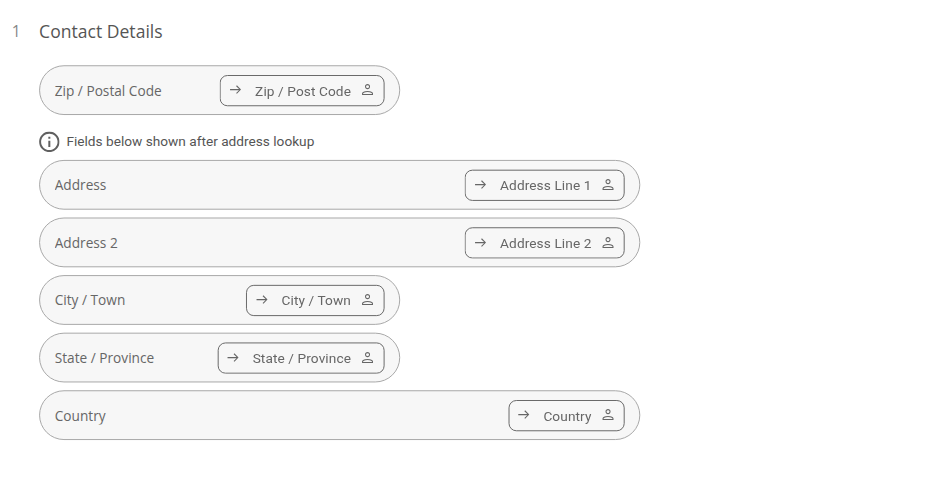 This question type is now labelled Address Lookup in the question picker (it still appears in the builder outline as “Contact Details”). It acts as a way to add an address form to your project, and includes a quick address lookup feature which can be turned on or off from the question’s own settings.
Why use an Zip/ Postcode Lookup?
Section titled “Why use an Zip/ Postcode Lookup?”If you’re a business, then geographic information can be used to tailor products or services based on location. Alternatively, you could use this information to construct customer profile templates to further understand your target audience.
How to create an Zip/ Postcode Lookup?
Section titled “How to create an Zip/ Postcode Lookup?”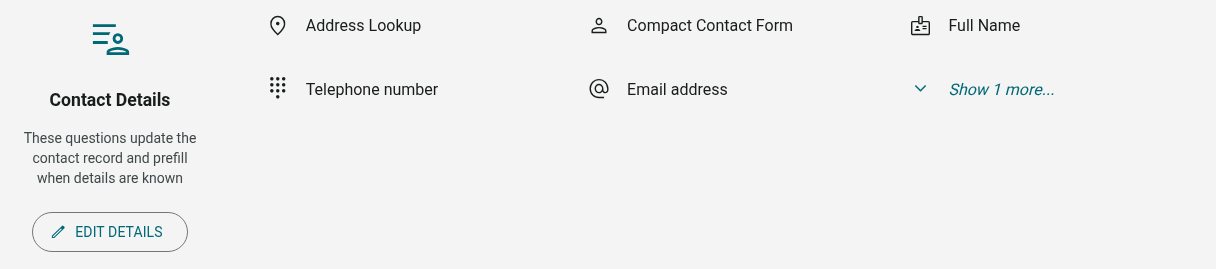
- Go to the Builder
- Open the Questions tab
- Click ’+ Question’
- Under Contact Details, select Address Lookup
- Title your field by clicking the heading text (default is ‘Contact Details’)
Default Settings
Section titled “Default Settings”The default heading for this question is now ‘Contact Details’ (this used to read ‘Address’), which you can edit by clicking directly on the heading text. Six fields are inserted along with this question type, by default. These include:
- Zip/ Postal Code
- Address
- Address 2
- City/ Town
- State/ Province
- Country
You’re free to change the label text of any field. Each field also carries its own Link to contact detail mapping (shown as a small pill to the right of the field, e.g. Zip/Postal Code → “Zip / Post Code”, Address → “Address Line 1”) so that answers prefill automatically when the respondent is already known, and update the contact record when the form is submitted. If a contact field is already linked elsewhere in the form, that option is greyed out in the dropdown to prevent duplicate links.
You can also bundle extra fields into the same question via Additional contact details — a small field-picker under the question that lets you add First Name, Company, Email Address, Phone Number, or Last name to the block. There’s no longer a way to individually toggle ‘Required’ on each field from this question’s settings — the six default fields and any you add come as shown.
Question Quick Menu
Section titled “Question Quick Menu”Clicking the question in the Questions tab expands its settings inline (this is the current equivalent of the older Question Settings Bar for this question type). For Address Lookup, you’ll find:
- Numbered: This button toggles the numbering for the concerned question.
- Additional contact details: Pick from First Name, Company, Email Address, Phone Number, or Last name to add more fields to this question — see Default Settings above.
- Zip / postcode lookup (UK/US only): This toggle turns the address-lookup step on or off. When on, respondents search by Zip/Postal Code and the rest of the fields stay hidden until a match is picked. When off, every field (including Country, now a dropdown) is shown immediately for manual entry, with no search step at all.
- Save to contacts / Manage contact group: Opens Settings → Contact Saving → Groups, the same group picker used to configure Consent. Use it to control whether submitting this form saves a contact record, and which contact group it’s added to.
Note: The older ‘Hidden Fields’, ‘Personal info’ (PII), and ‘Link to contact field’ options described in previous versions of this article no longer apply to this question type. Contact Details questions like Address Lookup now write to the contact record directly and use the per-field ‘Link to contact detail’ pill described above, rather than a single PII flag — see List of Question Types for how this replaced the old PII marking.
How respondents interact with Address Lookup forms
Section titled “How respondents interact with Address Lookup forms”By default, respondents are only shown a ‘Zip / Postal Code’ field with a search icon next to it. If you’ve left the Zip/postcode lookup toggle on, the rest of the fields (Address, Address 2, City/Town, State/Province, Country) stay hidden until the respondent enters their zip/postcode and clicks the search icon — a successful lookup auto-fills all the corresponding fields.
Respondents can skip the lookup at any time by clicking the ‘Manual entry’ link, which reveals every field immediately for typing in by hand (Country appears as a dropdown rather than free text).
If you’ve turned the Zip/postcode lookup toggle off in the builder, there’s no lookup step or ‘Manual entry’ link at all — respondents just see every field straight away.
How to Analyze the Results
Section titled “How to Analyze the Results”Address Lookup answers appear as a data table under the question’s heading (e.g. “Contact Details”) on the Report tab of your project’s Results. See About the Quick Report for more on reading response data tables.