
Contact Form Element
What is a Contact Form?
Section titled “What is a Contact Form?”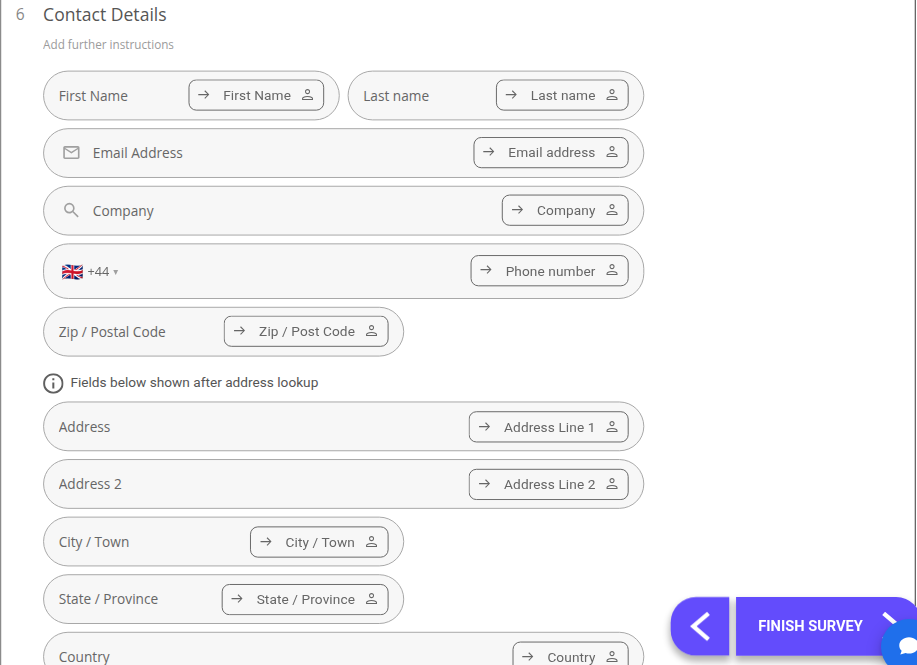 This question type is now labelled Compact Contact Form in the question picker (it still appears in the builder outline as “Contact Details”). It is designed to collect a range of personal information from respondents in one question. This information is usually comprised of:
- First Name, Last name
- Email Address
- Company
- Phone Number (with country code selector)
- Zip Code/ Postcode
- Address, Address 2, City/Town, State/Province, Country (shown after an address lookup or ‘Manual entry’)
You will be able to chop and change what information is required from respondents.
Why use the Contact Form?
Section titled “Why use the Contact Form?”Using the Contact Form, you can collect all the personal information on your respondents you may need. Participants may be hesitant to give up this information, so it’s probably best to inform them of what your intent to do with their information.
Tip: If you intend to use this information for purposes other than collating respondent demographic information, you may also want to include a Consent Form in your project.
How to Create a Contact Form
Section titled “How to Create a Contact Form”- Create a Survey or Quiz
- Go to the Questions tab in the sidebar
- Click ‘Question’ to open the question type picker
- Under Contact Details, select Compact Contact Form
Default Settings
Section titled “Default Settings”The default settings for the Compact Contact Form will display several text boxes when the question type is inserted. These include:
- First Name, Last name
- Email Address
- Company
- Phone Number (with country code selector)
- Zip Code/ Postcode
- Address, Address 2, City/Town, State/Province, Country (shown after an address lookup or ‘Manual entry’)
Each text box aims to collect a separate, and relevant, piece of information about your respondents, and each is linked to a matching field on the respondent’s contact record via a “Link to Contact detail” badge next to it.
To rename these sections, simply click the text box and replace the text.
Question Settings Bar
Section titled “Question Settings Bar”Clicking the question in the builder expands its settings directly beneath it:
- Numbered: This button toggles the numbering for the concerned question.
- Zip/ postcode lookup: This toggle allows respondents to search for their address using a Zip Code/ Postal Code. This feature is only available in the UK and US.
- Save to contacts / Manage contact group: Responses to this question are automatically saved as CRM contacts. Click ‘Manage contact group’ to choose which contact group new contacts should be added to.
How respondents interact with the Contact Form
Section titled “How respondents interact with the Contact Form”Participants will be able to fill out each section of the contact form in the same way as Text Box (Single) questions. If the Zip/postcode lookup feature is active, respondents will be able to click the search icon next to the Zip/Postal Code field and select their address, or click ‘Manual entry’ to fill in the address fields directly. Their address will then autofill into the corresponding fields.
How to analyze the Contact Form Report
Section titled “How to analyze the Contact Form Report”Contact details will be compiled as a list of text responses in your Report (the Results tab, previously called the Quick Report). They will be presented in the order they were collected for easy reference.