
How to Print Your Results
- Open the project’s Results page.
- Open the Summary report and select the print icon in its top toolbar.
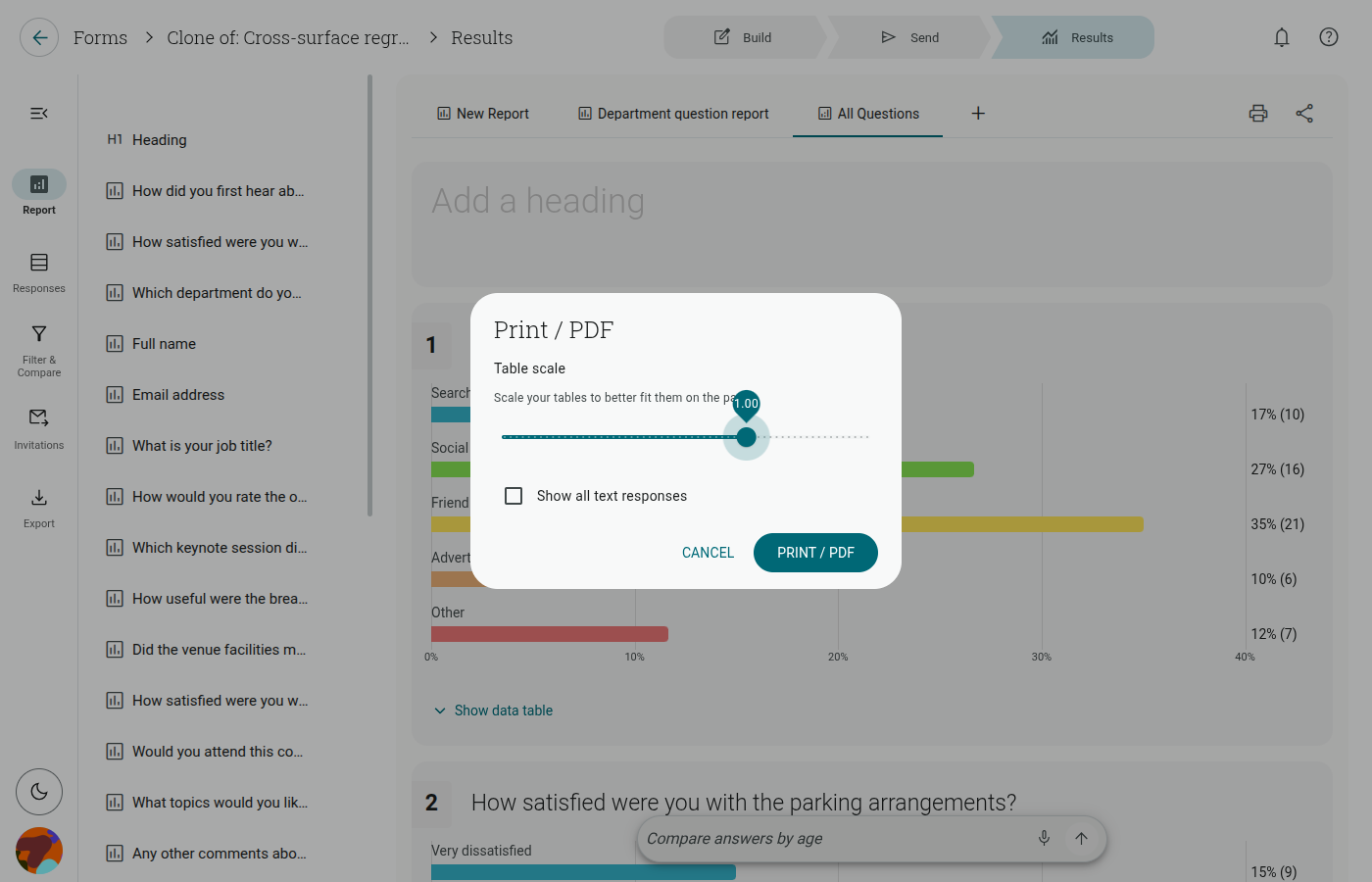
- In the print dialog, choose the table scale and optionally enable show all text responses.
- Click Print / PDF, then choose a printer or Save as PDF in your browser’s print dialog.
The print layout is portrait by default and preserves question structure across pages. Table scale changes the size of report data tables. Show all text responses includes the full text of open answers.
For spreadsheets, open Export in the Results rail to open Responses and its Download panel. Printing from an open response sheet prints that response immediately.