
Results in Calculators
There are two ways you can display results when creating a calculator:
- Show results after submission
- Show results side-by-side with the calculator
Show Results After Submission
Section titled “Show Results After Submission”By default, the exit page of your calculator (labelled “Calculator result” in the page list) has its Exit page type set to “Calculator results”, so respondents land on a results page once they finish.
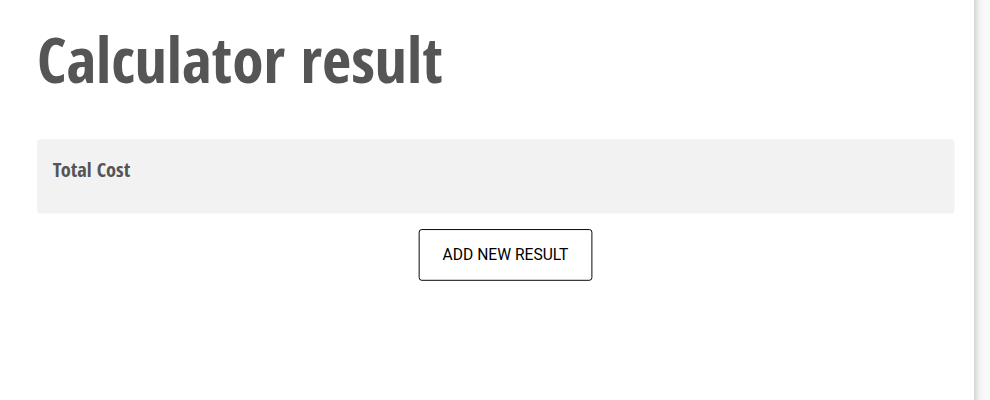 However, if you choose to show results side-by-side with the calculator instead, you can switch the exit page to a custom message (“Design custom page”) or redirect people to an external URL (“Redirect to web address”).
To do this, select the exit page in the Build view, then use the Exit page type dropdown to switch it. Use the “Add new result” button on the exit page to attach a formula and give it a heading (e.g. “Total Cost”) — this heading is what displays on the results page.
Show Results Side-By-Side with the Calculator
Section titled “Show Results Side-By-Side with the Calculator”To display a result right next to your questions instead of on a separate exit page, select the question you want the result to sit alongside. A small toolbar appears above it — click the calculator icon in that toolbar:
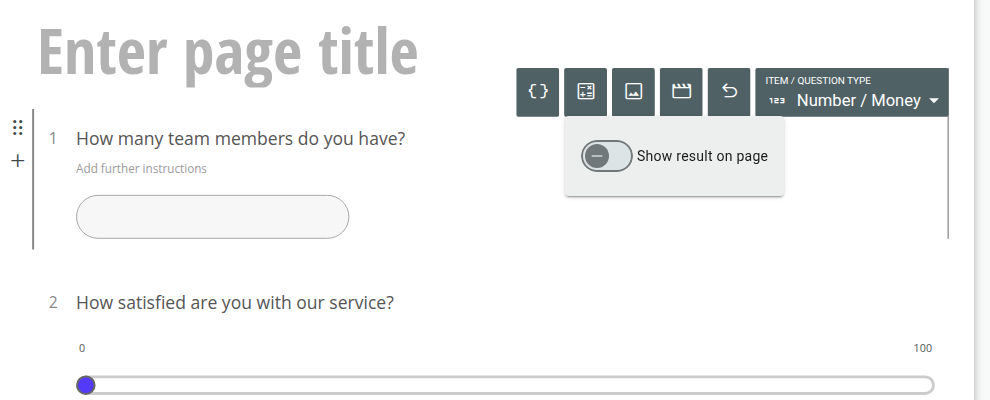
This reveals a “Show result on page” toggle. Switch it on.
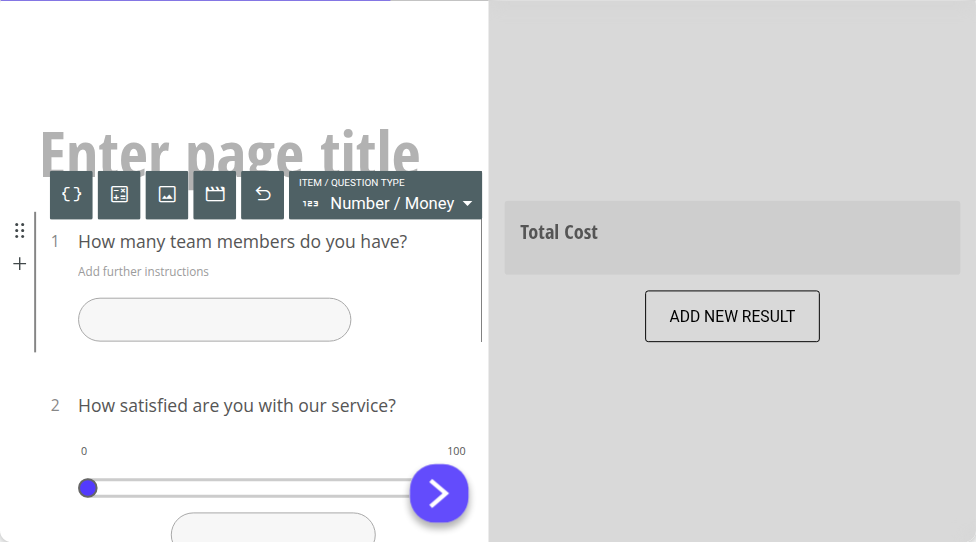 The page splits into two panes — your questions on the left, and a results panel on the right with an “Add new result” button. Click it and select a formula to display (or create a new one if you haven’t built one yet).
Once you’ve selected a formula, its heading will display in the results panel alongside your calculator, with the computed value updating live as respondents answer.