
Understand Campaign Reports
Campaign reports show what happened after a campaign left Draft. You can use the same report while a message is scheduled or sending, then return to it for final delivery, engagement and form-response results.
Open a report
Section titled “Open a report”To find a completed campaign:
- Open Mailings in the main navigation.
- Select the Sent view above the campaign table.
- Select a campaign to open its details panel.
- Select Report.
For a scheduled or sending campaign, use the Scheduled view and select Status. Its report opens on Overview and updates as sending progresses.
The available tabs are Overview, Recipients, Links and Email. Links is available only when tracking was enabled, and figures are hidden until emails have started going out.
Overview
Section titled “Overview”For a tracked form invitation, Overview shows the journey from Delivered to Opened, Clicked survey link and Completed.
Each funnel number is a number of people. Its percentage is that number as a share of the people included in the report, not a conversion rate from the previous stage. The notes between stages explain gaps such as bounced emails, people who did not open, or people who opened without clicking.
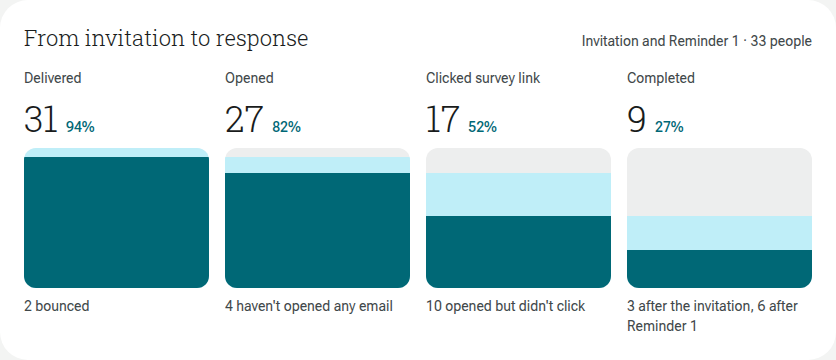
For the original invitation, the funnel combines its sent invitation and reminders so you can see progress across the complete invitation journey. A reminder’s own report shows activity for that reminder and how many people completed after it. A thank-you does not invite another response, so its funnel ends at link clicks.
First 24 hours
Section titled “First 24 hours”The first-day chart shows when people first opened or first clicked, grouped by hour from sending. It helps you see when engagement arrived; it is not a list of every repeated open or click.
Delivery
Section titled “Delivery”The Delivery card shows:
- Delivered: emails accepted for delivery, out of the campaign’s recipients.
- Bounced: emails that could not be delivered.
- Unsubscribed: recipients who used the unsubscribe link.
- Spam complaints: recipients who reported the message as spam.
Delivery and recipient totals can differ because a message can bounce or be dropped. See Unsubscribed and Bounced Contacts and Suspending Mail Privileges for the effect on contacts and sending access.
If Send anonymously was on, Overview shows delivery only. There are no opens, clicks, linked responses or follow-up actions because every recipient received the same public form link.
Responses and follow-ups
Section titled “Responses and follow-ups”The Latest responses card opens recent contact-linked responses. Select View all to open the form’s response list.
The original invitation and its reminders or thank-you messages appear together in one thread. Select an item in that thread to see its own results.
The thread’s Completed after figure attributes a completion to the invitation or reminder after which it occurred. Everyone keeps one tracked form link across the thread, so an unfinished response continues and each response is counted once.
The follow-up card on the original invitation also shows Haven’t started and Started but didn’t finish, then provides Send reminder and Send thank-you to N when those actions are available. See Send Follow-up Reminders and Thank-yous.
Recipients
Section titled “Recipients”Open Recipients to see the contacts included in that message. Search by email address or name, or filter the table by:
- All recipients, Opened, Not opened or Clicked when tracking was enabled.
- Responded to survey or Did not respond to survey for a linked form.
- Unsubscribed, Hard bounce, Soft bounce, Spam complaints or Dropped for delivery investigation.
The table shows opens and clicks when tracking is available. For tracked form invitations, it also provides the contact’s individual form link and access to their linked response. Select a contact to open their profile beside the report without losing the current filter and search.
Open Links to compare the links included in the sent message. The form link is labelled Survey link and is shown separately from other web addresses.
- Clicks is the total number of recorded clicks on that link.
- People is the number of different recipients who clicked it.
Clicks can therefore be higher than People when the same recipient uses a link more than once. For a tracked invitation, each recipient’s survey link is unique even though it appears as one Survey link row in this report.
Open Email to review the subject, sender, reply address, sending date, recipient total and linked form. As sent preserves the message content that recipients received; use Desktop and Mobile to check its layout.
Use this tab when comparing a sent result with a draft or when you need to confirm which version of a design actually went out.
See Create and Manage Email Invitation Campaigns for campaign setup, Choose Campaign Recipients for audience rules and Schedule and Manage Email Campaigns for status actions.