
Sharing a Report
You can now share your reports from the result section of your project, and make the data you collect available to the public or your stakeholders.
Note: If your results contain sensitive personal information, you may want to anonymize a report before sharing it.
How to Share a Report
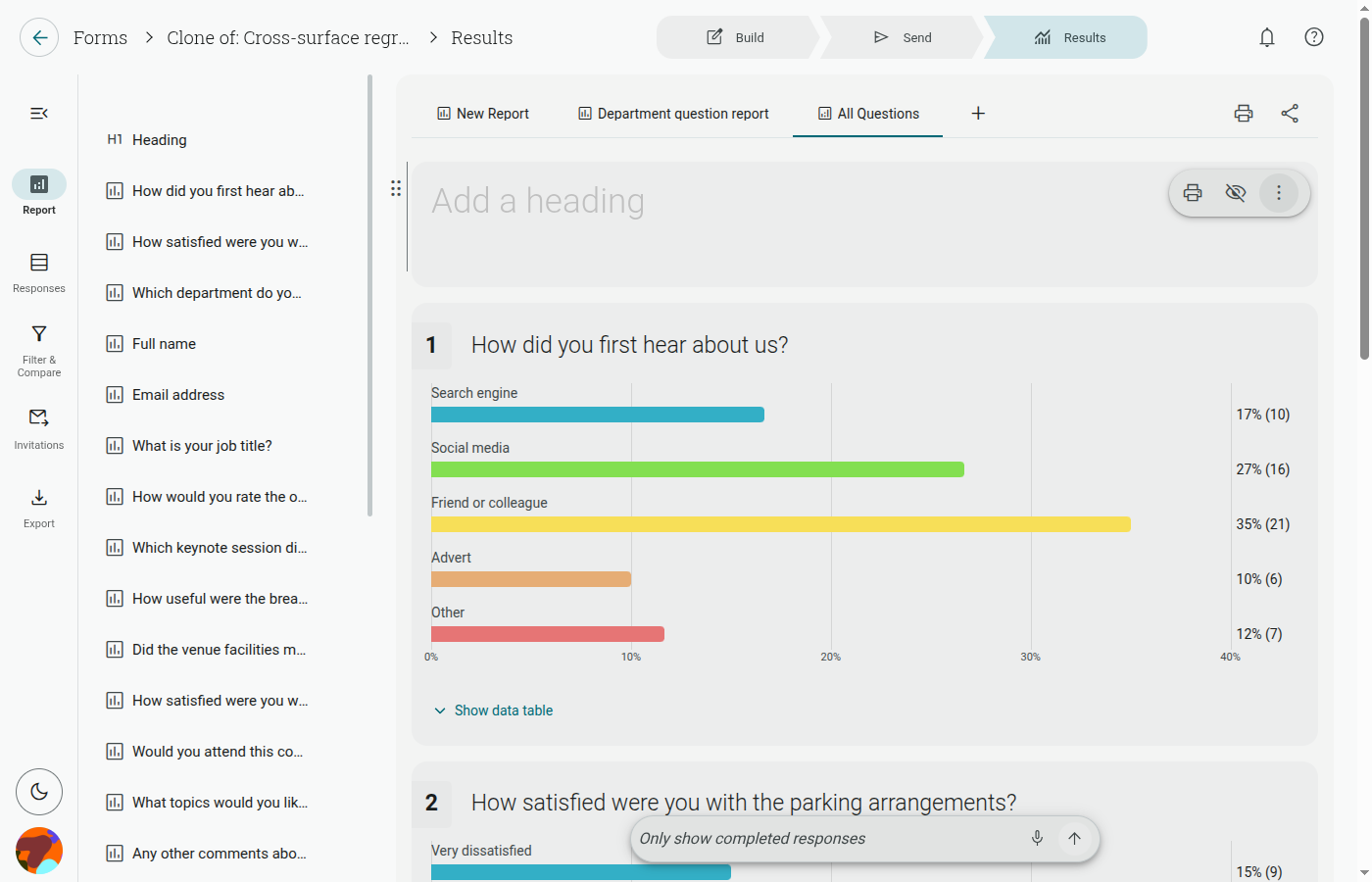
Section titled “How to Share a Report”- Open the Summary report for your project
- Click the share icon at the top right (next to the tab bar) — this opens the Share this report dialog, with a QR code and your report’s URL
- Click Make Public
- A confirmation explains that “Enabling sharing will make the report available to anyone with the link” and that any personal information visible to you will also be visible publicly — click Make Report Public to confirm, or Cancel to back out
- Copy the URL link (or scan/download the QR code) and share it
Who can see my report?
Section titled “Who can see my report?”Anyone who has access to the link you share will be able to see your results.
How to Make a Report Private
Section titled “How to Make a Report Private”- Open the Summary report for your project
- Click the share icon again to reopen the Share this report dialog
- Click Disable
- A confirmation warns that “The public link will no longer work” — click Make Report Private to confirm, or Cancel to back out
Note: Making your report private deactivates the link immediately — anyone who still has it will no longer be able to view your data.