
Matrix (Common Scale)
What is a Matrix (Common Scale)?
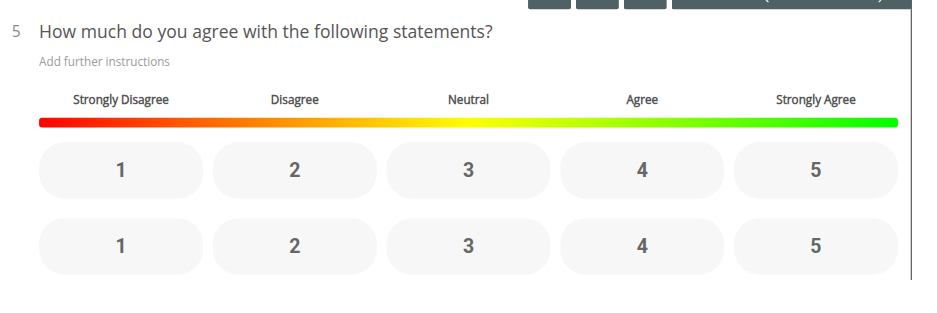
Section titled “What is a Matrix (Common Scale)?”Matrix questions (also called Likert Scales), allow you to ask multiple sub-questions to be rated along a common scale.
Why use a Matrix (Common Scale)?
Section titled “Why use a Matrix (Common Scale)?”Matrices are handy for breaking down a question or statement into several sub-questions.
Here’s an example:
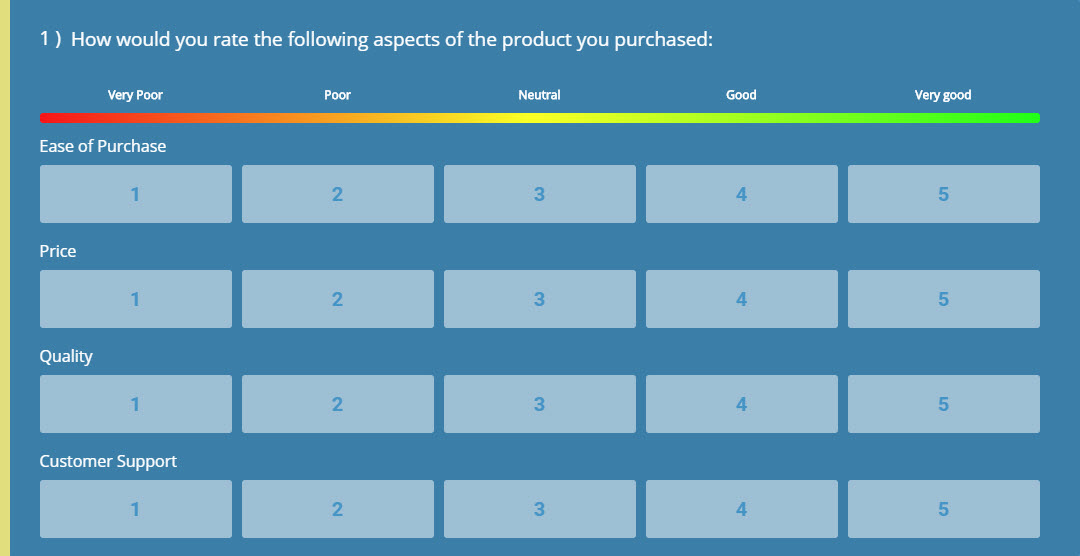
They’re also more interactive and visually pleasing than other question types may be, stemming any possible or mental-taxation.
How do I create a Matrix (Common Scale)?
Section titled “How do I create a Matrix (Common Scale)?”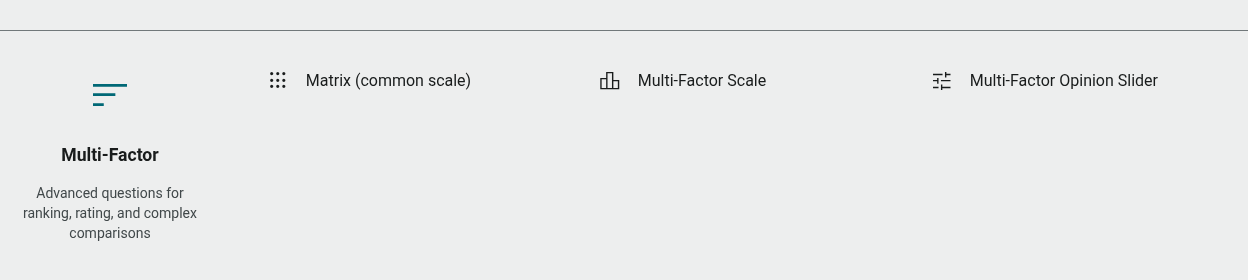
- Open the Build tab, and make sure you’re on the Questions tab in the sidebar
- Click + Question
- Select Matrix (common scale) from the Multi-Factor category
- Enter your question text
- Click the column headings above the scales to open the Matrix dialog, where you can edit rows, columns, and headings
How to Add an N/A answer
Section titled “How to Add an N/A answer”Adding an N/A answer option to a Matrix allows a respondent to essentially opt out of giving a rating. This is useful if they haven’t had an experience with you or don’t have an opinion concerning a sub-question.
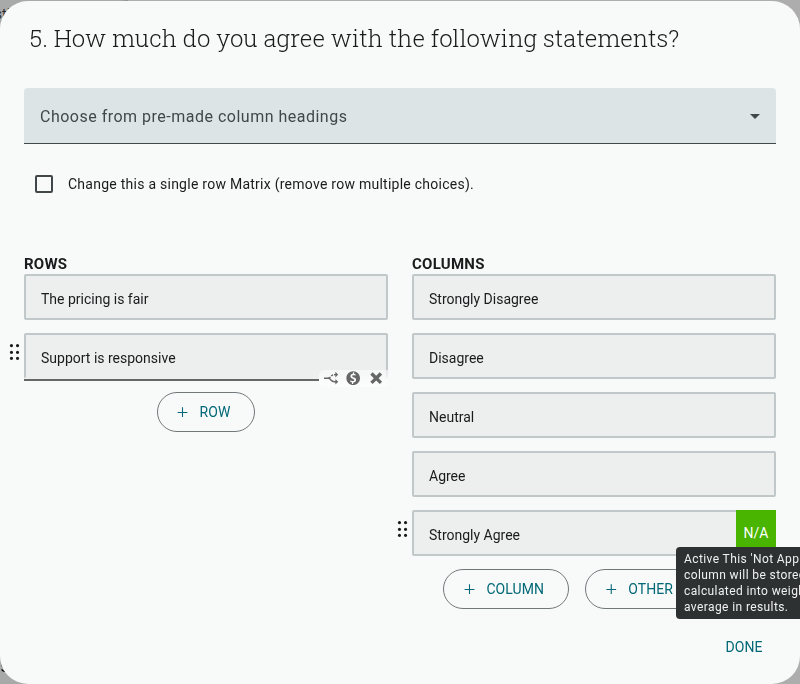
- Click the column headings above the Matrix to open its dialog
- Click the N/A toggle next to the final column
The N/A option will only appear next to the final answer in the scale. So, be sure to add another answer as you don’t want to make an important scale point N/A.
Results for your N/A option will be stored in your report, but they are not weighted in the total, ensuring your results are not skewed. The dialog spells this out directly: “This ‘Not Applicable’ column will be stored but not calculated into weighted average in results.”
Default Settings
Section titled “Default Settings”Once you’ve inserted this question type into your project, you’ll be presented with five columns — ‘Strongly Disagree’, ‘Disagree’, ‘Neutral’, ‘Agree’, and ‘Strongly Agree’ — and two unlabelled rows for your own sub-questions, accompanied by a Rating Heat Bar.
You can choose from a pre-set list of column headings via the “Choose from pre-made column headings” dropdown at the top of the Matrix dialog, or customize any row or column by editing its text directly. The dialog also has a “Change this a single row Matrix (remove row multiple choices)” option if you only need one row, plus buttons to add more rows, more columns, or an “Other / Text” free-text column.
Question Settings
Section titled “Question Settings”Inside the settings panel (click Show more settings under the question) for Matrix (Common Scale) you have access to:
- Numbered: This button toggles the numbering for the concerned question.
- Rating Heat Bar: This allows you to toggle the visibility of the Rating Heat Bar. This is for visual purposes only, and cannot be interacted with by respondents.
- Required: By checking this box, respondents cannot finish the survey without completing the question.
There’s no separate “Personal info” toggle for this question type — if you need answers tied to a respondent’s contact record, use one of the dedicated Contact Details question types alongside your Matrix instead.
How respondents interact with Matrix (Common Scale)?
Section titled “How respondents interact with Matrix (Common Scale)?”Respondents will be able to click any answer option along the rows, in correspondence with the column headings. The option they choose will represent their rating concerning your question or topic. If they change their mind, they can simply select another option along the row.
How to analyze the Quick Report?
Section titled “How to analyze the Quick Report?”The Data Table will represent your results in much the same way the question is formatted. The rows of the table represent each individual topic, whilst the columns highlight the column headings from your scale. You will also find sections for standard deviation, responses, and weighted average.
By default, your results use a diverging stacked bar chart, with a 100% stacked mode available. Change this through the question item’s chart menu; recommended types are marked.
Note: this reporting section was not re-verified in this pass — if the chart options above look off, let us know.
For more detailed instructions on analyzing your report, you can visit either of these articles: