
Embedding a Project
Embedding allows respondents to complete your survey, quiz or form without leaving your website. In this article, we’ll help you embed surveys on your website, and go over having your project appear as a popup or slideout on the click of a button.
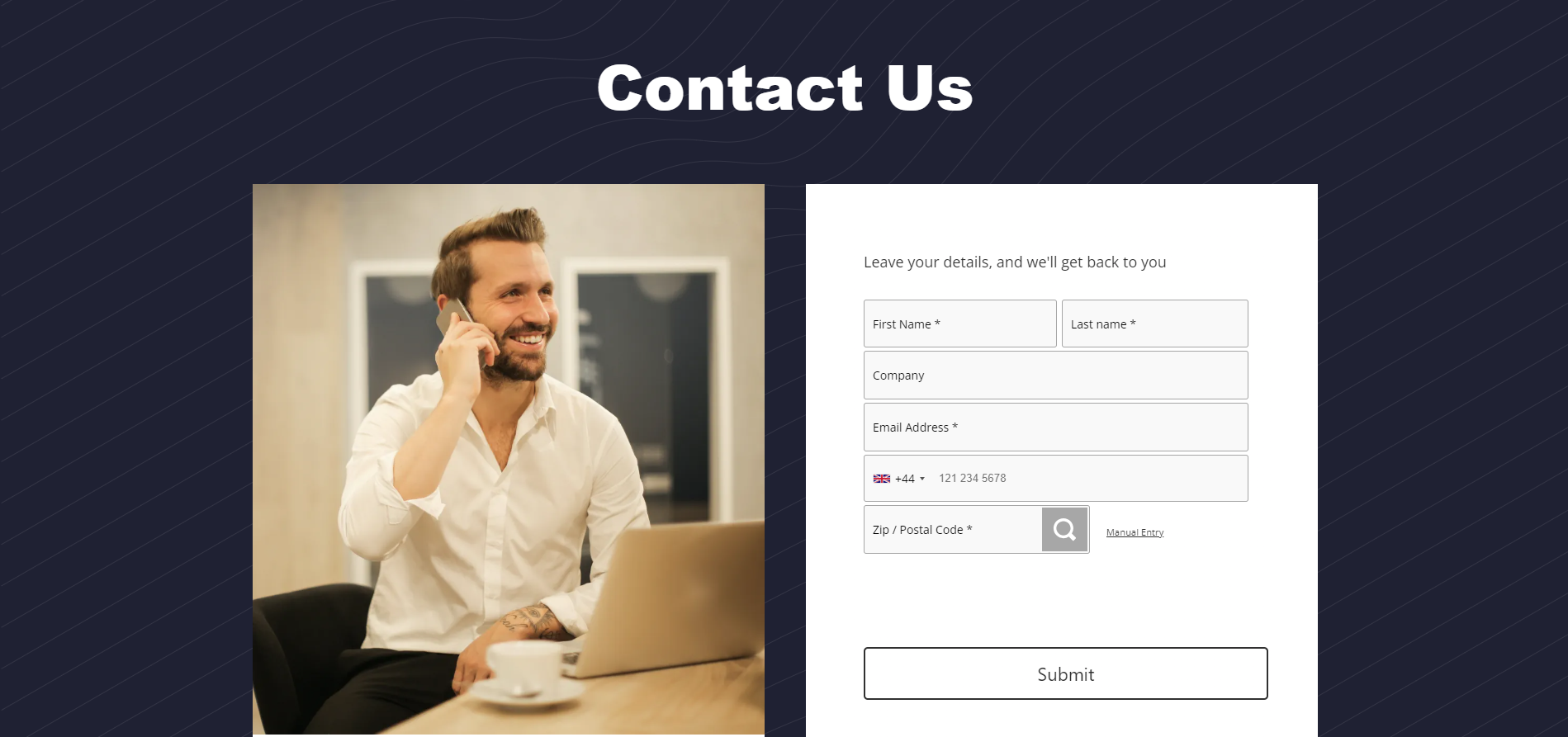
Embedding a form on your website
Section titled “Embedding a form on your website”An inline embedded form will make the form appear part of your page’s content.
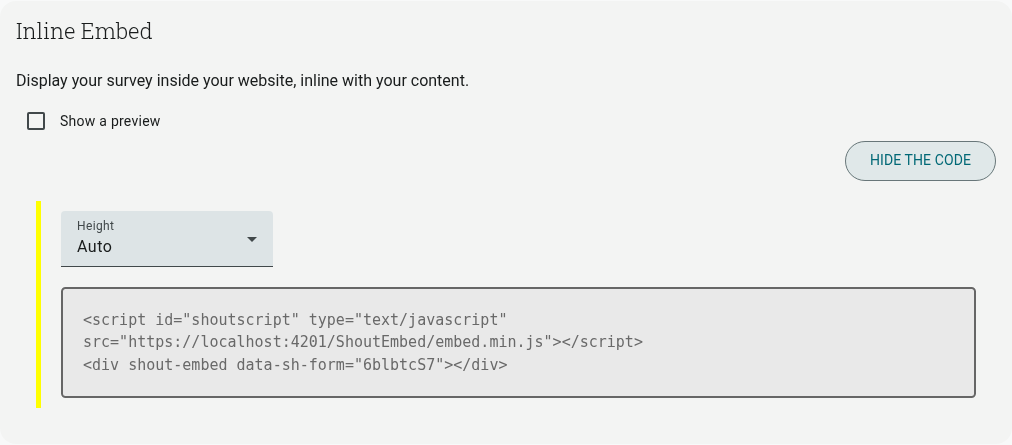
To find and use the code to embed your project, follow these steps:
- Go to the Send section of your form
- Scroll to Inline Embed
- Select the Website tab, choose Inline under Add to your website, then select Copy code
- Copy the code
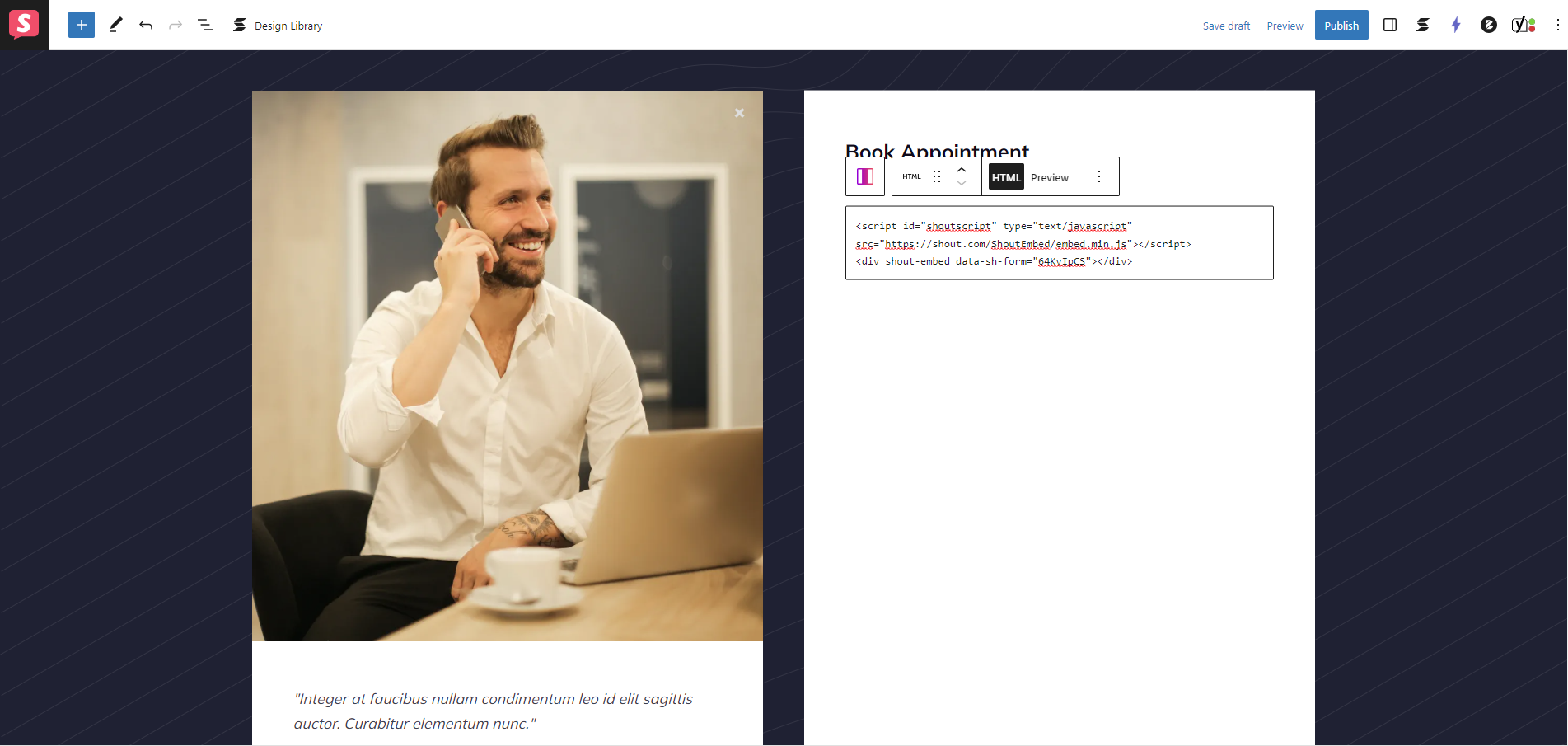
- Paste this onto your web page
The Embed Placeholder
Dynamic Content / Single Page applications
Section titled “Dynamic Content / Single Page applications”When using the inline embed, the form will be loaded into the placeholder when the page is ready. If your placeholder <div> is added to the page after that (e.g. dynamically loaded content, or a single-page application route change), a blanket rescan of the page is not currently exposed on the ShoutEmbed object. Instead, create the embed directly for the new element using the JavaScript API:
ShoutEmbed.ready(function () { ShoutEmbed.api.inline({ formId: "###", appendTo: "survey-placeholder" });});Call this once your new placeholder element exists in the DOM.
Styling
Section titled “Styling”Colors and other design elements are controlled via the Builder. Next to the code on the Inline Embed panel there’s a Height dropdown, set to Auto by default. Switch it to Fixed to set an exact pixel height for the embed:
This will change the embed script (adding a data-sh-height attribute), so be sure to copy and paste it again if you edit this setting.
JavaScript API
Section titled “JavaScript API”If the standard embed button codes or placeholder codes do not suit your needs, you could use the JavaScript API.
Slideout & Popout
Section titled “Slideout & Popout”A slideout form will appear over the top of your website sliding from either the left or the right of the page (whichever you choose). On mobile phones, the form will fill the screen. Popouts will have the appearance of a window over your website.
The Button
Section titled “The Button”You can choose how to style the button using our button style selector which is on the Send page — set the background color, font color, font size, corner roundness, and button text, with a live preview before you copy the code. If you prefer, this could instead be done using your own CSS. When clicked, this will trigger the form to open.
Using the code
Section titled “Using the code”For all embed types, there are two separate codes required to make the embed work. First, you will need to include
It is not important where this goes in your HTML page, however, you should place this where any other scripts on your page are located, this should only be in your code once per page.
If you don’t know where this is you could place it with the button code. The