
The Progress Bar
Show respondents how much of your survey they’ve completed so far with the Progress Bar.
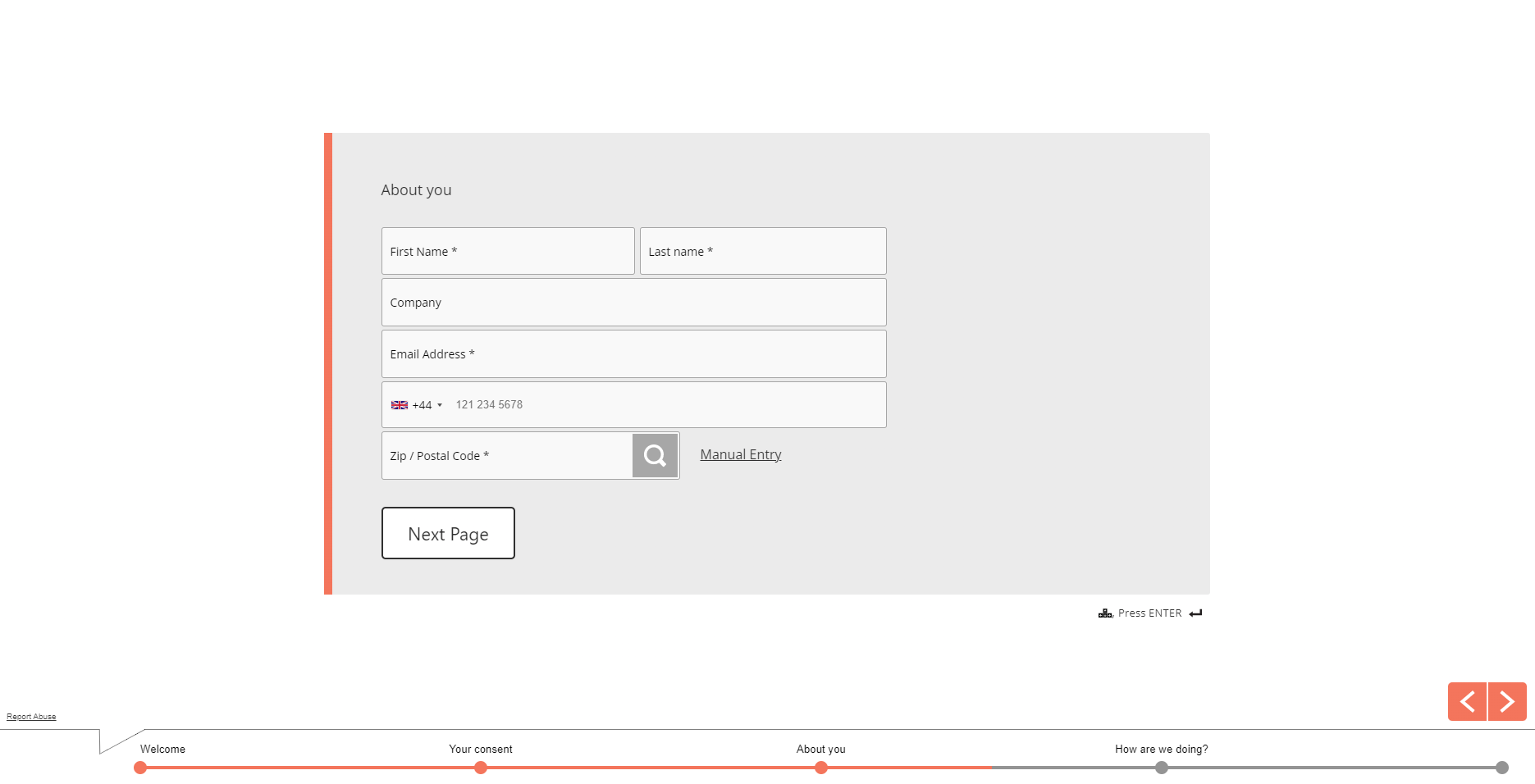
The bar fills in as respondents reach a new section or page, and you can choose from three positions/styles — a compact bar (no labels), or a labeled bar pinned to the top or bottom of the page listing each section’s title.
Take a look at what a labeled Progress Bar looks like:
How to enable the Progress Bar
Section titled “How to enable the Progress Bar”The Progress Bar is enabled by default (in the Compact position/style) for all newly created surveys.
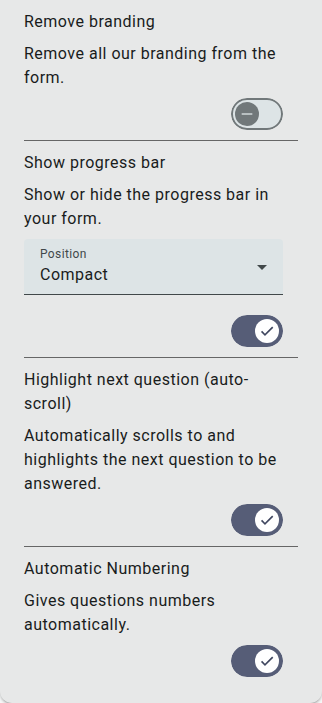
You can change its position or re-enable it for any pre-existing surveys from the builder’s Settings panel:
- Go to the Build section of your survey
- Click Settings in the left sidebar
- Expand the Appearance section
- Make sure Show progress bar is switched on, and choose a Position: Compact, Top (With labels), or Bottom (With labels)
Hide sections from the Progress Bar
Section titled “Hide sections from the Progress Bar”There may be some sections or pages that aren’t relevant to all respondents, and so you’d like to hide them from the Progress Bar.
To hide a section or page:
- Open the Form tab in the left sidebar
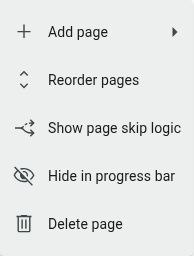
- Click the ⋮ icon next to the title of the section you’d like to hide
- Select Hide in progress bar
You’ll then see that the title has been removed from the Progress Bar in the builder and your live survey.
In the example below, we’ve hidden the “About you” section from the Progress bar:
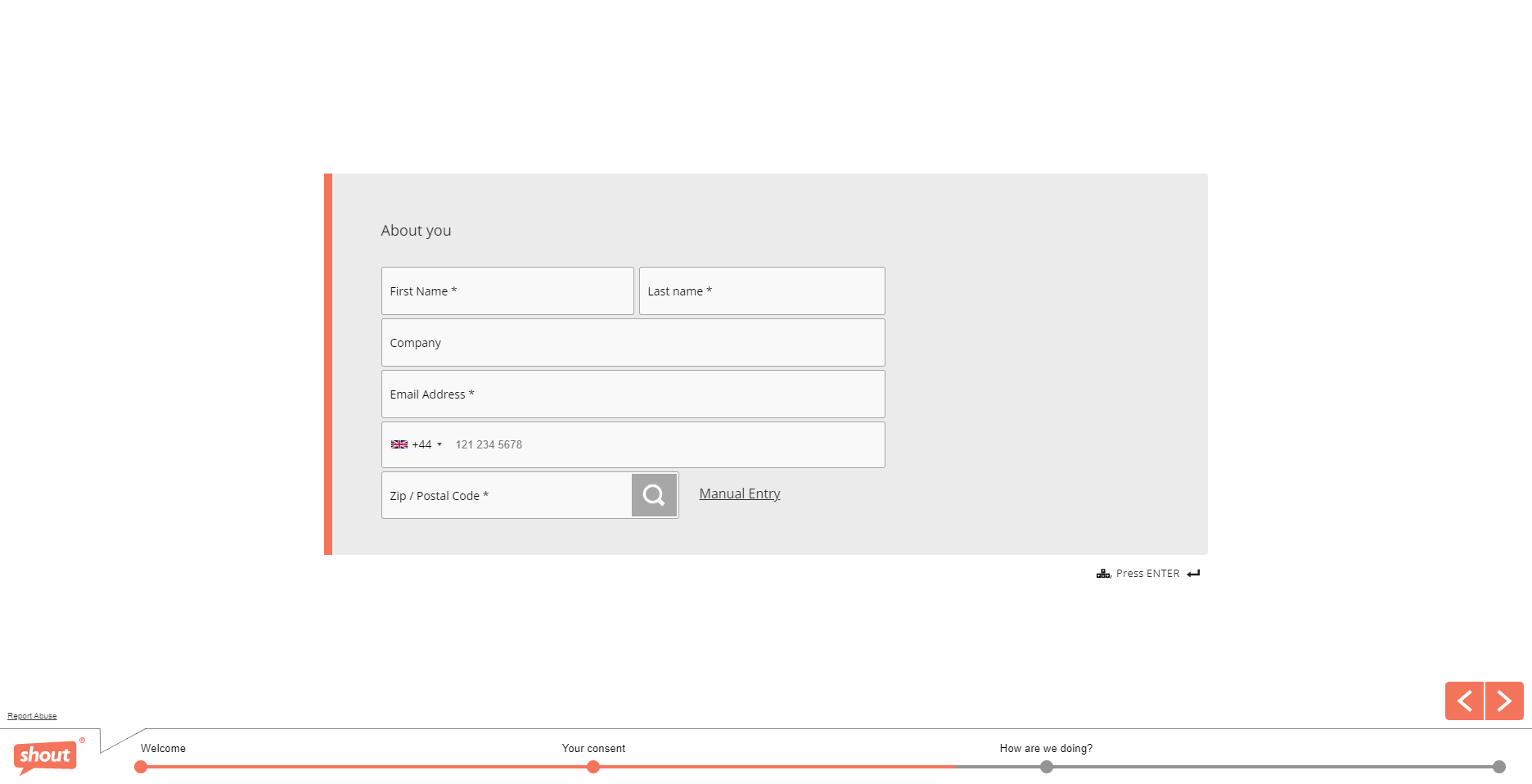
You can see that the bar has still filled in to illustrate that respondents are making progress, but the section title isn’t visible.
This is perfect for when you’ve used Question Logic in your survey, when some questions are only relevant to some respondents.
How to disable the Progress Bar
Section titled “How to disable the Progress Bar”If you’d rather remove the Progress Bar from your surveys, follow these steps:
- Go to the Build section of your survey
- Click Settings in the left sidebar
- Expand the Appearance section
- Switch Show progress bar off