
Multichoice (Single Select)
What are Multi-Choice (Single Select) questions?
Section titled “What are Multi-Choice (Single Select) questions?”
This type of question allows project participants to select one answer from a list of choices.
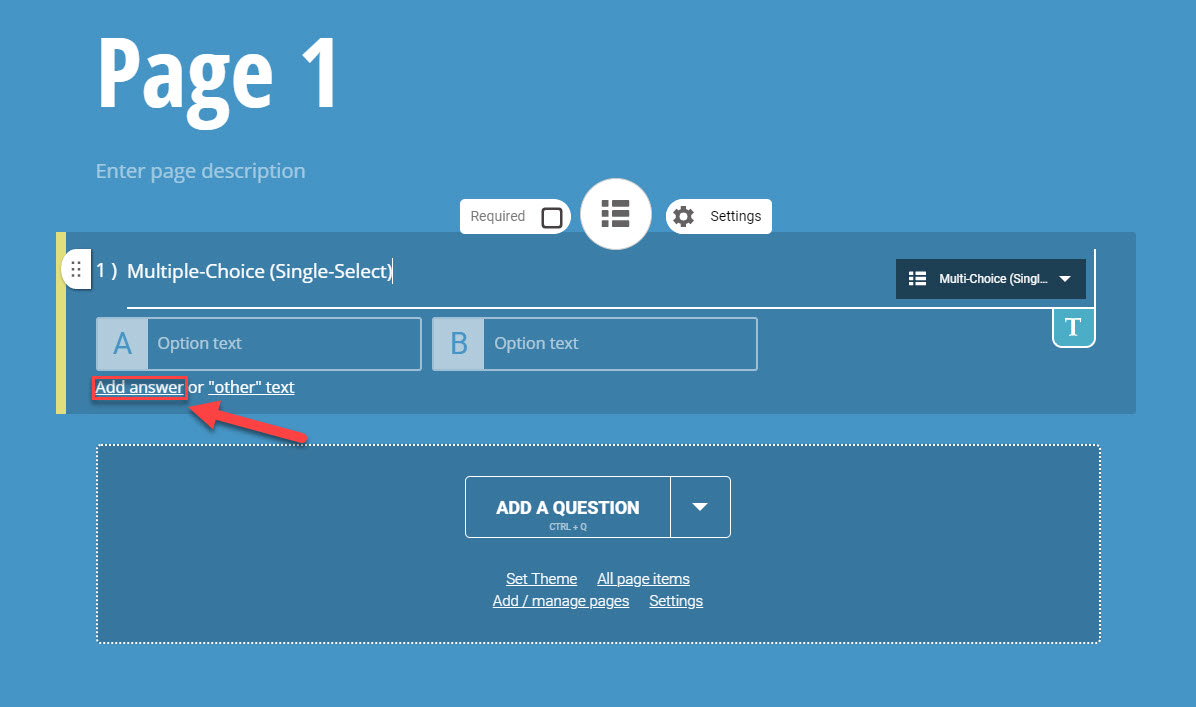
It is possible to add as many answers as you want — type into the last (empty) answer box and press Tab/Enter, or paste in a list of options:
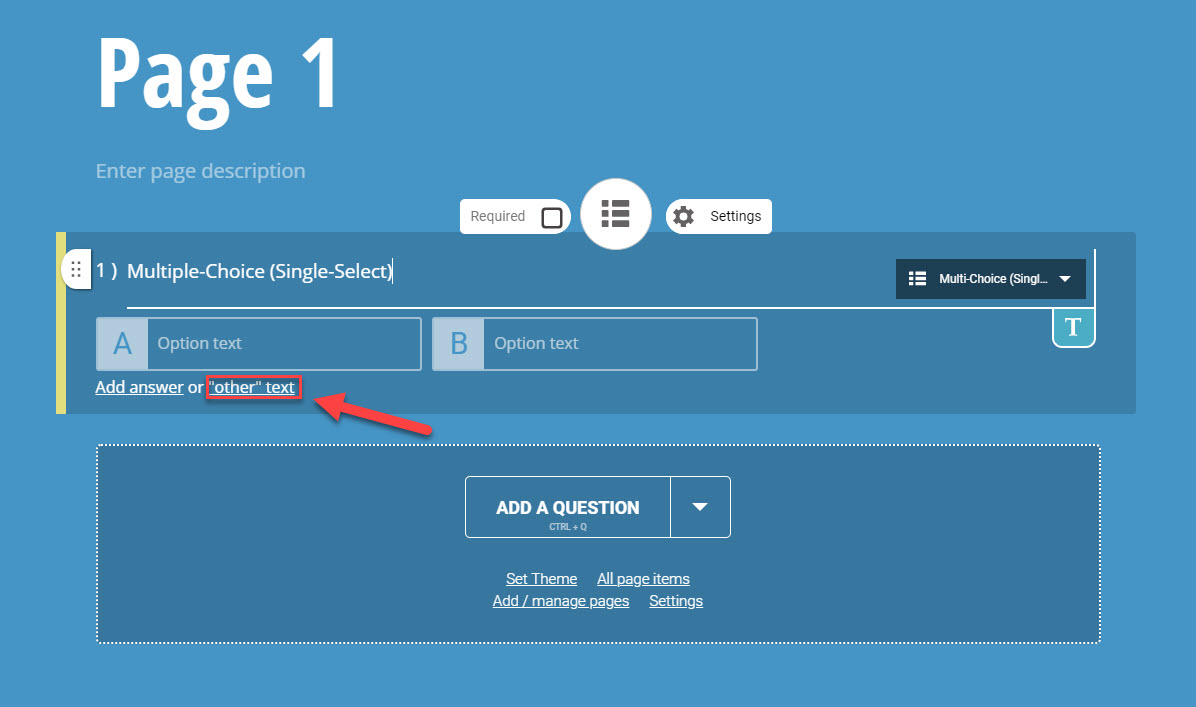
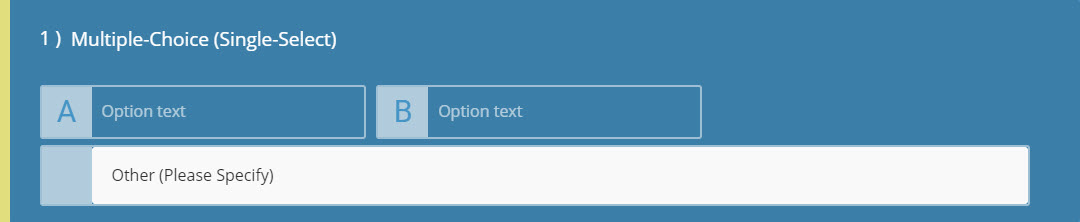
You can also provide an ‘Other’ answer option by turning on the “Other” text choice setting:
Why use Multi-Choice (Single Select) questions?
Section titled “Why use Multi-Choice (Single Select) questions?”You can use multiple-choice (single-select) question types in both surveys and quizzes.
In Surveys: A set of answers, where respondents can choose one.
In Quizzes: Points can be applied to all answers, but respondents can only choose one answer.
How do I create a Multi-Choice (Single Select) question?
Section titled “How do I create a Multi-Choice (Single Select) question?”- Open the Build tab, and make sure you’re on the Questions tab in the sidebar
- Click + Question
- Select Multi-Choice (Single Select) from the Standard Questions category
- Enter your question text
- Enter your answers in the answer boxes
- Type into the last box and press Tab/Enter (or paste a list) to add more answer boxes
- Turn on “Other” text choice in the settings panel to add an “Other” answer option
Default Settings
Section titled “Default Settings”There will be a minimum of two answer option boxes available, by default, when you insert this question type into your project.
Your answer boxes will also be displayed in columns of three, but this is changeable via the # of columns setting under Show more settings.
The maximum number of answers a respondent can select defaults to one. You can raise this in the Multiple selections settings, although you may want to use the Multi-Choice (Multi-Select) question type if you intend to allow more than one answer.
If you’re creating a quiz, there’s no separate marking scheme — each answer option gets its own Points field, and you set points on whichever answer is correct.
- You may want to avoid making Multi-Choice answer lists too long, as it could affect the readability of your project. In these cases, we would suggest using the Drop Down List question type as an alternative.
- Although you can allow respondents to select more than one answer, we’d recommend using the Multi-Choice (Multi-Select) question type for this.
Question Settings
Section titled “Question Settings”Click Show more settings under the question to see the full set of options:
- Required: Enable this feature to require respondents to answer this question before they can move to the next page or submit their response.
- Numbered: This button toggles the numbering for this question.
- Option labels: Choose whether answers are labelled A, B, C… or with numbers.
- Link to Contact detail: Ties this question’s answer to a field on the respondent’s contact record (use Manage contact fields to configure available fields). This replaces the old “Personal info” toggle.
- “Other” text choice: Allow respondents to write a free form answer for your question.
- Randomize: Randomize the order of your answer options for this question.
- # of columns: Set the number of columns that answer choices should be displayed in.
- Minimum & Maximum: Choose the minimum and maximum number of answers respondents need to select.
Quizzes only: an additional “Feedback Messages” section lets you set optional Correct answer message / Incorrect answer message text, shown to the respondent after they answer.
Answer Settings
Section titled “Answer Settings”Type into an answer box to reveal a small row of icons beneath it: a branch icon for Question Logic, an icon to Insert Dynamic Text (pull in text from contact details, a previous answer, or external data), a camera icon to attach an image, and an X to delete the answer.
In quizzes, a Points field also appears next to each answer — for this question type we’d suggest assigning points to only one answer, since only one can be selected.
How respondents interact with Multi-Choice (Single Select) questions
Section titled “How respondents interact with Multi-Choice (Single Select) questions”Participants will see this question identically to how you customized it. They select their answer by clicking on their chosen option, which is then highlighted for future reference.
It is possible for respondents to change their answer, which can be done by clicking another answer box. If you chose to insert an ‘Other’ option, a text box will appear below it once clicked. This text box can be used to provide further information and answers, or it can be left blank for the answer to be recorded as ‘Other’.
How to analyze the Quick Report
Section titled “How to analyze the Quick Report”Once your project has been launched, you will have live access to your results. Here you will find quick reports for each question.
Answer options will be displayed in their original order, from left to right, in the Data Table of your Quick Report. You will also be informed of the total number of responses to the question.
By default, your results will appear as a Column Graph, with each answer being assigned a color within the chart. The other available options for this question type are Line Graph, Doughnut Chart, Radar Chart, Pie Chart.
Note: this reporting section was not re-verified in this pass.
‘Other’ Responses
Section titled “‘Other’ Responses”Any responses gathered through the ‘Other’ answer option will be recorded in the ‘Other’ section of the Data Table. If text was attached to any of those answers, each response will be recorded in the ‘Text Responses’ section under the graphs.
For more detailed instructions on analyzing your report, you can visit either of these articles: