
Show or Hide Quiz Scores
Show quiz takers their scores upon completion.
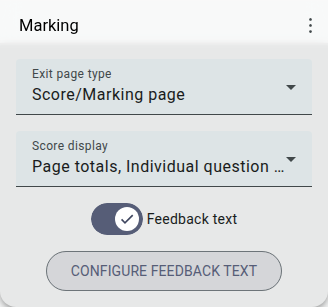
- Open a Quiz
- Go to the Exit/ Thank You Page (quizzes come with a “Marking” exit page by default)
- Select ‘Score/Marking page’ from the Exit page type dropdown
Score Page Options
Section titled “Score Page Options”There are a few extra options concerning this feature, found in the ‘Score display’ dropdown on the same panel:
-
Page totals: Shows respondents the total percentage and scores attained for each page.
-
Individual question scores: Includes correct answers, number of points scored, and the maximum number of attainable points for each question.
-
Feedback text (toggle, with a ‘Configure feedback text’ button): This allows you to write custom messages to be displayed to participants depending on the score they achieve. Messages can be configured for the total score of the quiz, and also the total score of each page.
Regardless of these options, if the ‘Reveal correct answer on wrong answers’ setting is on (the default), respondents also see each of their answers highlighted green (correct) or red (incorrect) directly on the marking page.
Read our Custom Score Messages article for more information.