
One Question at a Time Surveys
This survey format displays questions to respondents one at a time, rather than several to a page.
This survey type will help to keep your respondents engaged when answering your questions, improving your completion rates.
When respondents choose an answer, they’ll be taken to the next question seamlessly. This ensures that people aren’t overwhelmed by a full page of questions, and creates a sense of flow through your survey.
Creating a One Question at a Time Survey
Section titled “Creating a One Question at a Time Survey”To get started with one question surveys, simply follow these steps:
- Click New form on your dashboard
- Choose Start from scratch (or describe it to Build with AI, or upload a document)
- On the Set up your form screen, keep Survey selected under Form type
- Under Questions per page, choose One per page
- Click Create form
Adding Questions to a One Question Survey
Section titled “Adding Questions to a One Question Survey”Whilst you create these surveys in much the same way as the Many per page format, each section has its own + Question button so you can manage everything in the builder.
To add a question to a section:
- Open the Questions tab
- Click + Question beneath the section you want to add it to
- Select a question type from the library
This inserts the new question directly after the last item in that section.
Adding Sections to One Question Surveys
Section titled “Adding Sections to One Question Surveys”Sections allow you to split questions up by relevance, and will be displayed on the Progress Bar if you have this enabled.
To add a new section to your survey:
- Open the Questions tab
- Click + Section (or click the ⋮ icon next to a section title and choose Add section)
- Choose a Question Section or Exit Section
Question sections are spaces for you to ask questions, whereas Exit Sections are the final message respondents will see after finishing their response.
Using Logic in One Question Surveys
Section titled “Using Logic in One Question Surveys”It’s important to note that Logic does not work on a per question basis, it can only be used to send respondents to a different section (much the same as it works in the Many per page survey format).
- Open the Questions tab
- Hover over a question you’d like to apply logic to
- Click the ⋮ icon next to your question title
- Select Logic
- A dropdown appears beneath each of your (filled-in) answer options, defaulting to “Next Section (Default)”
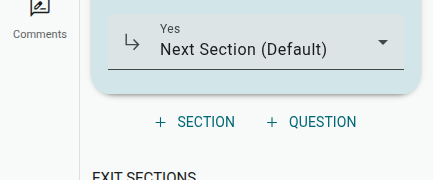
- Open the dropdown beneath an answer option and select the section it should jump to
Your Logic will look something like this when it’s set up: