
Calculator Question Types
When creating a calculator, you can use a wide range of question types as part of your formula.
In the question type picker, open the Highlight compatible filter and select Calculator value — this highlights every question type below that returns a value your formula can use.
Here’s a full list of those question types:
Numeric question type
Section titled “Numeric question type”Decimal, Integer, and Currency are no longer separate cards in the question picker — they’re all Number types of a single unified Number / Money question. Add a Number / Money question, then open Show more settings and set Number type to:
-
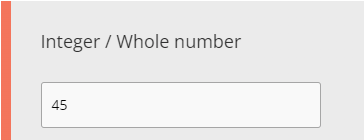
Integer — respondents can input a whole number.
-
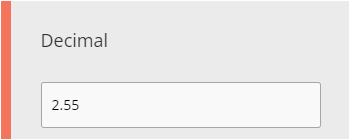
Decimal — respondents can input a decimal value, with a configurable number of decimal places (0-4).
-
Currency — respondents can input a monetary value; the currency symbol can be manually selected from a long list, or set to Auto detect. Decimal places are configurable here too.


There is no dedicated Age number type or question card anymore — see Age Question.
A separate Numeric Slider question type is also available and works in formulas the same way.
Standard question types
Section titled “Standard question types”We’ll provide a list of all other question types that can be used with the calculator below. For more information on these question types, take a look at our list of all question types.
- Multi-Choice (Single Select)
- Multi-Choice (Multi Select)
- Opinion Scale
- Opinion Slider
- Binary Yes/No
- Net Promoter Score®
- Star Rating
- Drop Down List — this single question type now covers both single-select and multi-select dropdowns; set Maximum above 1 under Multiple selections in its settings to allow more than one answer.
Multi-factor question types
Section titled “Multi-factor question types”- Matrix (common scale)
- Multi-Factor Opinion Slider
- Multi-Factor Scale
Picture Choice question types
Section titled “Picture Choice question types”- Picture Choice — a single question type for image-based selection (configure single- or multi-select in its settings).
Picture Comments (for open-ended comments on an image) is also in the Picture Choices category, but it does not return a value and can’t be used in a calculator formula.