
The Dashboard
The Project Dashboard contains all your existing projects: Surveys, Quizzes, and Calculators. This is also where you can create a new project. In today’s app this area is reached from the Forms button in the Main Menu — the underlying web address still says dashboard, but the app labels it “Forms.”
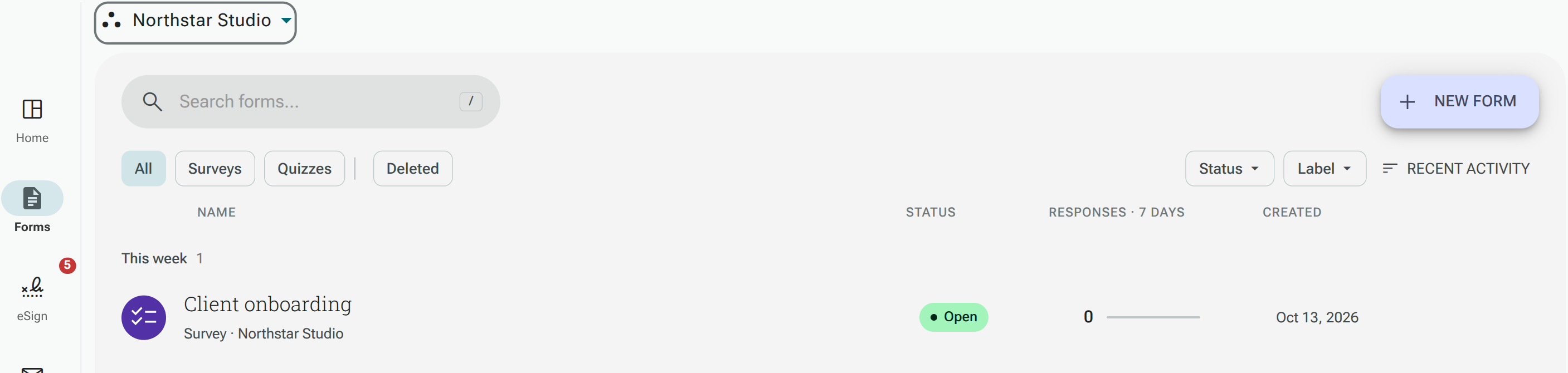
Filtering and Searching your Projects
Section titled “Filtering and Searching your Projects”Once you’ve been using the service for a while, you’ll find that you have a long list of created projects. Use the view chips above the forms table to filter your projects.
- All: forms in the selected workspace scope
- Surveys and Quizzes: filter by form type
- Deleted: deleted forms
The available view chips depend on your account and forms.
The workspace selector above the table lets you choose your personal forms, all workspaces or a team workspace. The Status and Label filters narrow the list further.
Each item in these lists will show:
- Send/creation date
- Response Count
- A control to add a Label
Manage several forms together
Section titled “Manage several forms together”Tick the checkboxes beside the forms you want to manage. The selected-items bar offers Move, Close and Delete. Review the confirmation and the outcome notification, especially if some forms are skipped or an operation only partly succeeds.
See Bulk Actions for Forms and Email Campaigns for the full instructions and restrictions.
Searching for Projects
Section titled “Searching for Projects”Enter keywords into the Search Bar to find specific projects.
The Project Menu
Section titled “The Project Menu”If you select a project in Forms, its details panel opens alongside the table. This will allow you to:
- Edit the project
- Share your Project
- View Results
- Open the form and use its Actions tab to manage Actions for that form
- Copy a Project
- Rename a Project
- Move the project to a different Workspace
- Close a Project
- Re-Activate a Project (the button is labeled Activate)
- Delete Project Results
- Delete a Project
See the Project Menu article for the full rundown of each option, including labeling a project, which now happens directly on the project’s card rather than through this menu.
Deleting or Clearing your Project
Using the ‘Delete’ option in the Project Menu will shift your project to the Deleted view. After a project is deleted, a confirmation notes it will remain there for about a month, during which it can be restored. It is possible to recover the project at this time, but not after that period has passed.
Deleted Items
Section titled “Deleted Items”If you delete a project whilst it’s already in the Deleted view, a confirmation warns that this is permanent and cannot be undone. I.e. You will not be able to recover it.
Labeling (Tags) a Project
Section titled “Labeling (Tags) a Project”You are able to ‘Label’/ ‘Tag’ projects in order to organize them further. You can achieve this by:
- Opening the form’s details panel and using its label control
- Typing to search your existing labels, or typing a new label name
- Pressing Enter to create the label and apply it in one step
Suspending a Project
Section titled “Suspending a Project”By choosing the ‘Close’ option in the Project Menu, you can suspend a survey, quiz, or calculator, after confirming in a dialog. This will stop any respondents from submitting responses for the time in which the project is suspended, and disables the Send option. When attempting to respond to a suspended project, respondents will be shown a message informing them that it has been closed.
You can also re-open/ re-activate a project using the same process as above; the ‘Close’ button will have been replaced with an ‘Activate’ button, which takes effect immediately with no confirmation needed.