
Use a Custom Domain for Form Links
A custom domain lets respondents open public form links under your website address. It changes the domain and folder; customizing the form link changes the final URL slug. These are separate options.
The feature uses a small HTML wrapper hosted on your website to display the form in an iframe. You need access to upload files to your website, and a plan that includes custom domains.
Configure a custom domain
Section titled “Configure a custom domain”- Open a published form’s Send → Link tab.
- Beside Domain, select Change to open Custom domain configuration.
- Select this file in the dialog to download the HTML wrapper.
- Upload the file to the folder on your website where you want to host forms.
- Enter the full domain and folder address in Domain, such as
https://example.com/s, then select Save.
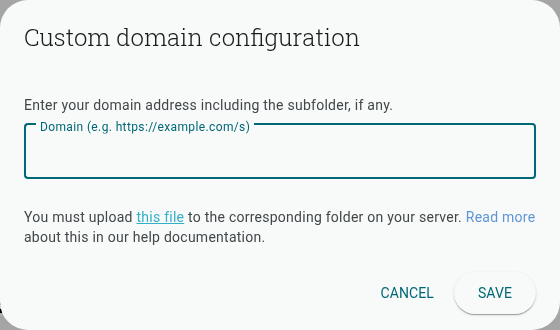
The public link now uses that domain and folder. Test the link after uploading the wrapper. Custom domain hosting does not change the form’s URL slug; use Customize URL for that.
You can also white label the form to remove Shout branding.