
Add a Single Contact
If you’ve gained permission to add a contact to your list, you can manually add them individually rather than using the import tool.
Add a single contact manually
Section titled “Add a single contact manually”- Go to Contacts in the top navigation.
- Click the + icon above the contact list, then select New contact.
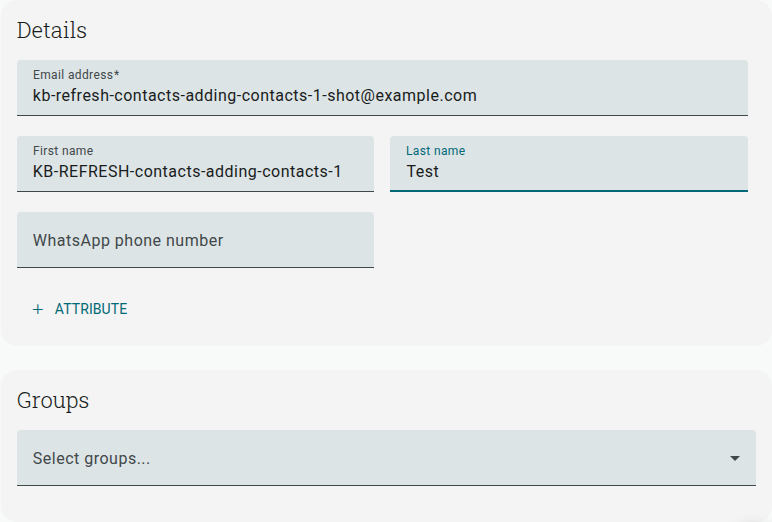
- Enter the contact’s Email address (required), plus any other details you have — first/last name, phone number, address, and so on.
- Under Groups, select the group(s) you’d like to add them to.
- When you’re done, click Save.
If a contact with that email address already exists in your list, saving will update their existing record rather than create a duplicate.
You must have gained explicit consent from a contact before adding them to your list.
To add multiple contacts from a spreadsheet or file, use Import contacts from a file instead. To read contacts directly from a connected service, use Import contacts from an app.