
Add a Logo to Emails
We don’t provide a specific block for adding a logo to emails, but this is easily achievable using the Image Block.
How to add a logo to your email
Section titled “How to add a logo to your email”To add a logo to your email:
-
Click the Content tab in the left sidebar
-
Left-click and hold the Image block and drag it into your email
-
When you see a bold blue line, release the left mouse button to drop the block into place
-
Click the Image Block you’ve placed into your email to open the options
-
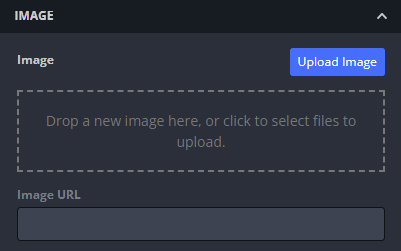
Click Upload Image, or drag and drop an image onto the dropzone underneath it
-
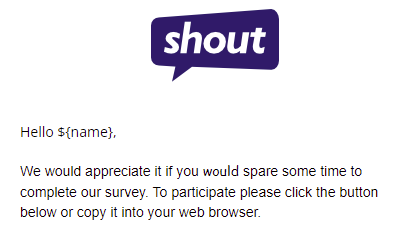
Your logo will then be displayed
How to resize your logo
Section titled “How to resize your logo”To ensure the best possible image quality, we’d recommend that you upload your logo in the exact size you would like it to display.
However, you can resize images in the email builder:
- Click the logo
- In the Width row of the image block options, turn the Auto On toggle off
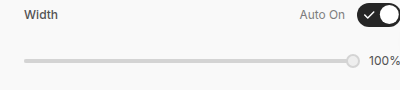
- This will give you access to a slider that changes the width of the image content block, shown as a percentage
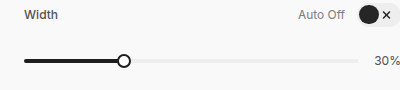
- Use the slider to increase and decrease the size of your logo
How to add a link to your logo
Section titled “How to add a link to your logo”To add a link to your logo, e.g. to your homepage, all you need to do is:
- Click the logo
- Navigate to the Action section in the image options slideout on the left
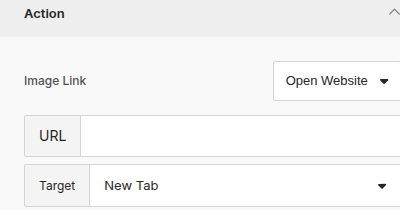
- Enter a URL below the Image Link section
- Use the Target dropdown below to choose whether your link opens in the same tab or a new tab
Add alt text to your logo
Section titled “Add alt text to your logo”- Click the logo
- Navigate to the Image section of the image options slideout on the left
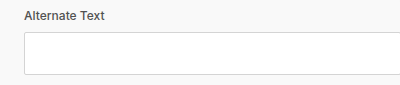
- Type your logo alt text into the Alternate Text field
How to delete your logo
Section titled “How to delete your logo”To delete your logo:
- Click your logo
- Navigate to the Image section of the options slideout on the left
- Highlight the Image URL
- Use the backspace key to delete it
This will delete the logo image but will leave the Image block in place in your email.