
Preview Emails on Desktop
You can both edit and preview emails in the Desktop and Mobile view whilst in the email builder.
Previewing in desktop and mobile mode
Section titled “Previewing in desktop and mobile mode”To see a preview of your email content, click the eye (Preview) icon in the bottom right of the email builder toolbar.
 This opens a preview overlay where you can switch between Desktop, Tablet, and Mobile widths (plus a pixel-width dropdown and a dark mode toggle).
Desktop preview
Section titled “Desktop preview”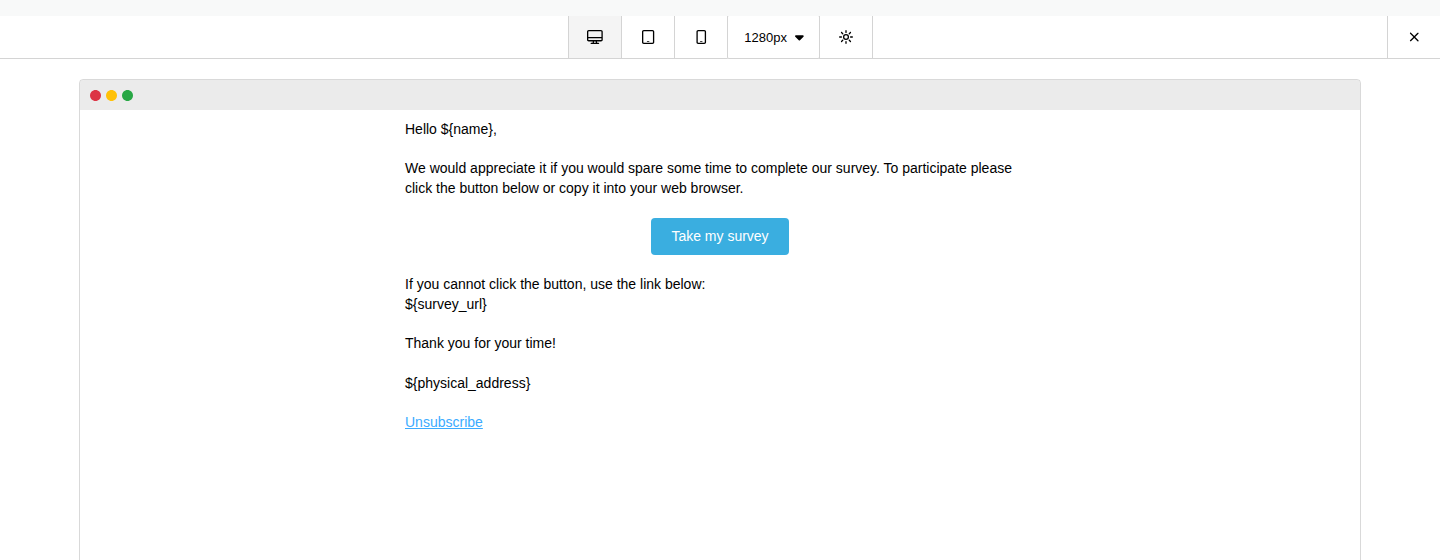
Mobile preview
Section titled “Mobile preview”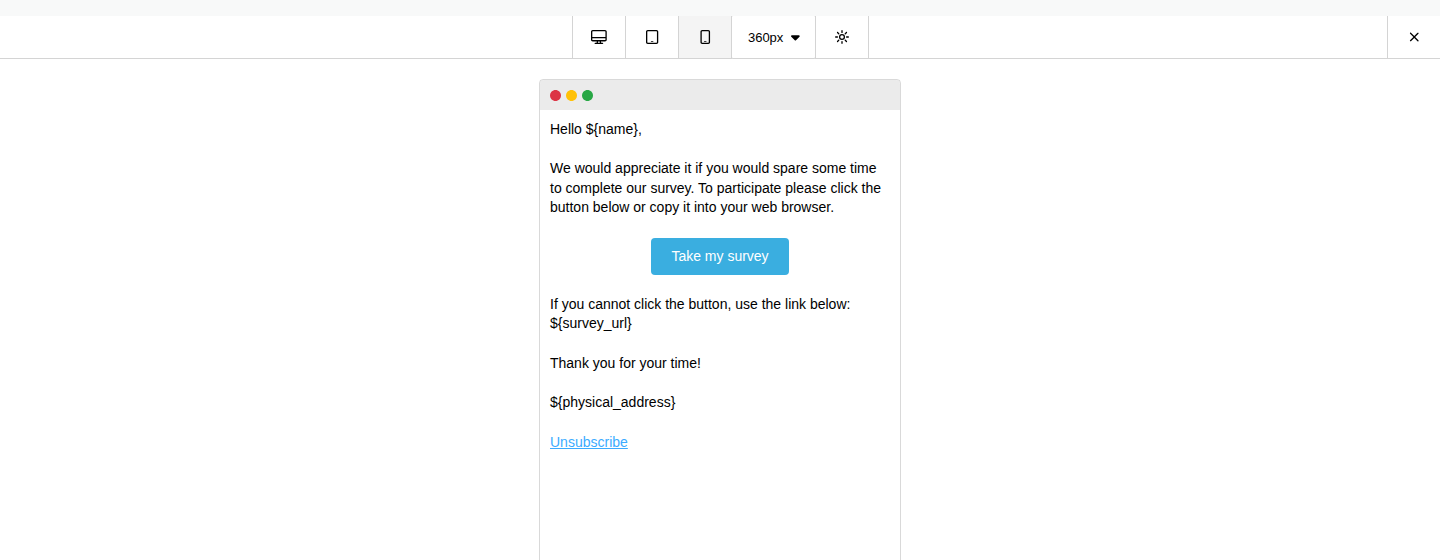
Edit emails in Desktop and Mobile views
Section titled “Edit emails in Desktop and Mobile views”You can also edit your emails in mobile and desktop mode. By default, you will be taken to the Desktop editor when editing your email content.
Switch to Mobile Editor
Section titled “Switch to Mobile Editor”To switch to the mobile editor, click the Mobile icon in the bottom right toolbar (next to the Preview icon).
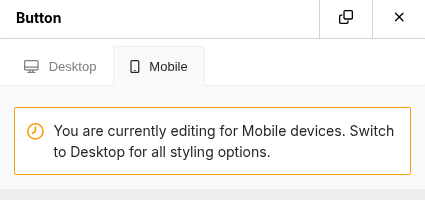
Or you can select any block in your email and then switch to the Mobile tab at the top of its settings panel on the left.
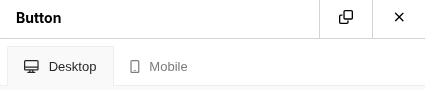
This switches that block’s settings panel to show mobile-only options, along with a banner reminding you that you’re editing for mobile devices.
Switch back to the desktop editor
Section titled “Switch back to the desktop editor”To switch back to the desktop editor, just select the Desktop icon in the bottom right toolbar, or click a block and switch to the Desktop tab in its settings panel.