
Multi-Factor Scales
What is a Multi-Factor Scale?
Section titled “What is a Multi-Factor Scale?”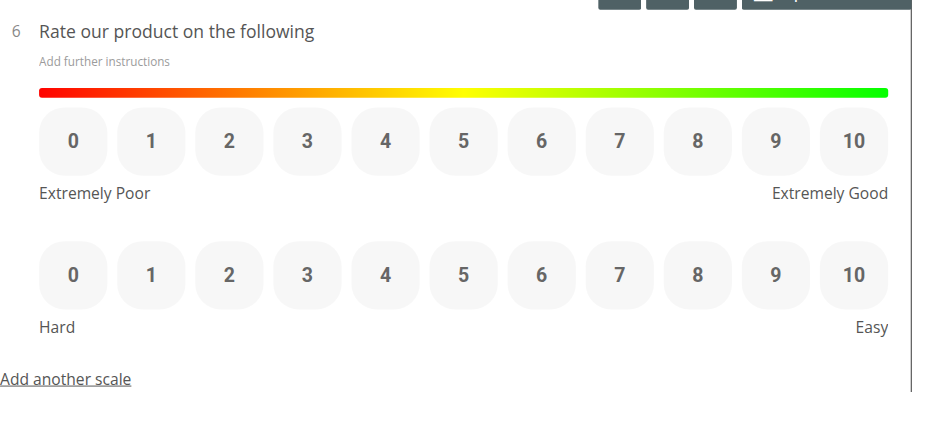
Multi-Factor Scales give your respondents the means of evaluating one question or statement against multiple scales.
Under the hood, this isn’t a separate widget from Opinion Scales — it’s the same Opinion Scale question with a second scale already added. Picking “Multi-Factor Scale” from the question picker is just a shortcut that starts you off with two scales instead of one; you’ll still see it labelled “Opinion Scale” once it’s on the canvas.
Why use a Multi-Factor Scale?
Section titled “Why use a Multi-Factor Scale?”These question types prevent your survey from becoming too crowded with individual Opinion Scales when they could be consolidated into one space. They are also useful for gathering multiple assessments or perspectives on a singular question or topic.
How do I create a Multi-Factor Scale?
Section titled “How do I create a Multi-Factor Scale?”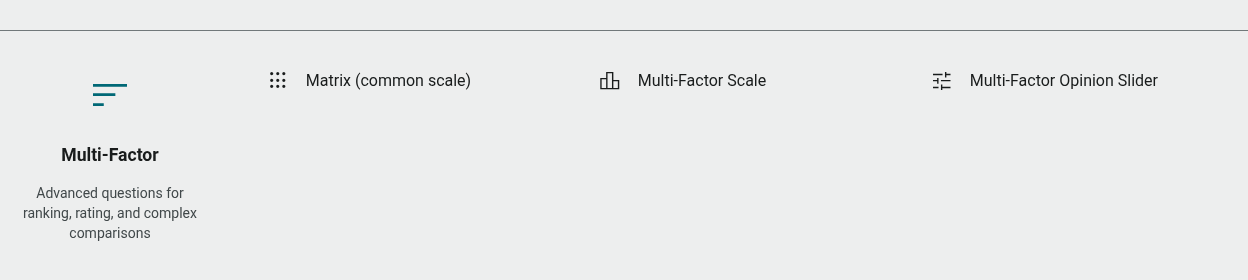
- Open the Build tab, and make sure you’re on the Questions tab in the sidebar
- Click + Question
- Select Multi-Factor Scale from the Multi-Factor category
- Enter your question text
- Click the text labels at either end of each scale to assign your own extreme titles
Add More Scales
Section titled “Add More Scales”- Under the question, click Add another scale
You can also turn a regular single Opinion Scale question into a multi-factor one the same way — “Add another scale” is available on every Opinion Scale question, not just ones created via the Multi-Factor Scale shortcut.
Default Settings
Section titled “Default Settings”Two scales will be present by default once you’ve inserted a Multi-Factor Scale: one scaled from ‘Extremely Poor’ to ‘Extremely Good’, and the other from ‘Hard’ to ‘Easy’. These are easily changeable by clicking the text and inserting your own extreme titles.
A Rating Heat Bar is included by default, but you can toggle it off in the settings panel. Settings like Required, Numbered, and the range apply to the whole question — all of its scales share the same range and options.
Question Settings
Section titled “Question Settings”Click Show more settings under the question for the full set of options:
- Numbered: This button toggles the numbering for the concerned question.
- Rating Heat Bar: This allows you to toggle the visibility of the Rating Heat Bar. This is for visual purposes only, and cannot be interacted with by respondents.
- Required: By checking this box, respondents cannot finish the survey without completing the question.
- Selection type: Use this drop-down to switch between the scale and slider format — switching it to Slider turns this into a Multi-Factor Opinion Slider instead.
- Range start / Range end: Set the start and end range numbers for your scale.
There’s no separate “Personal info” toggle for this question type — if you need answers tied to a respondent’s contact record, use one of the dedicated Contact Details question types instead.
How respondents interact with Multi-Factor Scales
Section titled “How respondents interact with Multi-Factor Scales”Participants will be able to click a point in the scales in order to select it. To change this selection, they merely need to choose another answer option, and it will be adjusted accordingly.
How to analyze the Quick Report?
Section titled “How to analyze the Quick Report?”On the left of your Data Table, you’ll find the titles of your extremes that correspond with the scales you provided. In the center will be your range of answer options, and then to the right, you’ll see statistics concerning standard deviation, number of responses, and weighted averages.
By default, your results use a diverging stacked bar chart, with both scale poles named. Use the question item’s chart menu to choose another available type.
Note: this reporting section was not re-verified in this pass.
For more detailed instructions on analyzing your report, you can visit either of these articles: