
Date Range
This question type allows you to collect a date range from respondents, e.g. FROM: 27th August 2020 - TO: 3rd September 2020.

Note: Date Range question types can be used in quizzes, but points cannot be applied.
How are dates formatted?
Section titled “How are dates formatted?”Respondents will see a date format based on the language settings of their device. However, all dates collected will be converted to the preferred date format of your own device when you view your results.
Default Settings
Section titled “Default Settings”When you insert a Date Range question type, two text fields — each with a calendar icon that opens a date picker on click — are shown side by side. You can add a field for respondents to enter a time with each date from the question settings.
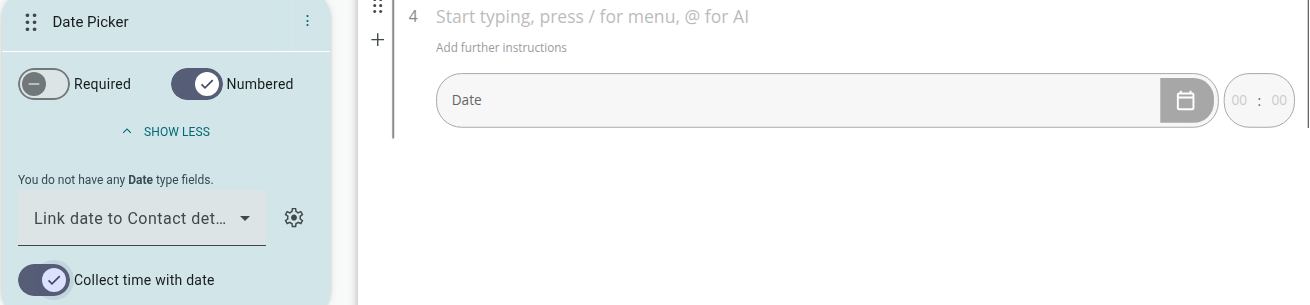
The text fields will say ‘From’ and ‘To’ by default. These can be edited like any other text field.
Adding A Date Range Question Type
Section titled “Adding A Date Range Question Type”- Open the Questions tab in the builder sidebar
- Click ‘Question’ to open the question type picker
- Under Standard Questions, select Date Range
- Enter a Question/ Instructions
- (Optional) Click a text field to edit the field text
- (Optional) Add a Time Field from the question’s settings panel
Can you remove one of the calendars?
Section titled “Can you remove one of the calendars?”No, this is not possible. You should consider using the Date question type.
Question Settings Bar
Section titled “Question Settings Bar”Clicking the question in the builder expands its settings directly beneath it. For Date Range questions these are:
- Required: By checking this box, respondents cannot finish the survey without completing the question.
- Numbered: This button toggles the numbering for the concerned question.
- Link ‘start’ date to contact field: Pass the FROM date collected by this question to a contact field in your CRM.
- Collect time with date: Add a time field next to the ‘From’ date field, in which respondents can enter a time.
- Link ‘end’ date to contact field: Pass the TO date collected by this question to a contact field in your CRM.
Analyzing Date Ranges in the Report
Section titled “Analyzing Date Ranges in the Report”
Date Range results will be stored as text responses in your Report (the Results tab, previously called the Quick Report), as seen in the picture above. The date/time on the left will be the FROM date, whilst the data on the right represents the TO date. They will appear in the order that they were submitted by respondents, from top to bottom.