
Applying Multiple Filters to Your Results
It is possible to apply more than one filter in your report. However, there are a few things to keep in mind whilst doing this.
How to Apply a Filter to your Results section
Section titled “How to Apply a Filter to your Results section”Below you’ll find the necessary steps for applying a filter, which you can find more information on by visiting the How to Filter and Compare Results article.
- Open the Results section for your project
- Click ‘Filter & Compare’ in the sidebar
- Click ‘Add Filter’ (or ‘Edit Filter’ if a filter already exists) — this opens the Edit filter dialog
- Choose what to filter by from the ‘Filter by’ dropdown (e.g. Contact Group, Form Completion, Contact fields, Campaigns…) and set its condition
- Click ‘+ OR’ to add another rule to the same group, or ‘+ AND’ to add a new rule set below (see next section)
- Click ‘Save’ once the warning “Your filter is incomplete” has cleared
Whilst applying multiple filters to your report, you will also have to set rules for how these filters interact. These are the AND and OR rule sets described below.
And rule set
Section titled “And rule set”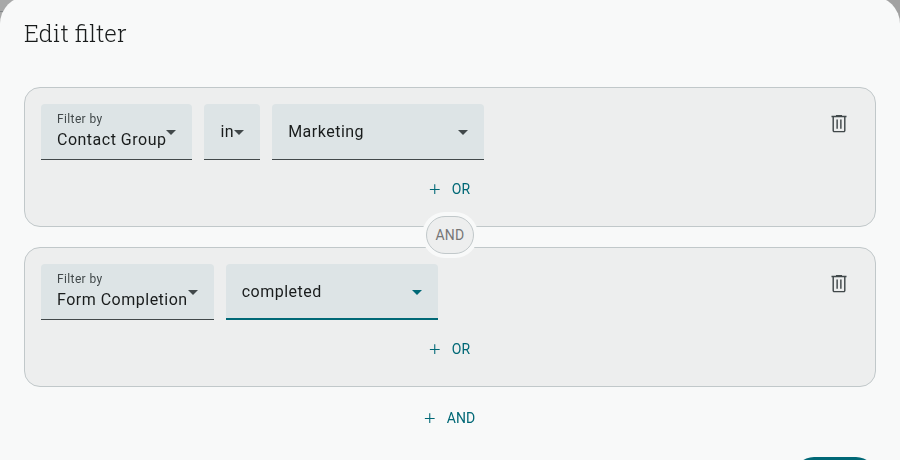
The AND option will filter your results down to the respondents who match all the filter rules you apply. The above image illustrates two filter rules connected by AND. It is currently filtering a report based on respondents being in the Marketing contact group AND having completed the form.
OR rule set
Section titled “OR rule set”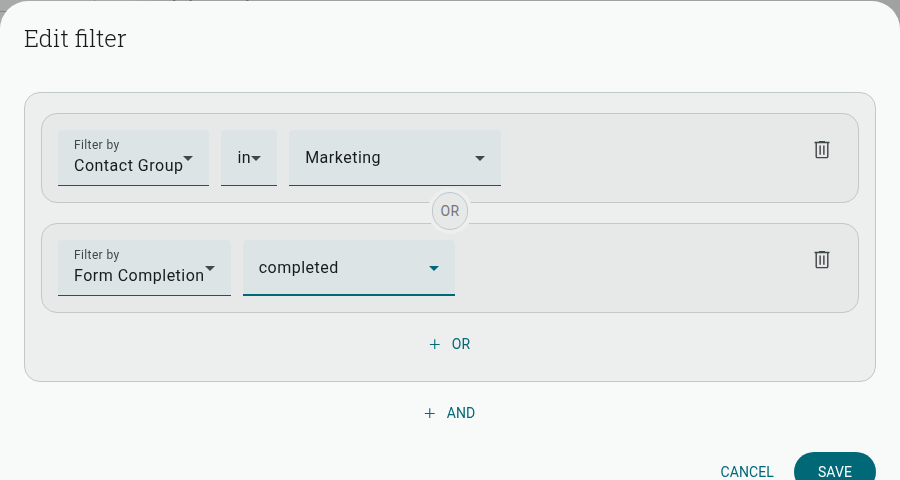 The OR option will filter your results to respondents who match any of your filters. These are the same filter rules applied as above, but connected by OR instead. This would filter a report to show respondents who are in the Marketing contact group, or respondents who have completed the form (or both).
How to add a rule set
Section titled “How to add a rule set”Rule sets allow you to add more filters that act within the parameters of the filters you have already set.
To apply an AND or OR rule set to your report:
- Open ‘Filter & Compare’ in the sidebar and click ‘Add Filter’ / ‘Edit Filter’
- Set up your first rule (or rule group, using ‘+ OR’)
- Click ‘+ AND’ below the group — this adds a new rule set connected by an AND badge
- Set the filter-by condition(s) for the new rule set; use ‘+ OR’ within it to add more rules to that set
- Click ‘Save’
Here’s an example of how this would work:
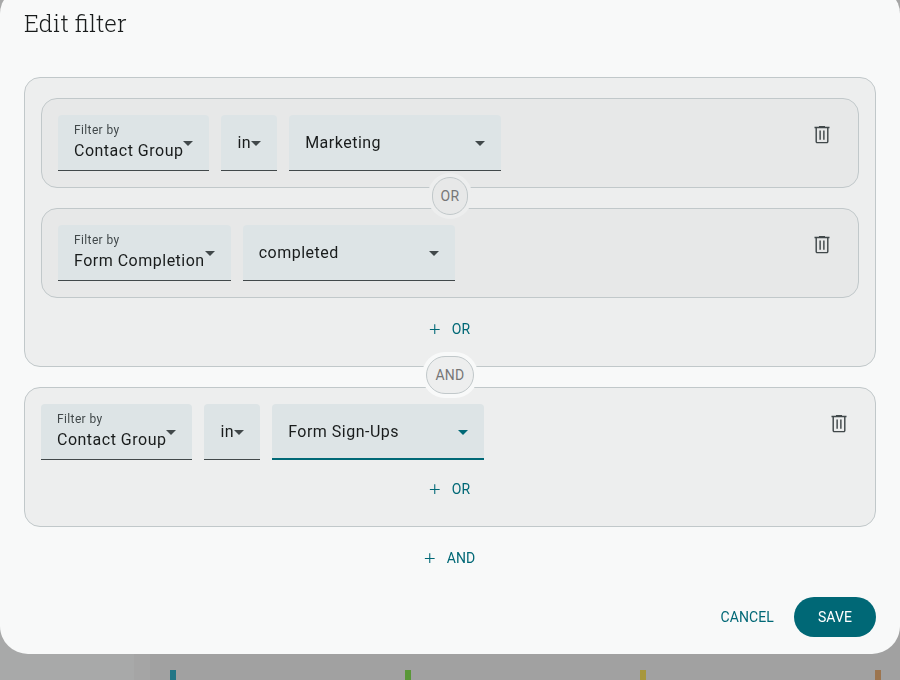 In the above screenshot, you’ll see a filter showing anyone in the Marketing contact group OR who has completed the form.
An additional rule set has been applied below (connected by AND) to further filter the data down to respondents who are also in the Form Sign-Ups contact group. This would now only display results from respondents who match the first rule set AND are in the Form Sign-Ups group.