
List of Question Types
We have a wide selection of question types to be employed in the creation of your surveys, forms, and quizzes. These include Standard Questions, Contact Details, Special, Multi-Factor, Picture Choice, and Split Testing question types. To access them, from the Build tab:
- Make sure you’re on the Questions tab in the left sidebar
- Click + Question next to any page (or click the + that appears beside any existing block)
- You can also click into the empty “Click to add text or a question” area at the end of a page and type / to open the same picker
The picker is organized into categories — Content Items, Standard Questions, Contact Details, Special, Multi-Factor, Picture Choices, and Split Testing — each with a short description of what it’s for. Search at the top of the picker filters across all of them.
To insert a question, click the type you wish to use — it’s added at the position you opened the picker from, and you can drag it (via the handle on the left) to re-order it afterwards. From here you’re free to edit, delete, and re-arrange questions to your heart’s content.
You can even make cosmetic changes (text, images, and some settings) to your project once it’s been launched, but to add, remove, or re-order answer options you must delete all responses for the question.
Standard Questions
Section titled “Standard Questions”Below is a list of standard question types, which can be used to build your projects. Each type is tailored to gather respondent opinions and experiences in unique ways.
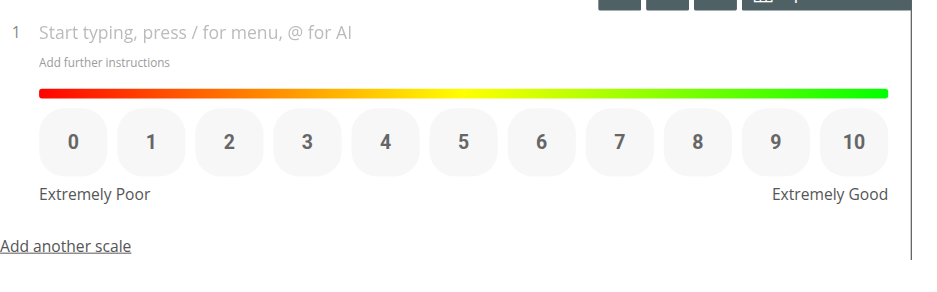 Provide your participants with a numbered scale, which can be accompanied by an optional heat bar to support their evaluation of the question, and better frame their answer.
 Create a multiple-choice question, where participants can select a single answer.

Collect more than one answer from respondents using a single, multiple-choice question. In the picker this is labelled “Multi-Choice (Multi Select)”.
 Ask participants to assign a star rating to a subject or statement.
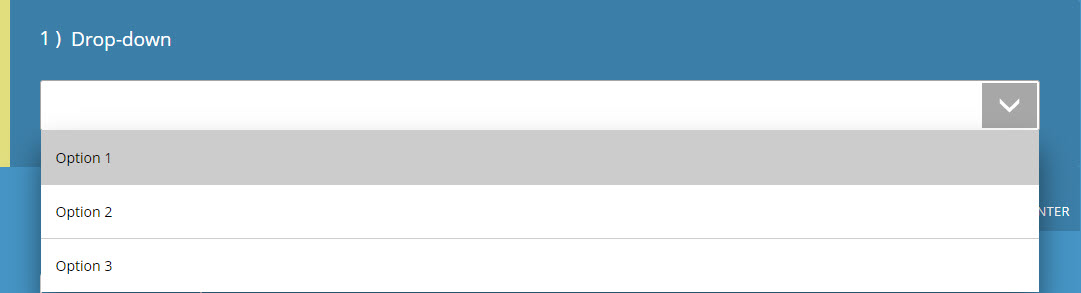
Allow your participators to select an answer from a drop-down menu. This is a similar format to the Multi-Choice (Single Select) question type, but may be more suitable for questions with a more substantial list of answers: e.g. country of origin.
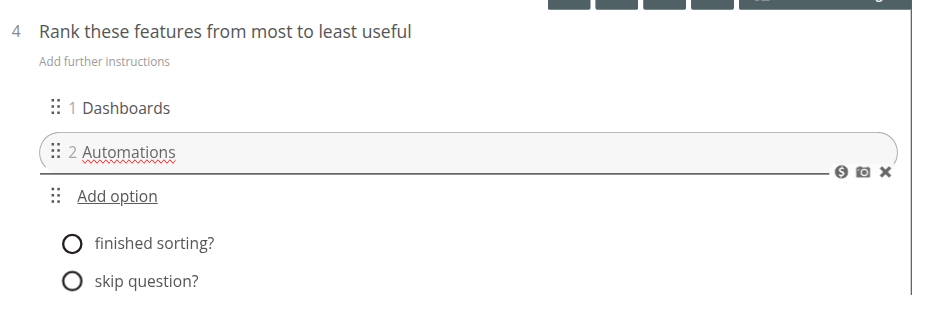 Display a list of items that require the respondent to rank the options in ascending or descending order.
 Like the Opinion Scale question type, participants can rate a subject or statement using a slider — in the picker this is labelled “Opinion Slider”. A separate “Numeric Slider” type is also available for questions that need a plain numeric range rather than worded extremes.
 A basic text entry box, allowing for a large amount of text to be entered. Labelled “Comments / Essay box” in the picker.
 A smaller text box, with room for a few words or a short sentence.
 A customizable number of text boxes, which all relate to one question. You are able to set headings/ prompts to each box, allowing you to tackle several smaller topics concerning one subject. Labelled “Text Boxes (multiple)” in the picker.
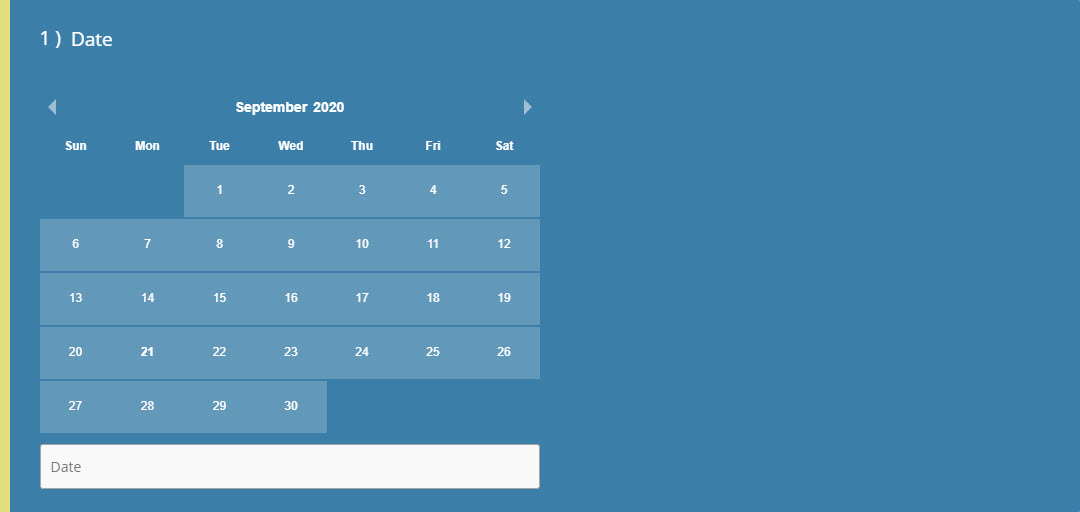 Respondents can select a single date from a calendar.
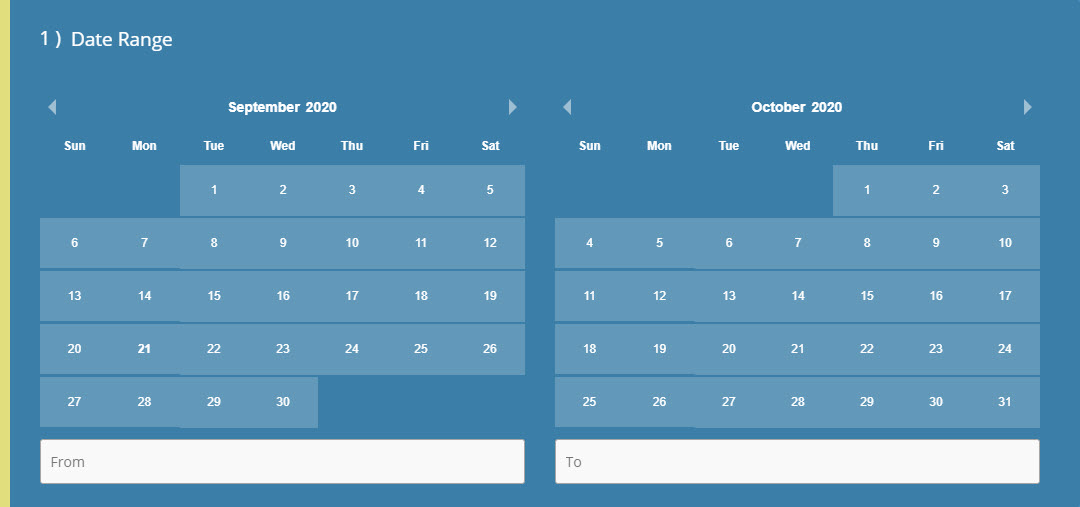 Respondents can select a date range.
The Standard Questions category also includes a few newer types not covered in their own articles yet: Binary Yes/No (a two-option Yes/No question), Number / Money (a numeric or currency input), Numeric Slider (a slider over a plain numeric range), and Payment (collects a card payment as part of the form).
Contact Details
Section titled “Contact Details”These question types write directly to the respondent’s contact record in your contact list, rather than being stored only as a survey answer. They cover the fields that used to be handled by marking any question as PII: Full Name, Email address, Telephone number, Address Lookup, and Compact Contact Form (a bundled name/email/phone block), plus a couple more available behind “Show 1 more…” in the picker. Whether a form saves contacts at all — and to which contact group — is controlled separately, under Settings → Contact Saving.
Special
Section titled “Special”A newer category covering advanced or compliance-related needs: Net Promoter Score®, Consent (for GDPR-style consent capture), eSignature, External Datasource (hidden questions populated from elsewhere, e.g. a URL parameter), Restart Form Button, and File Upload.
Multi-Factor
Section titled “Multi-Factor”These question types are perfect for more complicated projects, where a more in-depth or multi-factored response is required from participants. Under the hood, Multi-Factor Scale and Multi-Factor Opinion Slider are the same widgets as Opinion Scale and Opinion Slider respectively, just started with a second scale/slider already added — see the individual articles for details.
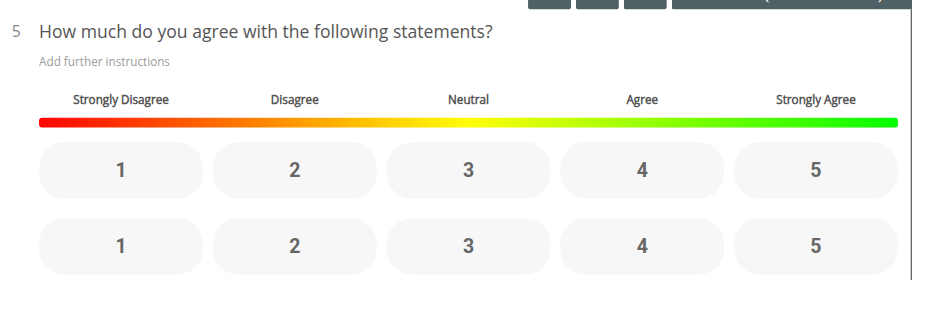
Also known as a Table Grid or Rating Grid, this allows for multiple questions (rows) to be rated or evaluated under a single set of column headings. By default it starts with five columns (e.g. ‘Strongly Disagree’ through ‘Strongly Agree’) and two unlabelled rows for your own sub-questions.
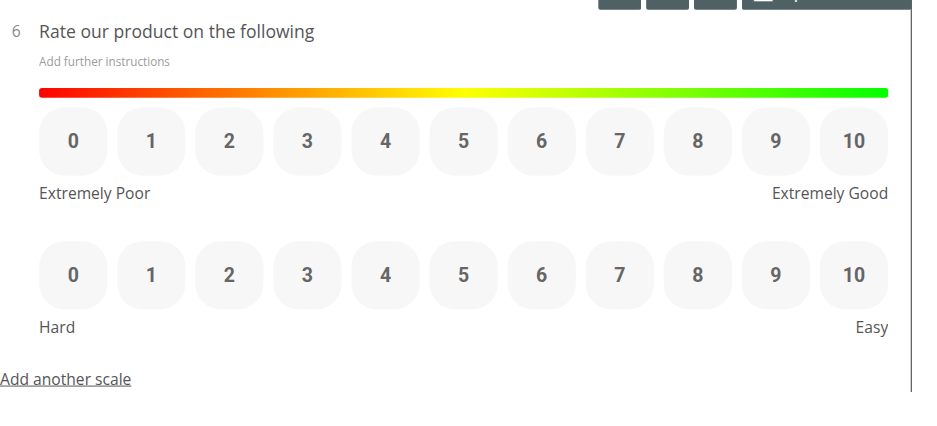 You may have also seen this referred to as a Likert Scale. These provide you with a means of requiring ONE question to be evaluated under numerous scales.
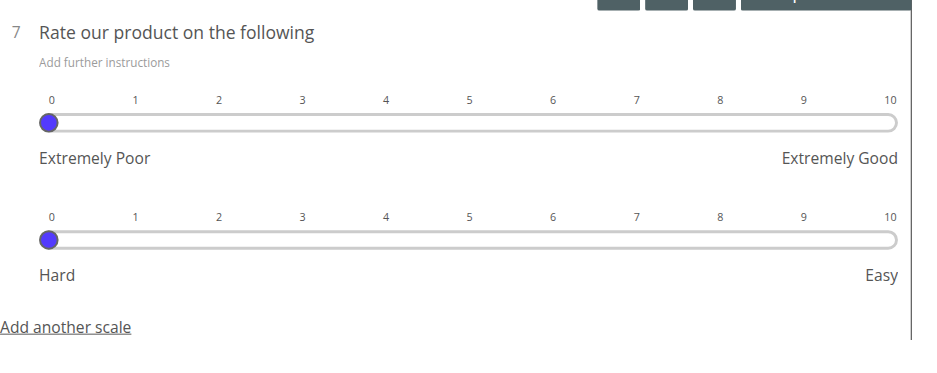 Supply a statement or question that can be rated by one or more scales, in the form of sliders. In the picker this is labelled “Multi-Factor Opinion Slider”.
Picture Choices
Section titled “Picture Choices”The addition of pictures to a survey or quiz doesn’t only improve its visual design, but can also grant further clarity and understanding to questions.
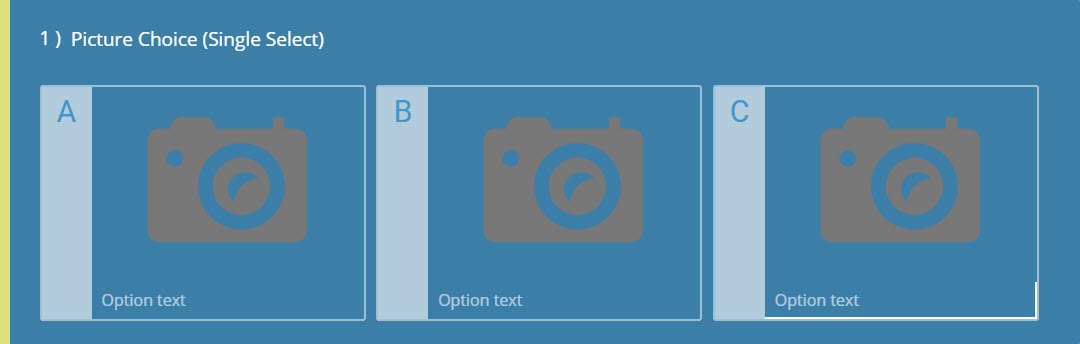 This question type acts as a Multi-Choice (Single Select) question, but with an additional ability to attach images to the answer options.
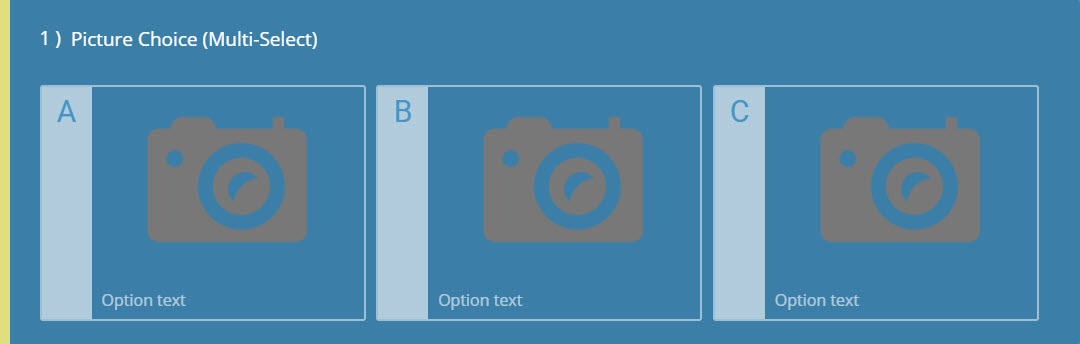 Like the Multi-Choice (Multi-Select) question type, more than one answer can be selected. However, this alternative gives you the ability to attach images to your answers.
The picker has one Picture Choice entry. It starts in single-select mode. To allow several choices, open Show more settings and change Multiple selections → Maximum, then confirm any warning about the change to multi-select.
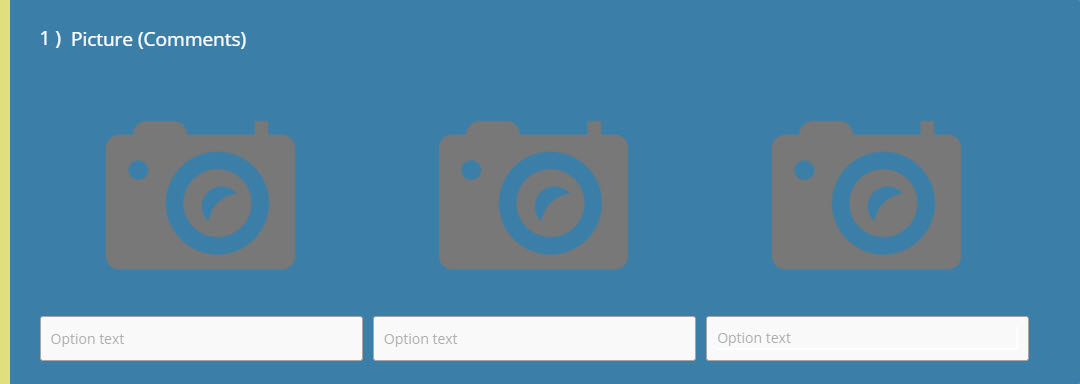
Provide a set of images to be evaluated or analyzed by respondents. These images are accompanied by corresponding textboxes.
Split Testing
Section titled “Split Testing”A newer category for A/B testing different versions of a question: AB Text, AB Image, and AB Video let you show respondents one of several variants and compare how each performs.
That rounds up the basics of each of our available question types. If you require further information, you can visit the individual articles for each. We’re constantly looking for ways to improve your projects, so don’t hesitate to get in touch via our chatbox.