
Formatting Text
Text formatting can be applied to questions, text fields, and page descriptions in surveys, quizzes, and forms.
How to Access the Text Formatting Menu?
Section titled “How to Access the Text Formatting Menu?”The text formatting menu will appear when you highlight a section of text in a question, paragraph, or heading field.

From here you will be presented with a list of text formatting options, which are discussed further below.
Text Formatting Menu Options
Section titled “Text Formatting Menu Options”Below is the complete list of text formatting options available to you. These options include both aesthetic and functional settings:
- Bold
- Italics
- Bulleted list
- Numbered list
- Insert Dynamic Text
- Link
This typeface formats text with darker, heavier strokes than usual. It can be used when you want to emphasise the importance of a point or sentence.
Italics:
Section titled “Italics:”Text enriched with this style will format characters to slant upwards and to the right. This is used to distinguish certain words from others within the same piece of text.
Bulleted list / Numbered list:
Section titled “Bulleted list / Numbered list:”Turn the selected line(s) into a bulleted or numbered list — useful for breaking up instructions or a set of criteria within a question or page description.
Clicking the link icon opens a small URL field with a checkmark to confirm and an ‘X’ to cancel.
-
Insert Link: Highlight the text you want to link, click the link icon, then type or paste the address and confirm. To create a new line of text and embed your link within that, place your cursor on a new line before opening the link field.
-
Remove a link: Click the linked text to open its link controls, then select Remove link (the broken-link icon). This option is only relevant once you’ve inserted a link into the field.
See our how to insert a link article for more detail.
Insert Dynamic Text:
Section titled “Insert Dynamic Text:”This is the current name for what used to be called ‘Pipe Text From’. Use this feature to pull text from another source into your current field, personalising questions for respondents. Click the {} icon in the formatting menu to open the ‘Insert Dynamic Text’ dialog, which offers three data sources:
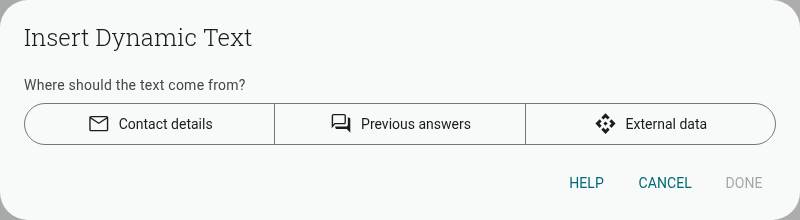
- Contact details: If you’ve imported Contacts to the app, pull in custom fields held on the contact record.
- Previous answers: Pull text from an answer a respondent has already given earlier in the same project.
- External data: Use Querystring or JavaScript API to source data passed in as Hidden Fields.
Head over to our Text Piping article for more information on this feature.
Note: Inserting an image between fields is no longer done from this menu — add an Image item to your page instead.