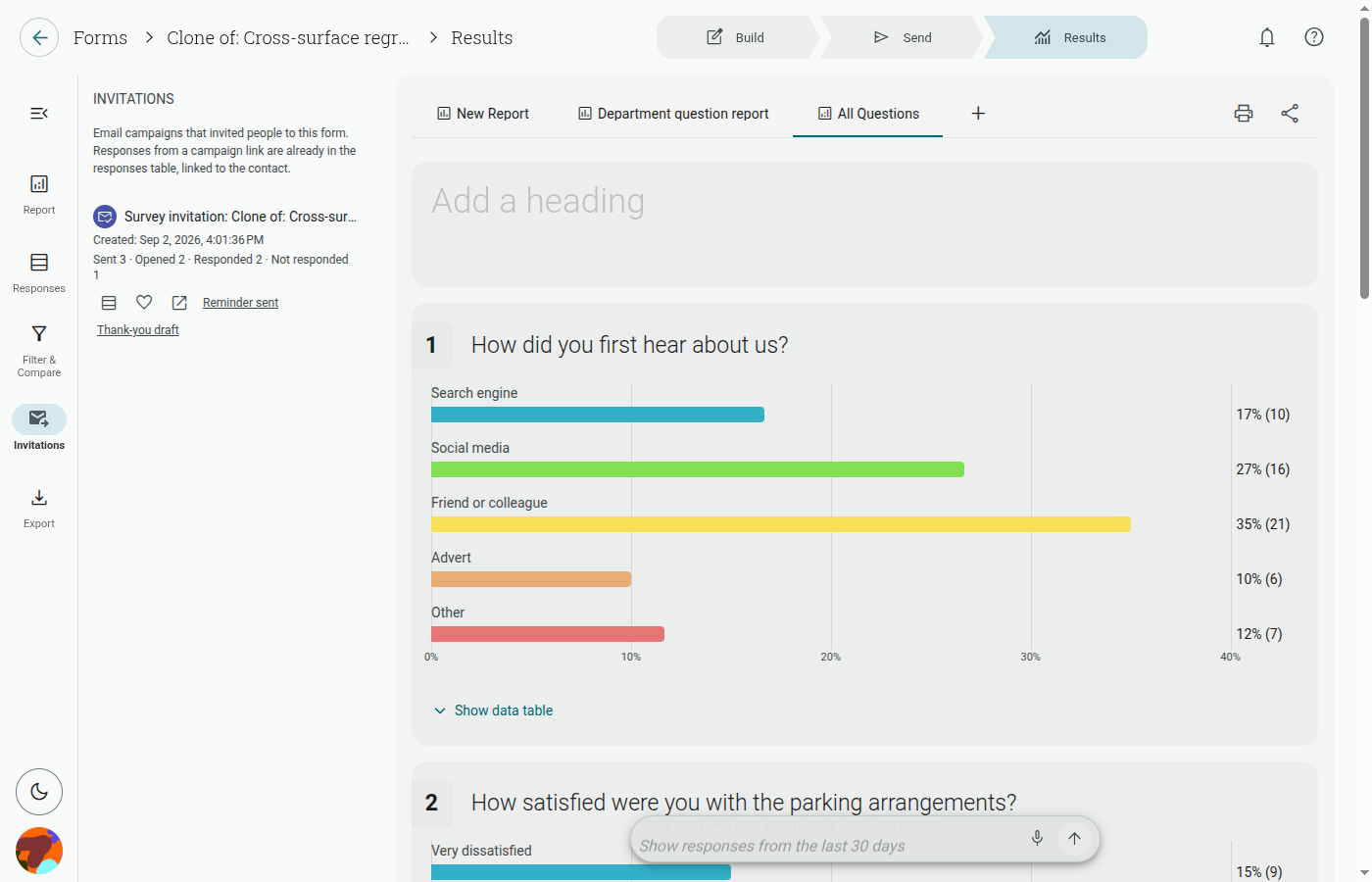
How to View Individual and Tracked Responses
Responses
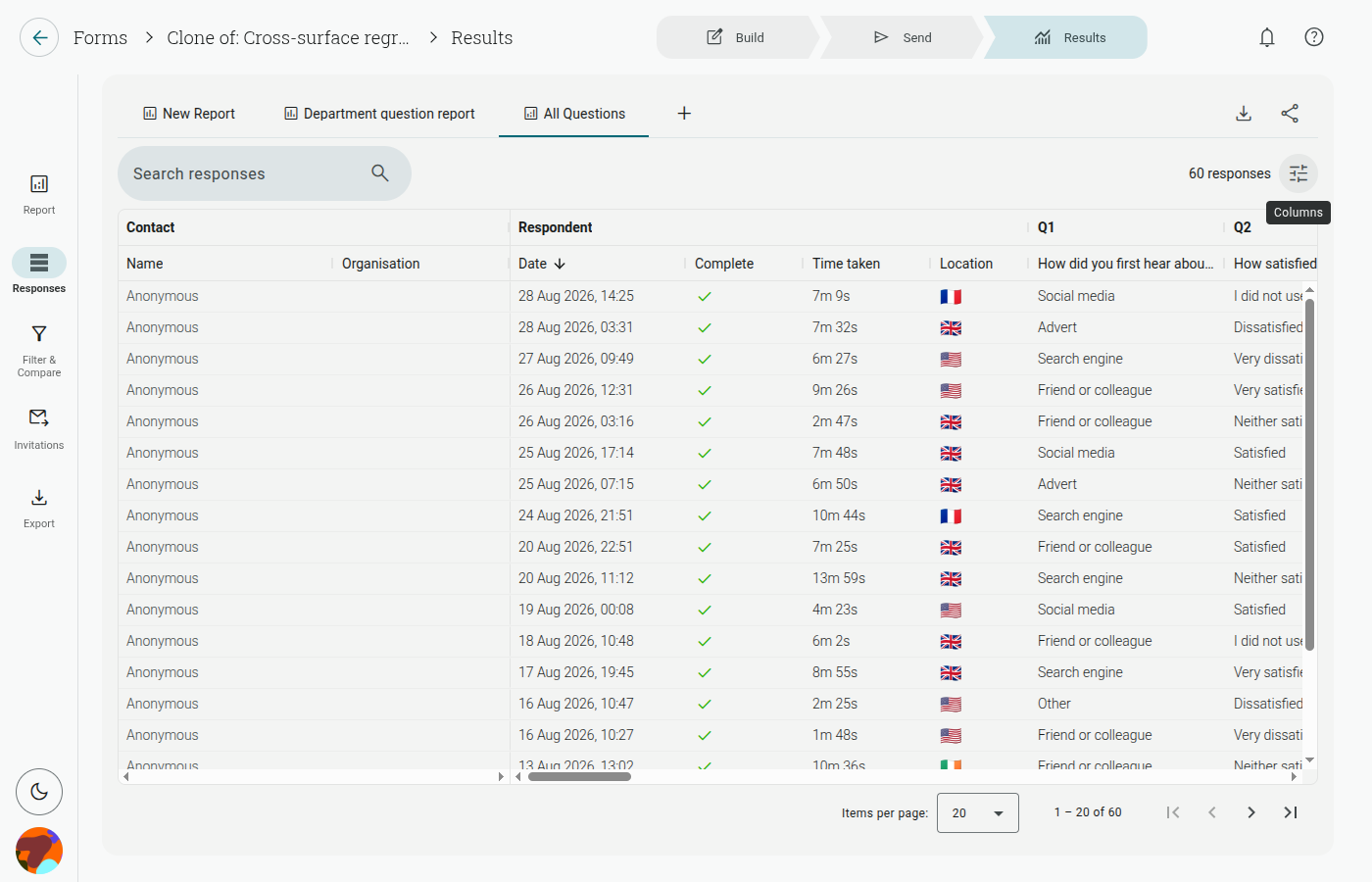
Section titled “Responses”Individual responses are now opened from the Responses icon in the left rail of Results.
- Open your project and go to Results.
- Select Responses in the left rail.
- Search or sort the table, or use the column chooser to change the columns shown.
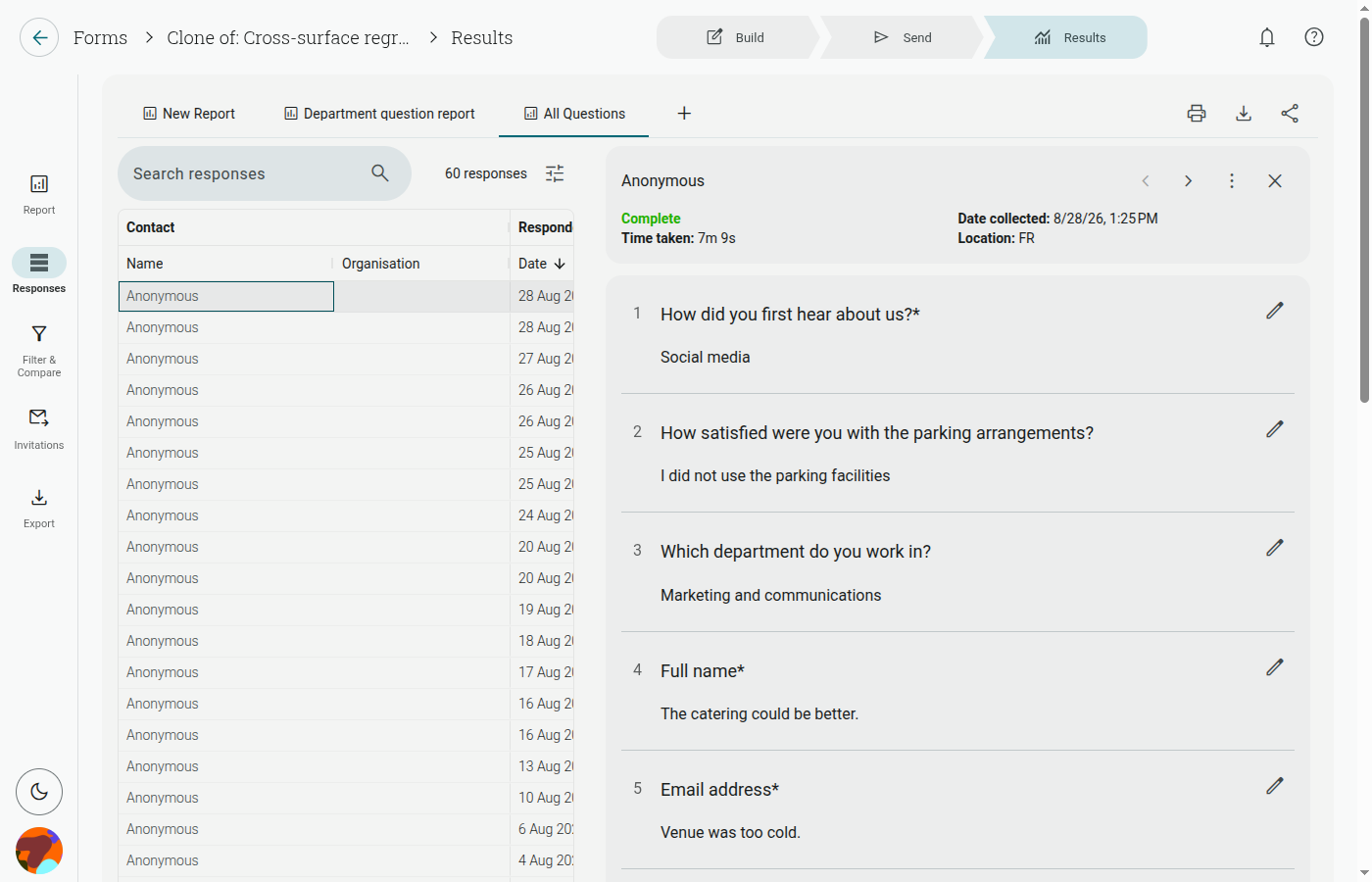
- Click a row to open that respondent’s response sheet.
The response sheet lets you read and edit answers, then print that response. Use the funnel in a table header to open the filter editor with that field preselected.
Invitations
Section titled “Invitations”Invitations replaces the old Tracked responses panel. It shows invitations from email campaigns, including whether each invitation was answered and its reminder or thank-you status. Open Invitations in the left rail to review campaign activity and follow up with recipients.
Tracking links a response to its invitation and contact. For anonymous collection, review collecting anonymous responses.