
Inviting Collaborators to a Project
Shout no longer has a per-project ‘Invite’ button — collaboration now works through Workspaces. Instead of inviting people to a single Survey, Form, Quiz or Calculator one at a time, you place the project inside a shared Workspace, and everyone with access to that Workspace can view and edit every project inside it. Please note that you can only add members of your Organization (What is an Organization?) to a Workspace, and other members must have accepted the invitation to join your Organization before you can collaborate with them.
Sharing a project this way still has the same benefits as before. Firstly, the project you’re creating may be a team effort, so this gives seamless access to all concerned parties. Secondly, it allows your project to be reviewed before it’s sent out to respondents.
Inviting Collaborators from the Dashboard
Section titled “Inviting Collaborators from the Dashboard”-
On the Forms dashboard, click the project you want to share to reveal its quick actions, then choose Move to workspace.
-
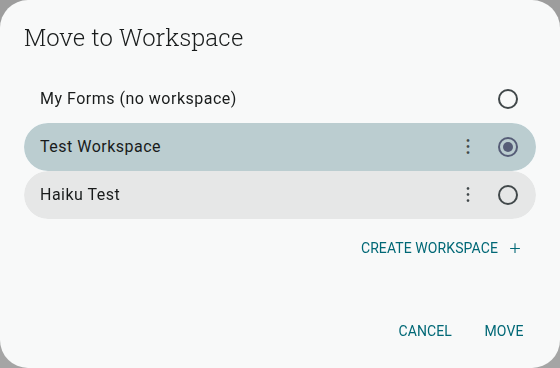
Pick an existing Workspace (or click Create workspace to make a new one), then click Move.
-
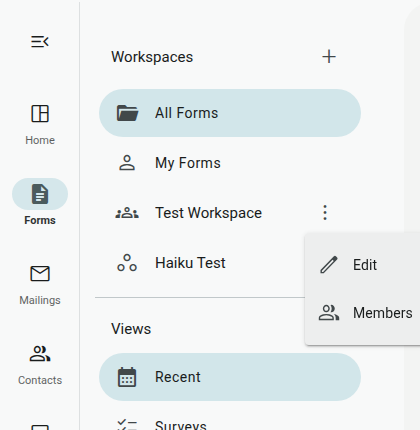
In the left sidebar, click the ⋮ icon next to the Workspace name and select Members.
-
Search for an existing team member (or group) to add them, or click Invite by email to invite someone who isn’t on your team yet — they’ll be added to your Organization once they accept, and gain access to the Workspace at the same time.
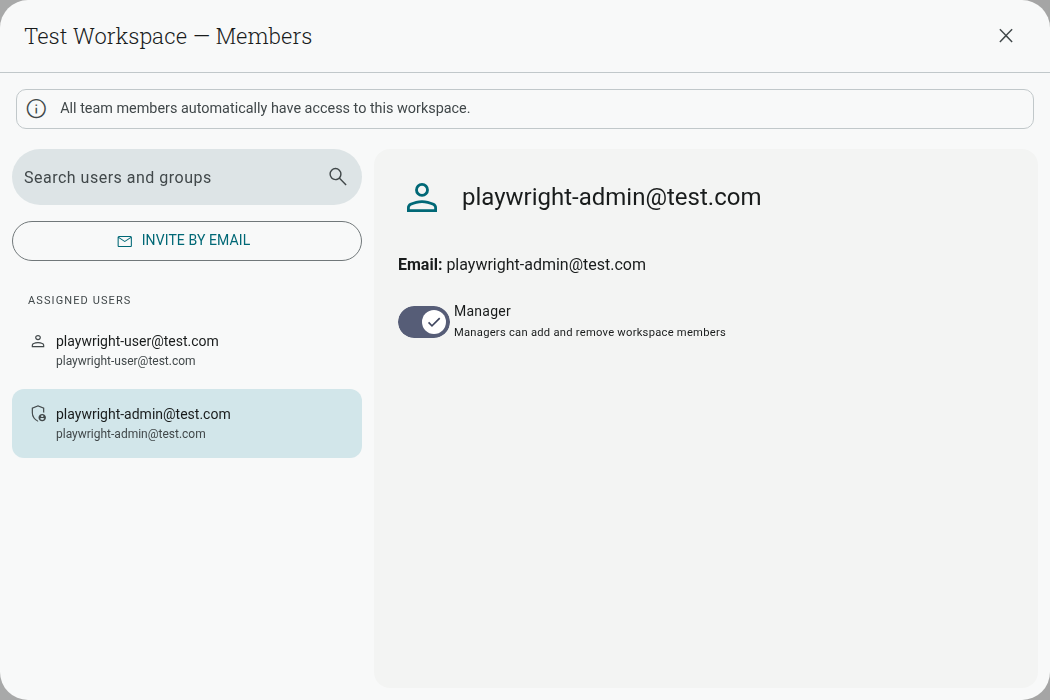
Some Workspaces are set so that all team members automatically have access (you’ll see a banner saying so in the Members dialog); others restrict access to specific people, added individually. Toggle Manager on a member to let them add and remove other Workspace members themselves.
Note: To remove a collaborator, open the Workspace’s Members panel and select them — a Remove from workspace button appears for anyone who was added individually. If the Workspace instead grants access to all team members automatically, remove them from your Organization’s Team (Account > Team) to revoke their access.
Reviewing a Project from Inside It
Section titled “Reviewing a Project from Inside It”The ’+’ button that used to sit in a project’s top bar is gone — sharing now happens from the dashboard (above), and once a colleague has access to a project’s Workspace, they can open it directly from their own dashboard too.
If you just want a colleague to proofread a project rather than have full edit access, open the project and select Comments in the left-hand toolbar. Anyone with access to the project can leave feedback there without editing the form itself, which covers the same “review before sending” use case this article originally described.