Skip to content

How to Export Your Results

You’re able to export your project as a PDF or one of three spreadsheet types.

  1. Select a project
  2. Go to the Results section
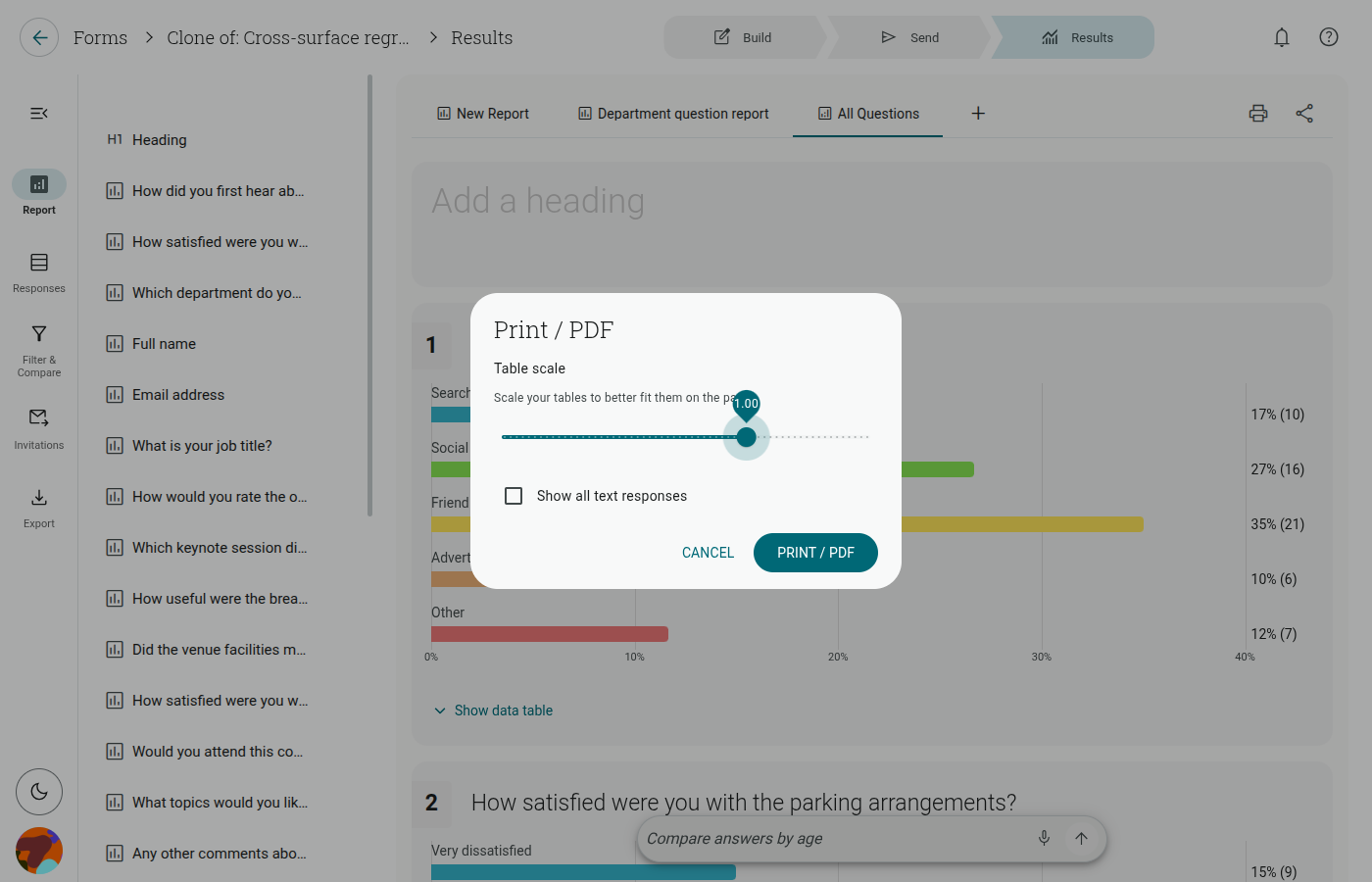
  3. Click ‘Print’ in the left sidebar
  4. Choose ‘Portrait’ or ‘Landscape’ and adjust the Table Scale if needed, then click ‘Print/PDF’
  5. A “Printing” notice appears — do not close this until your browser’s print dialog opens
  6. In the print dialog, choose a “Save as PDF” destination
  7. Give your PDF a title and click ‘Save’

The exact wording and layout of this dialog depends on your browser and operating system, but in general:

  • Save as PDF / Microsoft Print to PDF: Downloads your project as a PDF file.
  • A physical printer: Sends the report straight to that printer instead of saving a file.
  • Cancel: This option will void your current action, and close the dialog.

Note: The ‘PDF’ option in the Export menu opens this same Print/PDF panel.

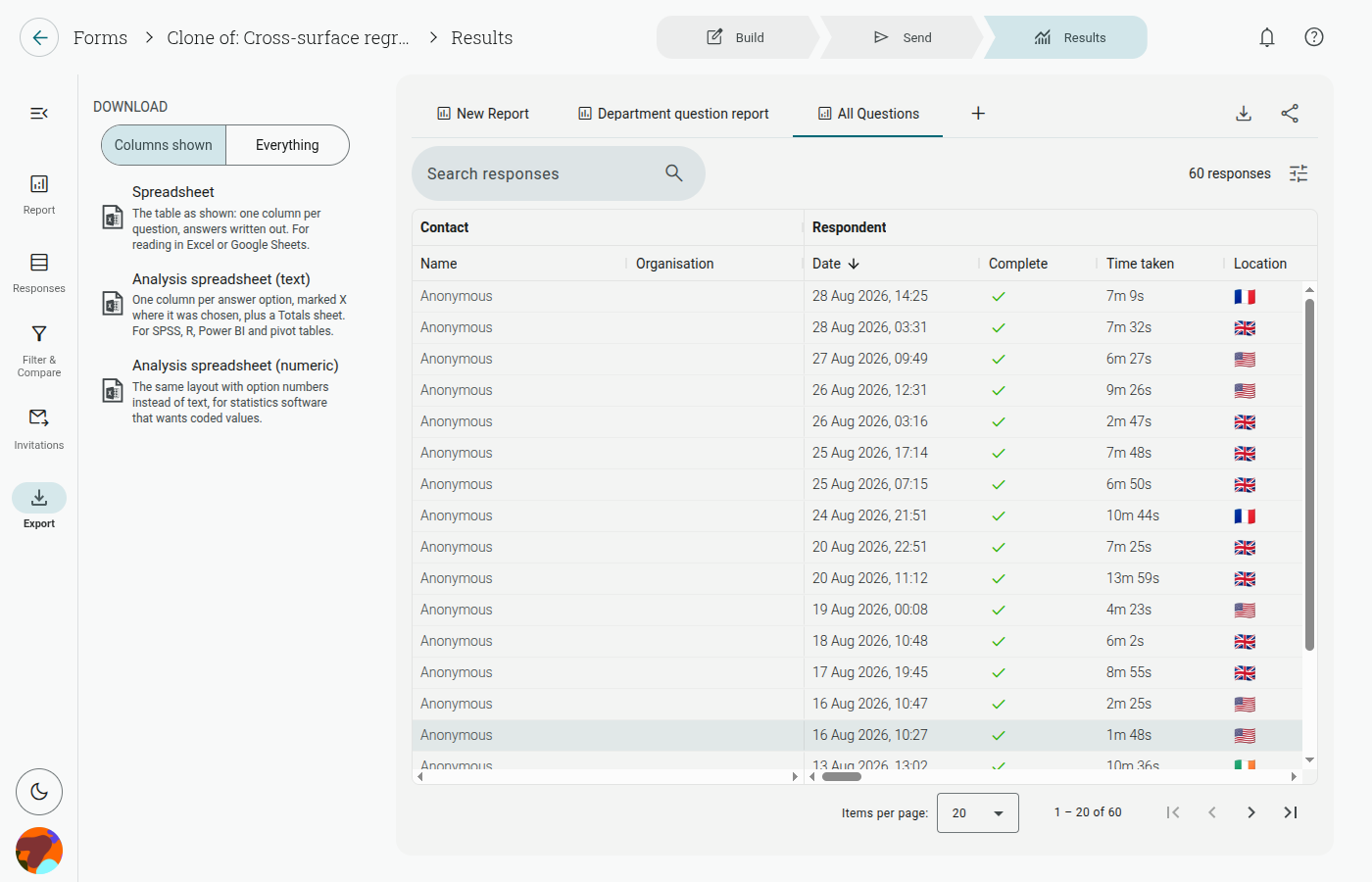
  1. Open a project’s Results section
  2. Click ‘Export’ in the left sidebar
  3. Choose a spreadsheet type from the list
  4. The file downloads immediately as an .xlsx spreadsheet — there’s no extra confirmation step

The three spreadsheet options you have are:

  • Full-Text Spreadsheet: Includes text concerning all questions and answer options.
  • Numeric Spreadsheet: Includes question text, and text responses, but answer options are translated into numerical units.
  • Quiz Score Spreadsheet: Includes list of questions, answers/ points, personal information (if collected) for each respondent. Note: This spreadsheet option only appears for Quiz-type projects.

IMPORTANT: Your data/ scores will not appear in the Excel documents until you click ‘Enable Editing’. You should be prompted by Excel to activate this as soon as the file has been opened.


Note: You’re also able to Print your Results