
Order Rankings
What are Order Ranking questions?
Section titled “What are Order Ranking questions?”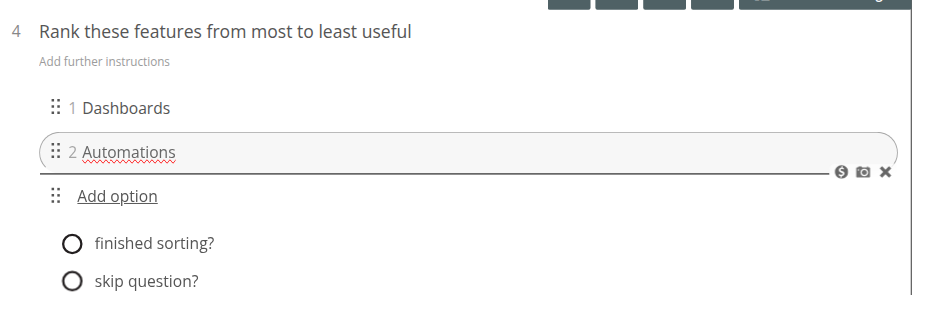 This is the perfect question type if you need your respondents to rank numerous answer options in comparison to each other, or by preference. These rankings can be formatted in ascending or descending order, depending on the context of your question or statement.
Why use Order Ranking question types?
Section titled “Why use Order Ranking question types?”Using an Order Ranking question gives value to each answer option, and provides a clear comparison of that value in contrast to the other ranked options. They may also stimulate respondents to be more evaluative when filling out your survey.
How do I create Order Ranking questions?
Section titled “How do I create Order Ranking questions?”- Open the Build tab, and make sure you’re on the Questions tab in the sidebar
- Click + Question
- Select Order Ranking from the Standard Questions category
- Enter your question text
- Add your answer options
Default Settings
Section titled “Default Settings”By default, two answer options will be immediately available to you when the Order Ranking question type is inserted. To insert more answer options, click Add option underneath the last one.
Answer randomization will automatically be turned off, but you can change this in the question’s settings panel.
- Keep your answer options to a minimal amount, as ranking too many options can become mentally taxing to respondents.
- Make sure each of your answer options are distinct to any other, as respondents should be able to differentiate between the meaning of each, to rank them efficiently.
- Try to provide a complete and inclusive variety of answer options for each question, so every respondent feels an option applies to them more than any other.
- Define whether your ranking should be done in ascending or descending order in the question box — there’s no separate setting for this, it’s purely down to how you phrase the question.
- If you’re using more than one Order Ranking in your project, be consistent in whether your ranking in ascending or descending order. Without this consistency, participants are more likely to misunderstand or make a mistake in their response.
- Try not to include too many Order Ranking questions, as they can take a long time to consider and respond to.
Question Settings
Section titled “Question Settings”Click Show more settings under the question for the full set of options:
- Required: Enable this feature to require respondents to answer this question before they can move to the next page or submit their response.
- Numbered: This button toggles the numbering for this question.
- Randomize: Randomize the order of your answer options for this question.
There’s no separate “Personal info” toggle for this question type — if you need answers tied to a respondent’s contact record, use one of the dedicated Contact Details question types alongside your ranking question instead.
How respondents interact with Order Rankings?
Section titled “How respondents interact with Order Rankings?”Respondents will be able to drag and drop the answer options to any place above or below the others. Where these options are placed relies upon the rules you’ve defined in the question box, i.e. whether the options should be ordered in an ascending or descending fashion.
They will also have the option of skipping this question type, by clicking “skip question?”.
Once participants are happy with their rankings, they can click “finished sorting?” below the answer options to finalize their choices. However, clicking this will not disable them from changing the order further.
How to analyze the Quick Report?
Section titled “How to analyze the Quick Report?”Your results will need to be analyzed in comparison to the rules you set for ascending or descending ranking in your question, i.e. if you asked your respondents to order answers from best (lowest number) to worst (highest number), then your highest ranked answer will have the lowest weighted average.
Note: this reporting section was not re-verified in this pass.
For more detailed instructions on analyzing your report, you can visit either of these articles: