
How to Insert a Video
This item will allow you to include a Vimeo or Youtube video in your project. Videos can be used to provide further information to respondents; concerning individual questions, or even the project aims and outline.
Inserting a Video
Section titled “Inserting a Video”- Go to the Builder
- Open the Questions tab
- Click ‘Question’ to open the question picker
- Select Video, under ‘Content Items’
- Click the box that says ‘Provide a video link, youtube or vimeo.’
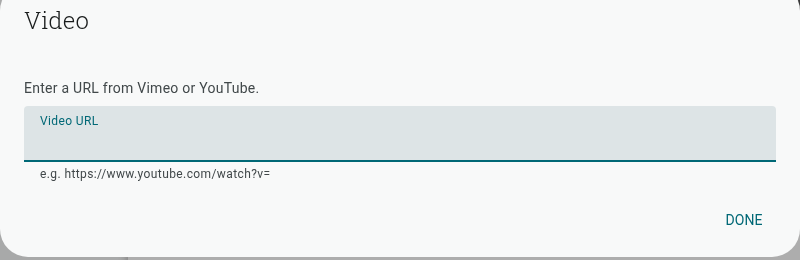
- In the ‘Video’ dialog that appears, paste the video URL into the ‘Video URL’ field and click ‘Done’
Once you’ve done this, your video will appear embedded in your project.
Note: Videos will play inside your project, and will not direct respondents to a new tab or web page.
Removing a Video
Section titled “Removing a Video”Videos no longer show an inline URL field with an ‘X’ once they’ve been set. To remove a video, click the ’⋮’ (more options) icon on the video question — either in the left-hand question list or on the item itself — and choose ‘Delete’. This removes the whole video item; add a new Video item if you want to add a different video afterwards.