
Money/ Currency Question
The money/ Currency question type allows you to collect a respondents a monetary value. In the question type picker it’s listed under the combined Number / Money question — add a Number / Money question, then set its Number type setting to “Currency”.

Money/ Currency Question Settings
Section titled “Money/ Currency Question Settings”Click “Show more settings” beneath the question, then set Number type to Currency to reveal the full settings panel:
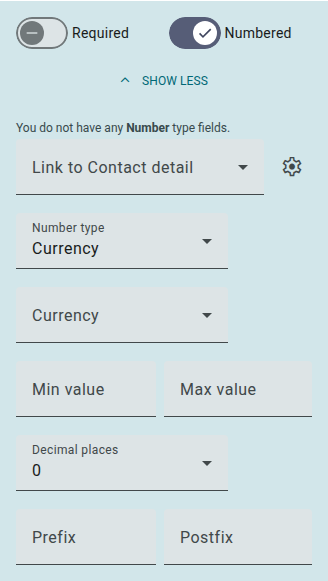
- Required: Require respondents to answer this question before submitting a response.
- Number Type: Switch the accepted input values between Integer (whole number), Decimal and Currency.
- Currency: Select a currency symbol to display as a prefix (manually select a symbol or set to “Auto detect”).
- Min Value: Set a minimum value that can be entered.
- Max Value: Set a maximum value that can be entered.
- Decimal Places: Customize the number of decimal places a respondent can input (0-4).
- Prefix: Add a word, letter, number or symbol to appear before the input value (this will replace the currency symbol).
- Postfix: Add a word, letter, number or symbol to appear after the input value.
- Numbered: Enable/disable the question numbering.
The Personal Info toggle (for Pseudonymization) only appears in this panel once Pseudonymization has been enabled for the survey under Settings > Privacy & Security.
Money/ Currency Results
Section titled “Money/ Currency Results”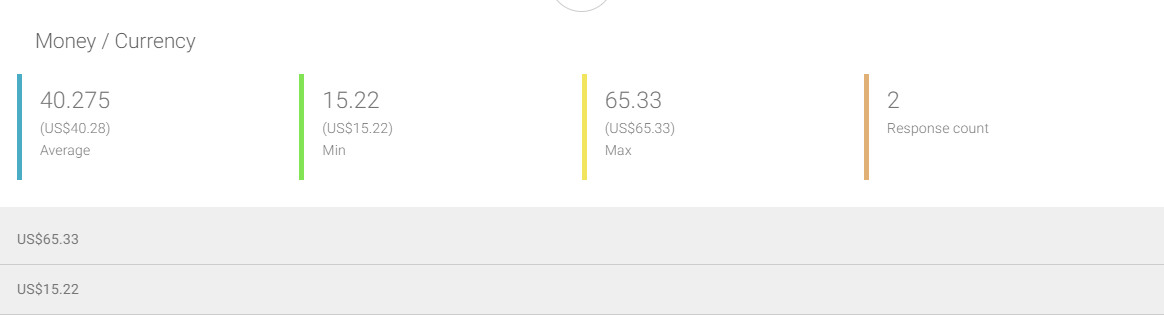 The below data will be available for Money/ Currency question types:
- Average: The average value of all respondent inputs.
- Min: The smallest value input.
- Max: The largest value input.
- Response count: The total number of responses for this question.
- Numeric responses: A list of all individual answers (displayed below aggregated data).