
Sharing Your Project
Once you’ve finished building your survey, form, or quiz, your next step will be to send it.
How to share your project
Section titled “How to share your project”To share your survey, quiz, form, or calculator, simply go to the Send section of the project.
Open Forms, select the project and choose Send in its details panel. If you already have the project open, select its Send tab.
Here are the different ways you can share your survey, quiz, or form:
Methods for sharing projects
Section titled “Methods for sharing projects”- Simple URL Link
- Share to Social Media
- QR Code
- Pop-ups & Slideouts
- Website Embed
- Email Invitations
- Webhooks
- JavaScript API
Use the sections on the Send page to choose the method that suits your audience.
1. URL link
Section titled “1. URL link”We provide a simple URL link for any project you create, which can be found in the Share a link section on the Link tab of Send.
Select Copy, then paste the link wherever you want to share it with respondents.
This is the quickest method of distribution, but any respondents who access your survey via this method will be anonymous. From here you can also switch on a custom domain or customize the URL slug.
2. Share to Social Media
Section titled “2. Share to Social Media”Beneath your project link, you’ll find an array of Social Media icons that you’re able to share your project through.

These options include:
- X (formerly Twitter)
Please note that you will need to be signed into that social media app on the device you’re sharing your survey from.
3. QR code
Section titled “3. QR code”A QR code is generated automatically for all of your published projects.
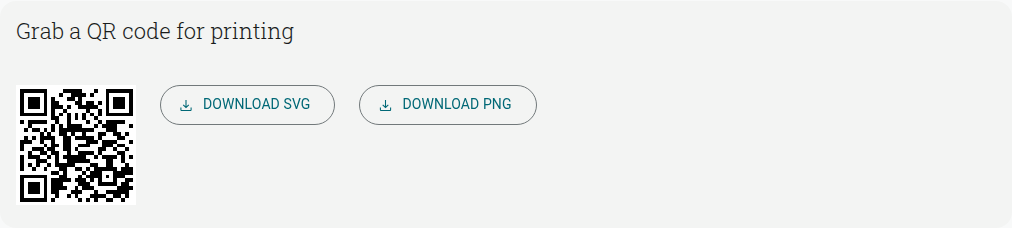
You can save your QR code and put it at physical locations, where people can scan it and respond to your survey.
To use this code to collect responses:
- Go to Send
- In the QR Code section, click Download SVG or Download PNG
- Save the file to your system
You can then add it to a poster or other document to put up somewhere the public can see it.
4. Pop-ups & slideouts
Section titled “4. Pop-ups & slideouts”This option allows you to create a button for your website, which when clicked will either have your survey pop up or slide out (left or right).
On the Website tab, in Add to your website, choose Pop-up or Slide-out and configure its settings.
Check the placement and trigger settings, then select Copy code to use it on your website.
5. Embed your Project on your Website
Section titled “5. Embed your Project on your Website”This option is also known as Inline Embedding and will embed the project directly into your website, displaying it amongst all other content.
On the Website tab, in Add to your website, choose Inline, configure its height and select Copy code. Use View code to inspect it or Try it live to preview the embed.
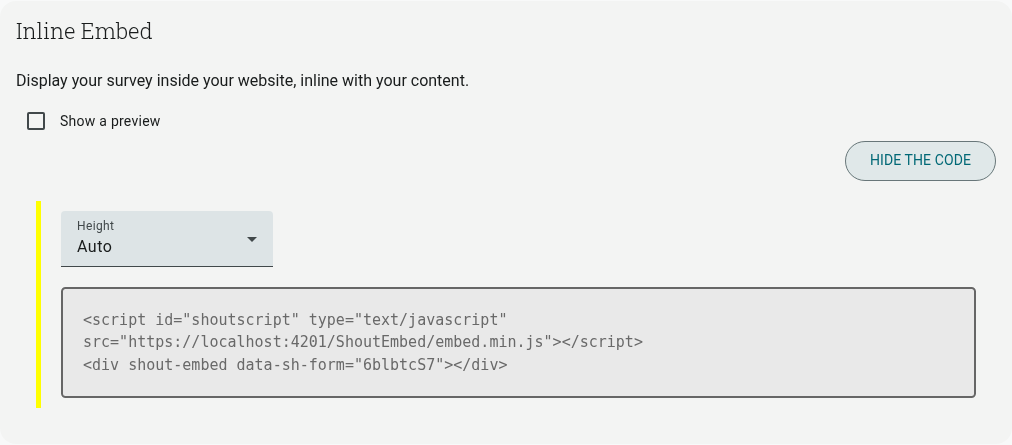
Then copy the code provided and paste this into your website code.
If you’re using a CMS like Wordpress or Squarespace, you can paste this code into a HTML block.
Read more in Embedding a Project.
6. Email Invitations
Section titled “6. Email Invitations”Create and customize email invitations for your project using our block editor.
On the Email tab of Send, click Send by email and you’ll be taken to a brand new campaign.
Read more about this method here: Sending Surveys via Email Invitation.
You’ll first need to upload contacts to your list and create some relevant groups.
When sending via email, you can enable Tracking to view those who have and who are yet to respond to your survey, quiz, or form.
7. Webhooks
Section titled “7. Webhooks”If you use tools like Zapier, Make, or your own backend, you can subscribe a webhook to a project so a new form response, an added/updated CRM contact, or an unsubscribed contact will POST a payload to a URL of your choosing. On Send’s Developers tab, in Webhooks, click Configure webhooks, then Add Webhook to set a name, target URL, optional HMAC signature or Authorization header, and which events to subscribe to.
Read more in Using Webhooks.
8. JavaScript API
Section titled “8. JavaScript API”This option requires a basic knowledge of JavaScript/ coding to be accomplished. This uses the JavaScript API to pass information through to our servers, which will be linked with each response.
For more information on this method of distribution, you can visit the JavaScript API article.