Displaying Custom Score Messages
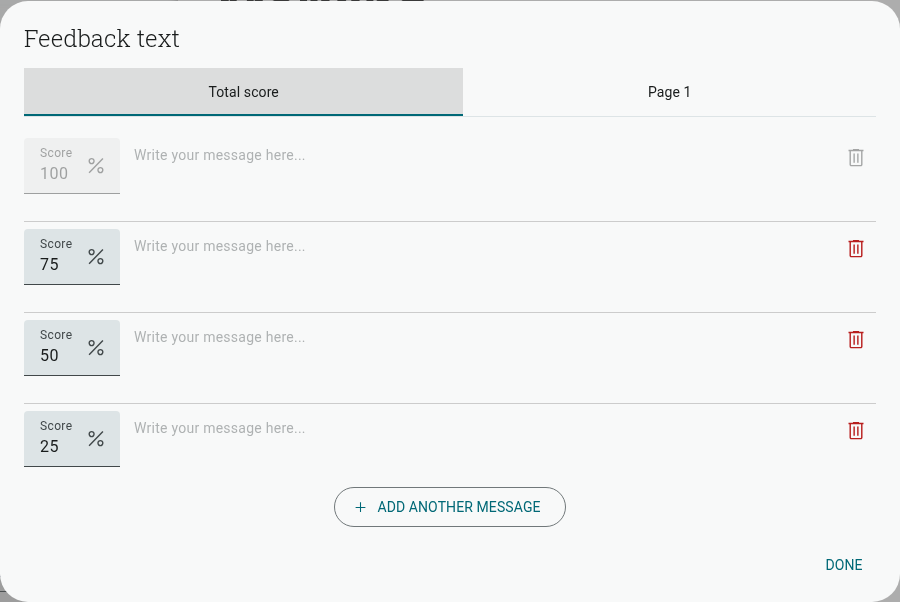
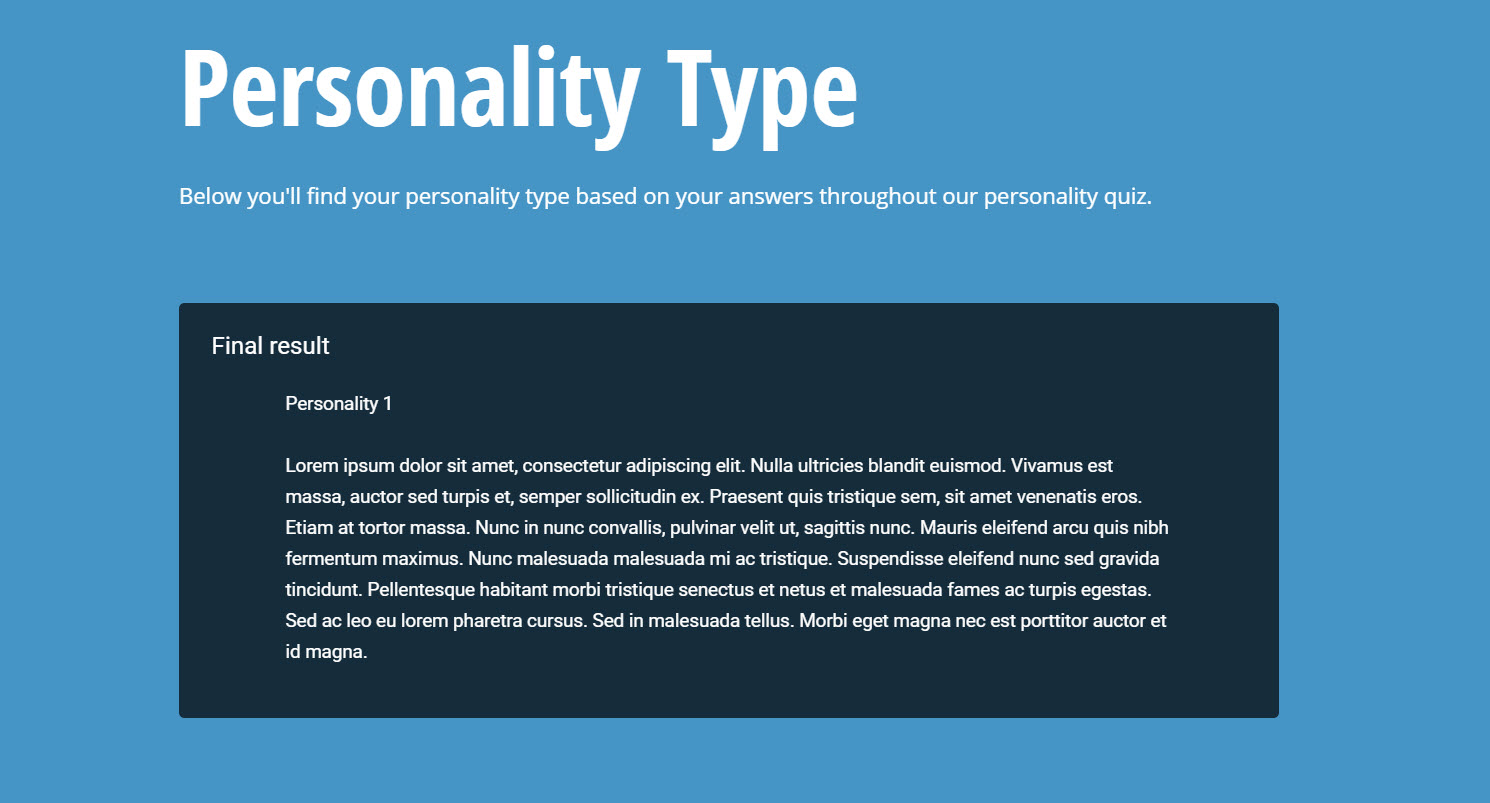
It is possible to display customized messages to respondents once they reach your exit page. You have the option of showing messages based on their total quiz score or to also include custom messages for individual page scores.
For example, you may want to display different text for someone who scored 50% to those who score 70%.
Displaying Custom Messages
Section titled “Displaying Custom Messages”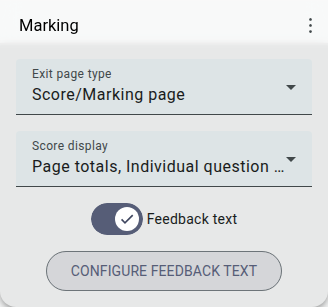
- Open your Quiz
- Go to the Exit/ Thank You Page (quizzes get a “Marking” exit page by default)
- Select ‘Score/Marking page’ from the Exit page type dropdown
- Toggle on ‘Feedback text’
- Click ‘Configure feedback text’
You have the choice to display these messages according to their progression in the entire quiz or to also include messages for each individual page — the dialog that opens has a ‘Total score’ tab and a tab for each page in your quiz:
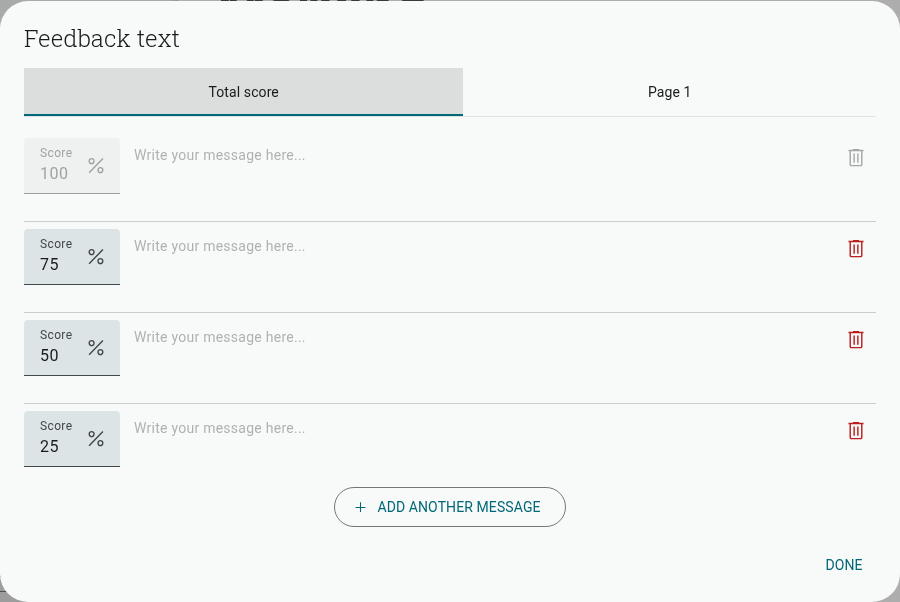
You will then need to type each of your messages next to the corresponding milestone. The default milestones for a quiz are:
- 25%
- 50%
- 75%
- 100%
The 75%, 50% and 25% milestones can be changed by clicking inside the number field and typing in a new percentage. The top milestone is fixed at 100%.
You can choose to include numeric totals with these messages or just the messages themselves.
To do this:
- Go to your Exit Page
- Open the ‘Score display’ dropdown
- Uncheck the boxes for ‘Page totals’ and ‘Individual question scores’
Message Text Formatting
Section titled “Message Text Formatting”You are able to format the text inside the Custom Score Messages by highlighting a section of text. A floating toolbar gives you access to:
- Bold
- Italics
- Bullet and numbered lists
- Insert dynamic data (piped in from a question answer or other data field)
- Link
Removing a Custom Score Message
Section titled “Removing a Custom Score Message”To delete a custom score message, you just need to delete the text from the box. But you can also select the trash can icon to stop a message from appearing at that milestone.
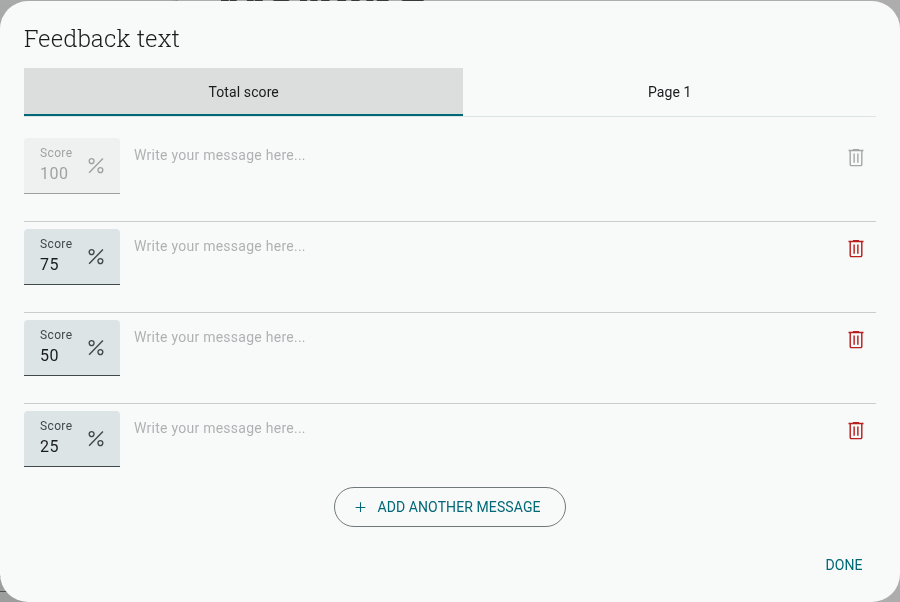
If you wish to re-insert a Custom Score Message milestone, then click ‘Add Another Message’.