
How to Print a Survey
Whether you want a paper copy of your form in order to distribute it by hand or to copy-proof the document in a format that suits you better, we give you the ability to print your form or save it as a PDF straight from the Builder.
- Open your form and go to the Build tab
- Click the ••• (more options) menu in the top right corner, next to the Publish/status button
- Select Print / PDF
A “Printing” dialog opens with a preview of your form laid out for print. It will briefly show “Please wait. Preparing for print” and then switch to “Ready”.
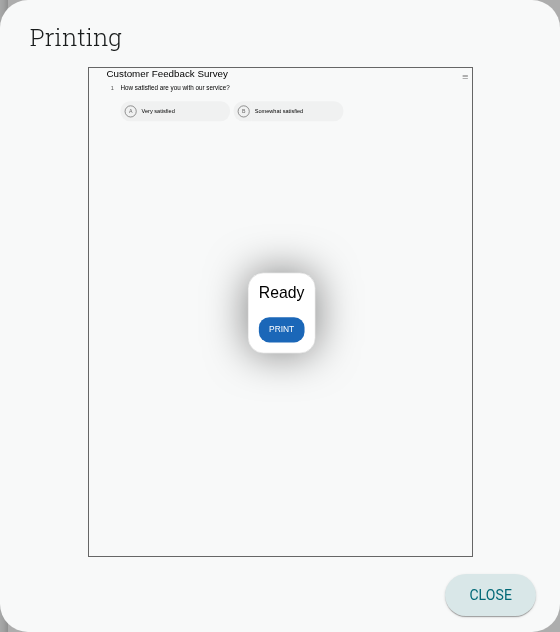
- Once it says “Ready”, click Print
- Your browser’s print dialog will open — choose a physical printer to print a paper copy, or choose “Save as PDF” (or “Microsoft Print to PDF” on Windows) as the destination to export a PDF file instead
- Click Close to dismiss the Printing dialog when you’re done
Note: Unlike in previous versions, you don’t need to publish or close your form first — Print / PDF is available for forms in Draft, Collecting (published), and Closed states.