
How to Build a Formula
Once you’ve added questions to your calculator, you can start building a formula. To make this as clear as possible we’ll build an formula based on an example of a pricing quote calculator.
To create a calculator formula, you must first navigate to your Calculator result exit page and click “Add new result”:
1. Formula Setup
Section titled “1. Formula Setup”After you’ve clicked “Add new result”, a popup dialogue will appear where you can give name and description to your formula.
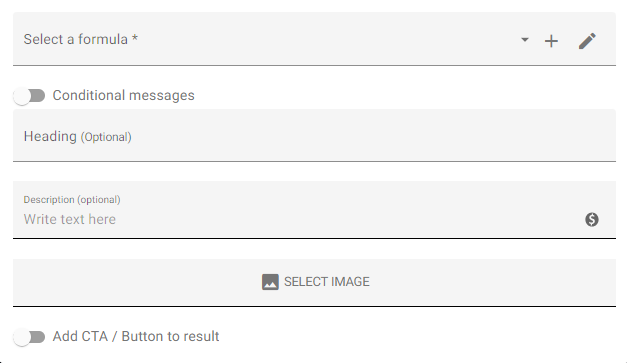
- Heading: Text in this field will act as the title for the results section. For our example, this will be “Total Cost”.
- Description: A field for you to add additional information regarding the results. For our example, this will read “Totals may differ from final quote dependant on tax”.
- Select Image: Import an image to display alongside this result, e.g. a logo.
- Add CTA / Button to result: Toggle this on to add a button below this result that sends those who click it to an external URL, e.g. your website.
2. Create a new formula
Section titled “2. Create a new formula”To find the formula builder, click the + icon at the top of the popup (or choose “Create a new formula” from the Select a formula dropdown): 
The formula builder will then appear:
We recommend giving your formula a unique name, so you can easily identify it when choosing which results to show:
By default, all questions that can be used in your formula will be present.
To add questions into your formula, you can drag and drop them in from the Question data section on the left:
In our example Price Quote Calculator, we have two questions:
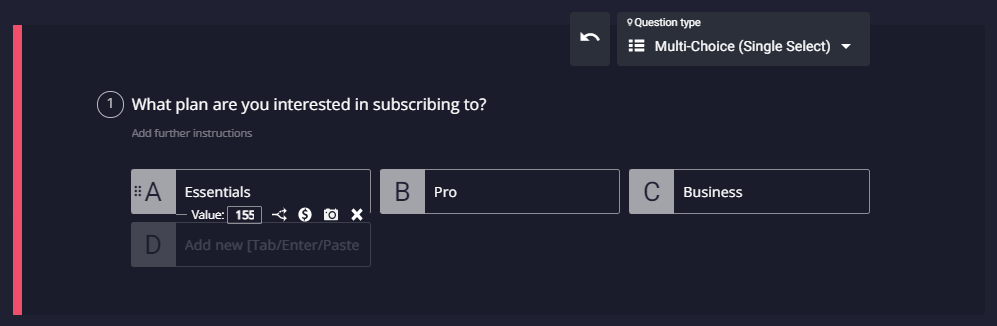
- What plan are you interested in subscribing to?
- How many seats would you like to add to your subscription?
So, for the purposes of this example we want to add the cost of the subscription and the cost of individual seats up.
Our first question is a multiple-choice, where value can be assigned to individual answers:
Our second question is a Numeric Slider, where the values are set as the numbers along that slider (e.g. 0-10).
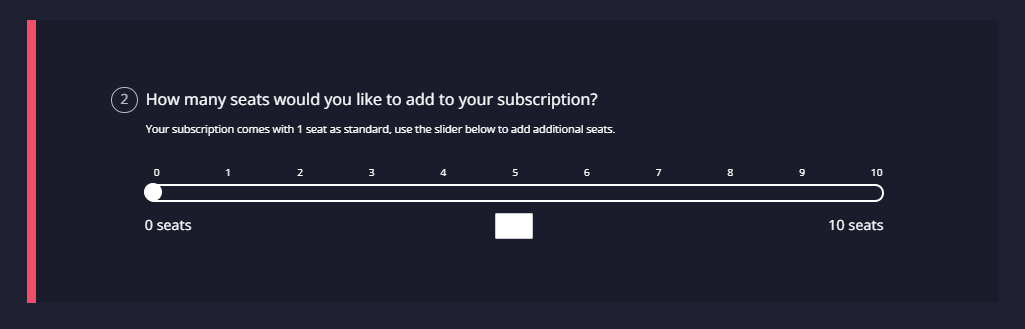
So, we need to define the cost of the “seats” in our formula. Let’s say we want to price it at $50 per seat, we’d build this formula: Q_1+(Q_2*50). Replace Q_1 and Q_2 with the references shown for your own questions in the formula builder, or insert those questions from the Question data panel.
Prefer working in a spreadsheet-style grid? Switch to the Excel table tab next to Simple to build the same formula in table form.
Make sure to hit “Save Changes”.