
How to Create a Custom Calculator
To start building your first interactive calculator, you’ll need an active Shout account. If you haven’t created one yet, now is the perfect time to do so!
Signing up is quick and easy, so you can explore the full potential of our calculator builder for yourself.
How to create a custom calculator
Section titled “How to create a custom calculator”-
Log into your Shout account
-
From the Home dashboard, click New form
-
Choose Start from scratch (or describe the calculator in a sentence and click Build with AI to get a first draft, or Upload a document to convert an existing pricing sheet)
-
On the Set up your form screen, name your calculator, select Calculator under Form type, and choose One per page or Many per page under Questions per page, then click Create form:
-
In the Questions tab of the builder, click + QUESTION
-
Select a question type. Most question types can be used in calculators — turn on the Calculator value filter in the picker to highlight which ones return a value your formula can use (we’ll devote a section listing these a bit further down):
-
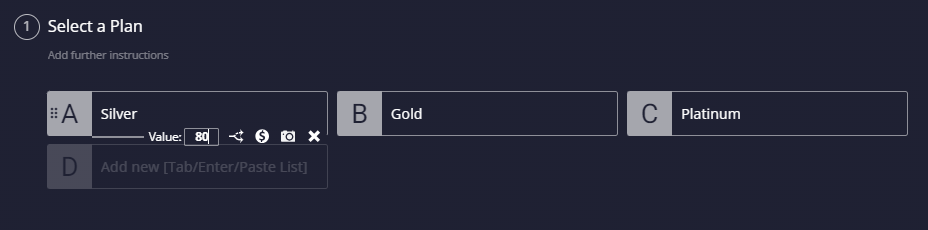
Add values to your question answers
Configure privacy options from the Settings tab of the builder, under Privacy & Security.
Building a Formula
Section titled “Building a Formula”Once you’ve added questions to your calculator, you can start building a formula. To make this as clear as possible we’ll build an formula based on an example of a pricing quote calculator.
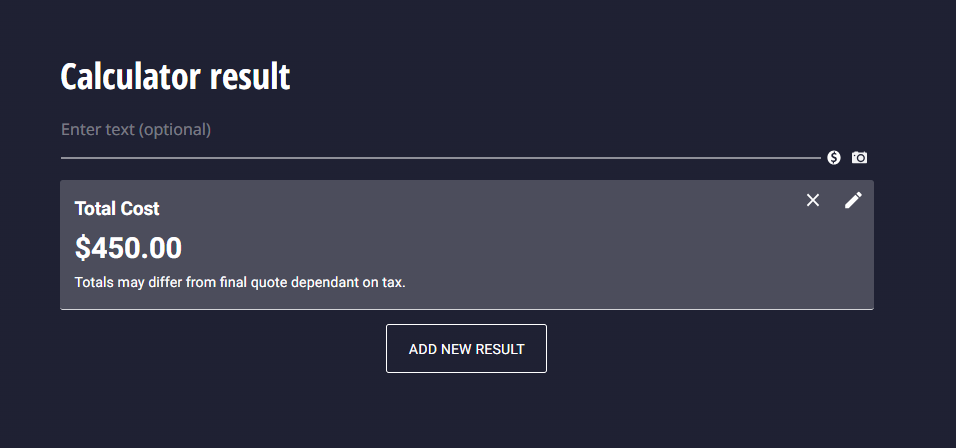
To create a calculator formula, you must first navigate to your Calculator result exit page and click “Add new result”:
1. Formula Setup
Section titled “1. Formula Setup”After you’ve clicked “Add new result”, a popup dialogue will appear where you can give name and description to your formula.
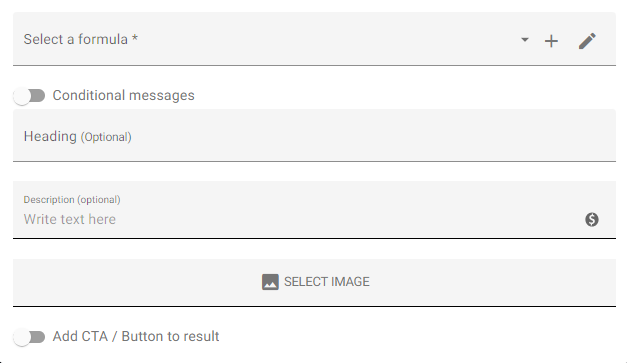
- Heading: Text in this field will act as the title for the results section. For our example, this will be “Total Cost”.
- Description: A field for you to add additional information regarding the results. For our example, this will read “Totals may differ from final quote dependant on tax”.
- Select Image: Import an image to display alongside this result, e.g. a logo.
- Add CTA / Button to result: Toggle this on to add a button below this result that sends those who click it to an external URL, e.g. your website.
2. Create a new formula
Section titled “2. Create a new formula”To find the formula builder, click the + icon at the top of the popup (or choose “Create a new formula” from the Select a formula dropdown): 
The formula builder will then appear:
We recommend giving your formula a unique name, so you can easily identify it when choosing which results to show:
By default, all questions that can be used in your formula will be present.
To add questions into your formula, you can drag and drop them in from the Question data section on the left:
** **
Questions you add to your formula will be highlighted in blue in the questions sidebar.
In our example Price Quote Calculator, we have two fields:
- Select a Plan
- Select a Number of Seats
So, for the purposes of this example we want to add the cost of the subscription and the cost of individual seats up.
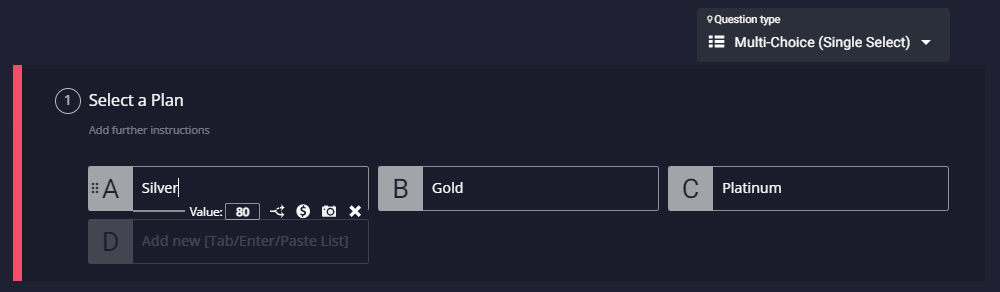
Our first question is a multiple-choice, where value can be assigned to individual answers:
Our second question is a Numeric Slider, where the values are set as the numbers along that slider (e.g. 0-10).
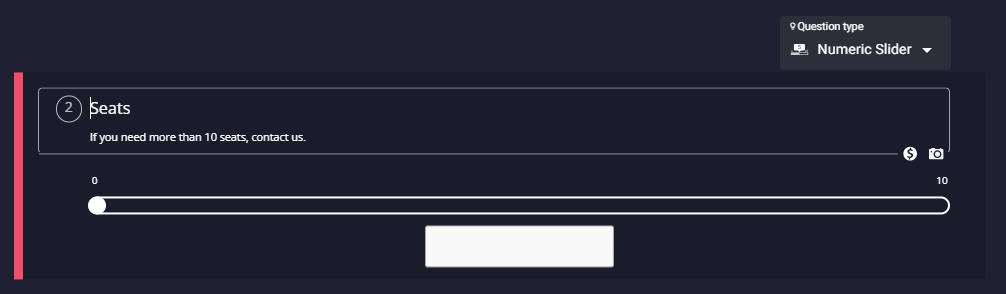
So, we need to define the cost of the “seats” in our formula. Let’s say we want to price it at $75 per seat, we’d build this formula: Q_1+(Q_2*75). Replace Q_1 and Q_2 with your own question references from the formula builder, or insert those questions from the Question data panel.
Prefer working in a spreadsheet-style grid? Switch to the Excel table tab next to Simple to build the same formula in table form.
Make sure to hit “Save Changes”.
Pro Tip: Add test values in the fields on the left to check the result at the bottom of the formula builder.
Displaying Results
Section titled “Displaying Results”Now that you’ve set up your formula, respondents will see it on the Calculator result exit page once they finish the questions. You can also preview it yourself from the Send tab, or check aggregated response data from the Results tab.
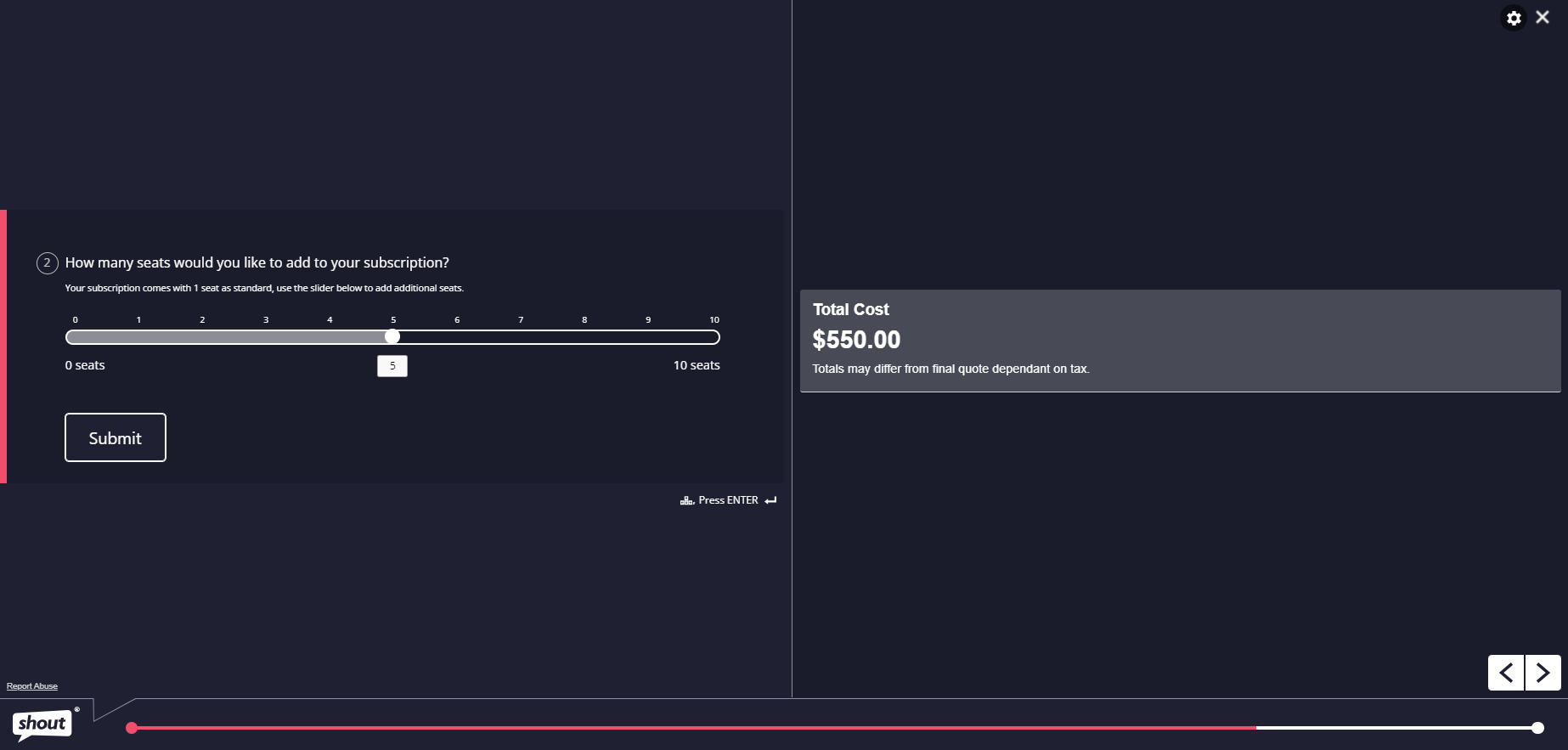
You can also show a result in real time, next to a question, instead of (or as well as) on the exit page. Click the calculate icon in that question’s toolbar and turn on Show result on page:
This splits the page and adds an Add new result button on the right — set it up the same way as an exit-page result, and it will update live in a panel next to the question as respondents answer it:
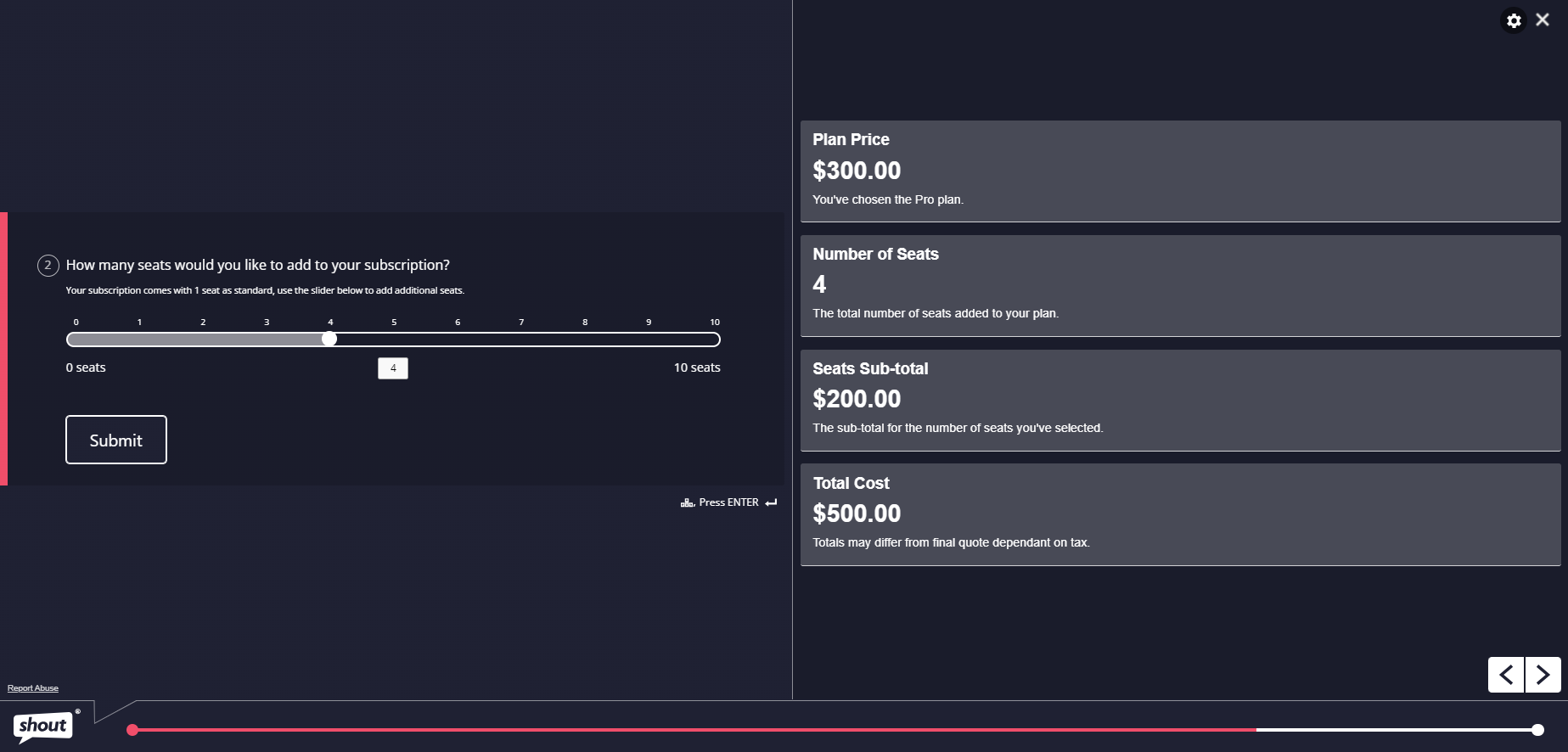
We can also add more formulas to provide a break down of the costs involved:
Calculation Ranges
Section titled “Calculation Ranges”Incorporate ranges into your outcomes whenever they prove essential. In the formula builder’s Formatting panel, expand Display range and set upper and lower limits as percentages. For instance, if your formula yields a result of $350 and the upper and lower bounds are defined at 10% each, the display will read as ‘$315 to $385’.
Adding Variables
Section titled “Adding Variables”It’s also possible to add a Prefix or Suffix to your final results, under the Unit panel in Formatting. Common prefixes for online calculators are $, £, and €, whilst common suffixes are lb, kg, and %.
Decimal Places
Section titled “Decimal Places”You also have the ability to customize the number of decimal places that display with your results, under Number Format in Formatting.
Testing Values
Section titled “Testing Values”You can use the Test Value fields below questions in the formula builder to test if your formula is working as intended.
The calculation will appear at the bottom of the formula builder.
Changing Question IDs
Section titled “Changing Question IDs”By default, each calculator question is assigned an auto-generated ID number (shown with a Q_ prefix) that displays in the formula builder.
This ID can be customized in the Name/Id field beneath a question.
This can help you easily identify questions in your formula.
Calculator Question Types
Section titled “Calculator Question Types”Any question type that can have a value applied can be used to build formulas. In the question type picker, turn on the Calculator value filter under Highlight compatible to see exactly which types qualify. Here’s a list of the available question types below — see Calculator Question Types for more detail:
Standard question types
- Multi-Choice (Single Select)
- Multi-Choice (Multi Select)
- Opinion Scale
- Opinion Slider
- Binary Yes/No
- Net Promoter Score®
- Star Rating
- Drop Down List (single- or multi-select, configurable in its settings)
Multi-factor question types
- Matrix (common scale)
- Multi-Factor Opinion Slider
- Multi-Factor Scale
Numeric question type
Decimal, Integer, and Currency are no longer separate cards — they’re all Number types of a single Number / Money question (add the question, then set Number type under Show more settings). There is no dedicated Age number type any more. A standalone Numeric Slider question type is also available.
You can also add any other survey question types or form fields to calculators to collect research data or personal information.
Calculator Operators
Section titled “Calculator Operators”When building your formulas, you can input the following basic operators using your keyboard:
- + (Addition)
- - (Subtraction)
- * (Multiplication)
- / (Division)
The formula builder toolbar also has quick-insert buttons for If statement and round, and you can employ other functions available in Excel formulas.