
Project Menu
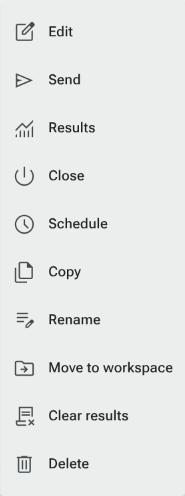
The Project Menu allows you to perform a number of tasks in relation to your Survey/ Quiz/ Calculator. Selecting a project in Forms opens its details panel alongside the table. Quick actions appear in the panel, with further options in its menu; the row also has an actions menu. On Home, select a form to open its panel. It contains the following options:
- Edit
- Send
- Results
- Copy
- Rename
- Move to Workspace
- Close
- Activate
- Clear Results
- Delete
This button will take you to the builder of the project you selected. Here you will be able to:
- Add Question Types
- Manage your Pages
- Change Project Themes
- Edit Project Settings (Survey Settings), (Quiz Settings)
- Invite Collaborators
For more information on this, you can swing by these articles:
Go straight to the Send section of a project, from where you’ll be able to distribute it to potential respondents. Here’s how to share your project, organized into tabs:
- Get a link (URL) — the quickest way to share, with options to use a custom domain or customize the URL
- Share — post a link via email, Facebook, X, LinkedIn, Pinterest, WhatsApp, or Reddit
- QR Code
- Pop-ups and slideouts (a button for your website — sidebar left, sidebar right, or pop-up)
- Embed your Project inline on your website
- Email invitations — upload contacts or send using your Contacts list
- Webhooks — notify another system when a response comes in
- JavaScript API (developers only)
Results
Section titled “Results”Navigate to the Quick Report for your chosen project. Here you will find:
- Reports
- Add Item (report elements)
- Filter & Compare
- Export
See the below tutorials for analyzing results:
Actions
Section titled “Actions”Open the form, then select the Actions tab between Build and Send. This shows Actions for that form, including their starter, steps, enabled state and latest run. To manage Actions across your account or connect an app, choose Actions in the main navigation.
Use this button to duplicate your project. It creates a “Clone of: …” copy alongside the original instantly, with no confirmation step. Here’s an article explaining the process and rules of copying.
Rename
Section titled “Rename”Opens a Rename project dialog showing the project’s current title and a field for the new one. Enter the new title and click Save (or Cancel to back out).
Move to Workspace
Section titled “Move to Workspace”Moves the project into one of your team Workspaces (or back to My Forms), so it’s grouped with related projects and visible to the right teammates. This is a newer feature — Workspaces sit above the Views panel in Forms.
Suspend a project using this feature. You’ll be asked to confirm — the dialog warns that this will make the project inaccessible to respondents and that collection of results will cease. Respondents will no longer be able to submit responses once this is activated, and the Send option is disabled while a project is closed. Learn how to do this here.
Activate
Section titled “Activate”Once a project is closed, this button takes the place of Close and reactivates it immediately (no confirmation needed), restoring the ability to collect responses and re-enabling Send.
Clear Results
Section titled “Clear Results”This button will clear your project results permanently. If you have any concerns over this feature, you can refer to this guide.
Delete
Section titled “Delete”Deleting a project will move it to the Deleted view in Forms, with a confirmation noting you can restore it from there for about a month. Deleting it again from the Deleted view is permanent and cannot be undone. Read this article for more information on this process.
Labels
Section titled “Labels”Labels are no longer applied from this menu. Click Add label directly on a project’s card (in the Forms list, or on a Home page card) to add a Tag/Label — search existing labels or type a new name and press Enter to create and apply it in one step.