
Collect Contacts with a Form
You can use Contact Details questions in your forms to add contacts to your list and update their information.
How to add contacts to your list using a form
Section titled “How to add contacts to your list using a form”To get started, you’ll need to create your form.
Creating a form
Section titled “Creating a form”- Go to Forms in the top navigation, then click New form.
- Choose Start from scratch (or a template).
- Give your form a name, choose a Form type (Survey, Quiz, or Calculator) and how many Questions per page you’d like, then click Create form. This opens the builder.
- In the Form tab, click + Question.
- Under Contact Details, select a question type — for example Compact Contact Form (a bundled block with name, email, company, phone and address fields) or an individual field like Full Name or Email address.
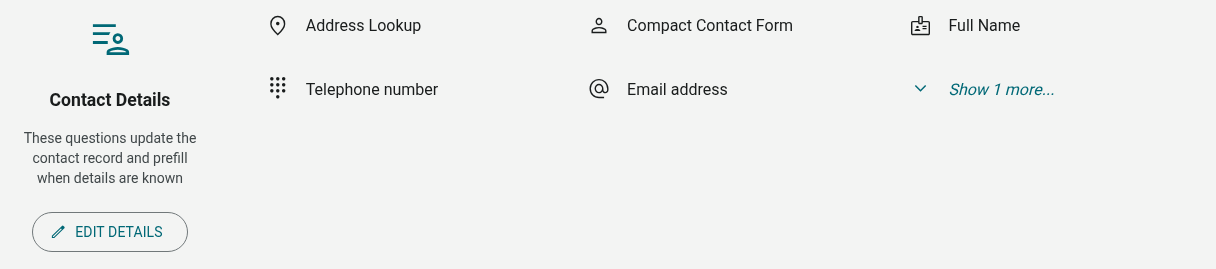
Contact Details questions always update the contact record and prefill known details for a respondent — there’s no separate step to “link” the question to your contact list, and no group-selection step when you create the form. Each response that includes an email address automatically creates or looks up a contact and adds them to the Form Sign-Ups group.
Each field in a Contact Details question shows a small icon next to it — this denotes which contact field it’s linked to.
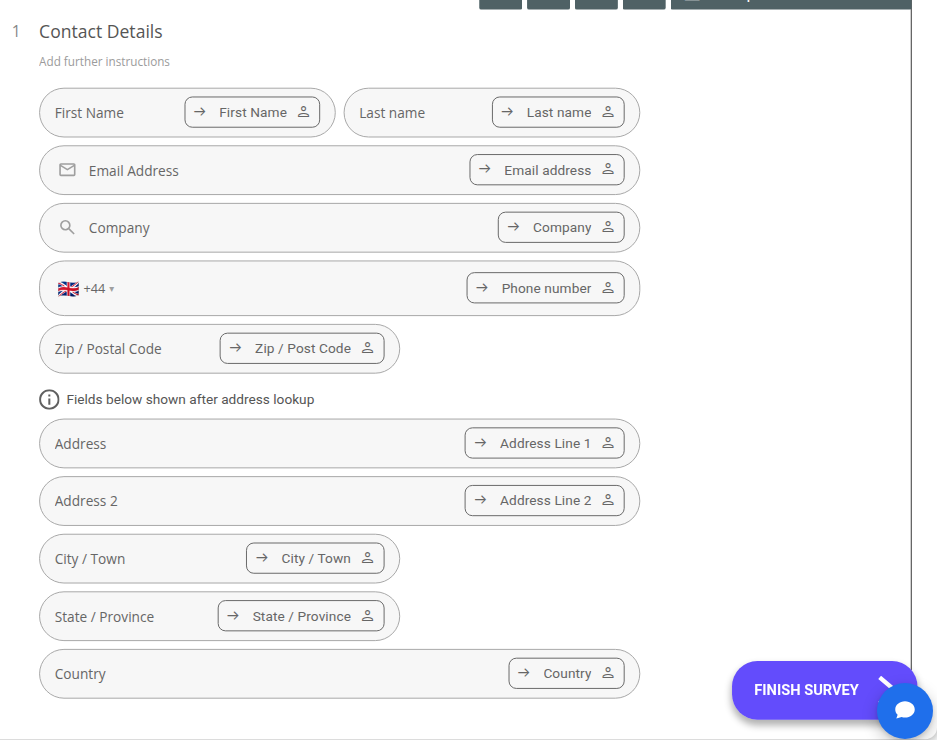
Hover your mouse over this icon to view which contact field is currently linked (for example, “This response updates the contact profile (‘Company’), not just form results.”).
Changing the linked contact field
Section titled “Changing the linked contact field”To switch what contact field a question (or a field within a Compact Contact Form) is linked to:
- Click the small link icon next to the field.
- In the Link to contact detail menu, open the dropdown.
- Select an alternate field, or Not linked to stop it updating the contact record. Fields already linked elsewhere on the same form are greyed out (“Used in another question”).
You can also click Manage contact fields from this menu to review your account’s contact fields.
You’ll also want to change the corresponding form field’s label if you switch the linked field — click the field’s text and edit it directly.
If the email address a respondent enters already exists in your list, their existing contact record is not updated by a plain form submission — see Rules below.
Updating contact details using a form
Section titled “Updating contact details using a form”To update the information of a contact that’s already stored in your list, distribute the form via email invitations with tracking enabled, rather than sharing the generic form link.
- Publish your form, then go to its Send tab.
- Under Send email invitations, click Send by email.
- Fill out the Subject, From name, Reply email and Physical address.
- Under Anonymous send, leave Send anonymously off (the default). This links each response to the respondent’s contact profile — but note that once tracking is enabled, responses are no longer anonymous.
- Click Next: Content to design your email.
- Choose which contacts or groups to send to.
- Schedule and send.
When your existing contacts follow their tracked link and fill out the form, the information in their profile is updated.
Rules for adding contacts via a form
Section titled “Rules for adding contacts via a form”There are a few rules you’ll want to keep in mind when using forms to collect contact data.
Rule #1: Each contact field can only be linked once per form.
If you link, say, Email address to one question, it won’t be offered again for another question on the same form — so a single response can only update one set of contact details.
Rule #2: If an email address already exists in your list, a plain form submission will not update it.
Submitting the generic form link with an email address that’s already in your list creates a contact the first time, but a later submission with the same email address won’t overwrite their existing details.
Rule #3: Contact profiles are only updated when tracking is enabled.
If you already have a contact stored, they won’t be able to update their information using the generic, untracked form link — you’ll need to distribute the form as a tracked email invitation (see Updating contact details using a form) for existing contacts to update their own details.
Rule #4: An email address is what identifies a contact.
Without an email address question (or a tracked invitation identifying the respondent), a response won’t be tied to a contact record.