
Embed Calculators On Your Website
Just like with surveys, quizzes, and forms, you’re able to embed calculators on your website. Embedded calculators will appear along side all other content on your page.
You can customise the colours of your theme to match your website, so the calculator doesn’t stick out.
How to embed calculators on your website
Section titled “How to embed calculators on your website”Once you’ve created a calculator, you’ll have a range of options for sharing your calculator.
1. Go to the Send section of your calculator
Section titled “1. Go to the Send section of your calculator”Here you’ll find all the ways you can distribute your calculator.
2. Navigate to the embed option
Section titled “2. Navigate to the embed option”Open Add to your website and choose Inline. 
3. Click Get the Code
Section titled “3. Click Get the Code”
Use Copy code to copy the embed, or View code to inspect it.
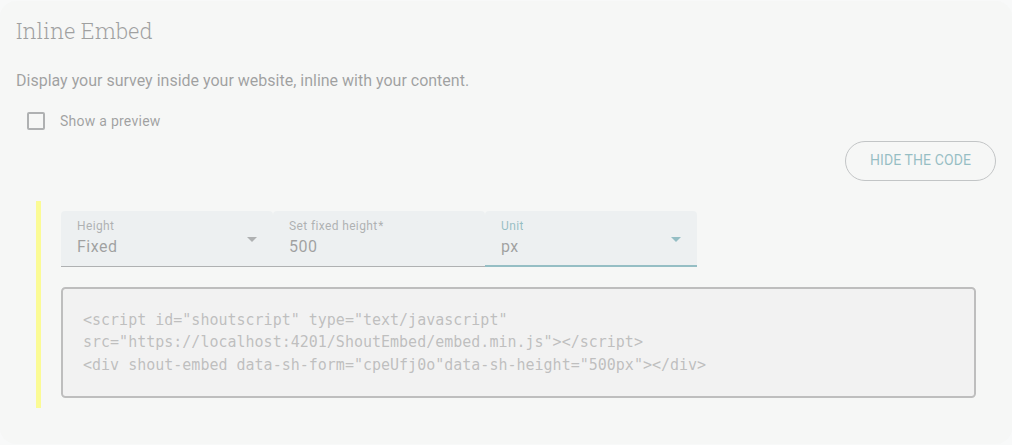
From this section you’ll be able to view a preview of your embed. To do so, just tick the “Show a preview” box. Note that a live preview will only load correctly once the calculator has been published.
You can also customise the height of your embeddable calculator. The Height dropdown defaults to “Auto” — switch it to “Fixed” to customise the height.
Once set to Fixed, a “Set fixed height” number field appears along with a Unit dropdown so you can switch the unit of measurement between pixel (px), percentages (%), and viewport’s height (vh).
4. Copy the Code
Section titled “4. Copy the Code”Simply click anywhere in the code to highlight it, then copy it to your clipboard.