
Customizing Theme Designs
This feature allows you to change the visual design of your form. You can access the Theme menu from the sidebar of the form builder.
- Open a form in the builder (or create a new one).
- Click Theme in the tabs above the builder panel.
- Use the Theme type dropdown to browse our different theme styles — Modern (Recommended), Seasonal (Mixed), Letter (A4), Letter (Top spaced), Bordered, and Hero Header — then click a theme card in the list below to apply it.
Customizing Theme Colors and Fonts
Section titled “Customizing Theme Colors and Fonts”It’s important to note that different themes may have different elements that can be customized. So, it’s would be worth checking out all the theme templates we have to offer before making a final choice.
Changing colors
Section titled “Changing colors”- Click ‘Theme’ in the sidebar.
- Make sure the theme you want to edit is selected (it has a highlighted border).
- Below the theme’s preview thumbnail there’s a row of color swatches — hover one to see its label (e.g. Background Color, Question Highlight Color; the exact set depends on the theme) — and a font box (Aa). Click a swatch and a color panel opens underneath.
- Manually use the color wheel to select a color, enter a HEX code in the text field, or click the eyedropper icon to pick a color from elsewhere on screen.
Switching Fonts
Section titled “Switching Fonts”- Click ‘Theme’ in the sidebar
- Select a Theme
- Click the font box (the Aa swatch)
- Select a font from the list in the Font picker
- Click Done to apply it
Selecting Background Images
Section titled “Selecting Background Images”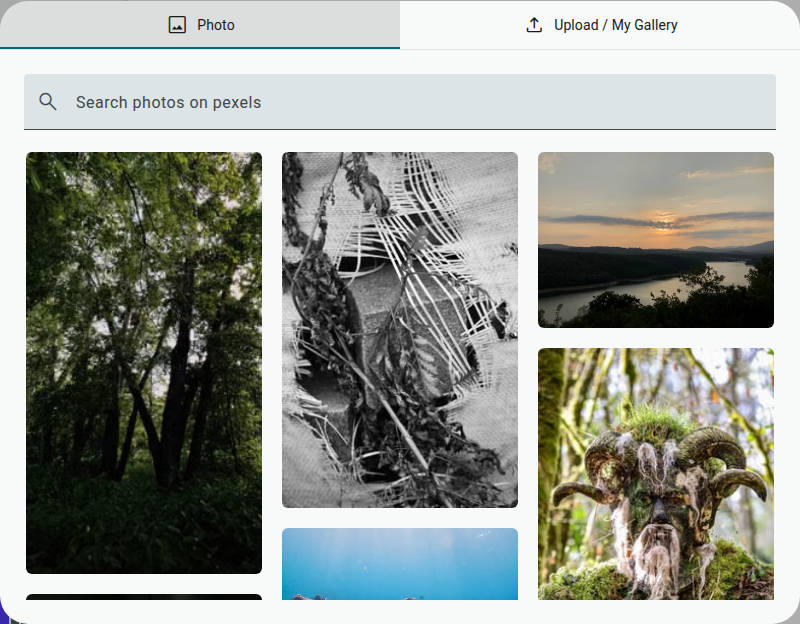
Click Background Image below your active theme to open the image picker. Choose a photo from the built-in Pexels library on the Photo tab, or switch to Upload / My Gallery to use your own image — selecting one applies it immediately. Once a background image is set, a Transparency slider appears so you can fade it, and a small X next to the Background Image button lets you remove it.
Can you Apply Different Themes to Separate Pages?
Section titled “Can you Apply Different Themes to Separate Pages?”Unfortunately, we do not support the capability to do this. Any Theme you choose is applied to your entire form.
Changing a Theme
Section titled “Changing a Theme”To apply a different Theme, simply follow the same process as applying a theme. If you already have one set, it will simply change to the new selection.
If you’ve customized a Theme’s colors, fonts, or background image and then click a different theme card, you’ll see a confirmation dialog — “You will lose font and color changes” — warning that changing the theme will delete the font and color changes you’ve made. Click Ok to continue or Cancel to keep your current theme. In practice, your background image is lost too. You will not be able to recover your previous settings without redoing them from scratch, so it’s worth noting down any custom HEX codes first if you might want to switch back. (This warning only appears if the active theme actually has customizations to lose — browsing theme styles with the Theme type dropdown, or picking a theme you haven’t customized, won’t prompt you.)