
How to Apply Points to Questions
Before applying question points, you will have to:
- Create questions
- Insert answer options
How you apply points will depend on what question type you use: Single Select or Multi Select.
Single Select Questions
Section titled “Single Select Questions”The Multi-Choice (Single Select) question type allows you to apply a custom amount of points to answers.

- Click the answer option you wish to apply points to
- A ‘Points’ field appears beneath the answer — input the number of points you wish to be awarded
Note: Award points logically, making sure that questions of a similar difficulty award the same amount of points. An award system with trivial rules may confuse and deter respondents.
Multiple Select Questions
Section titled “Multiple Select Questions”The Multi-Choice (Multi Select) type requires choosing what answers are correct rather than applying points to individual answers.
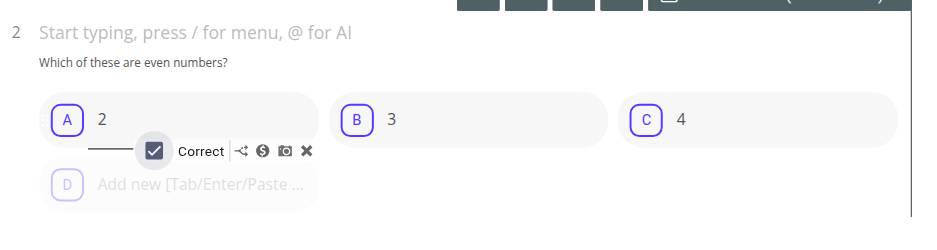
- Click the answer option you wish to mark as correct
- Check the ‘Correct’ box that appears beneath it
You can also customize the rules for how points are awarded:
- Click your Multi-Choice (Multi Select) question to select it in the builder sidebar
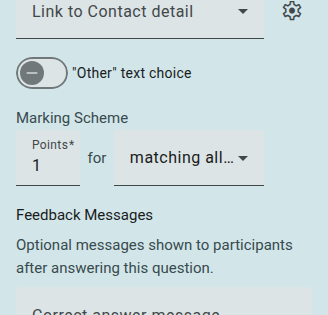
- Click ‘Show more settings’ to reveal the Marking Scheme
- Set a number of points to be awarded upon selection in the Points field
- Click the drop down to choose whether points are awarded upon all correct answers or each correct answer
-
Matching All Correct Answers: Points are awarded when a respondent matches all the correct answers for a question.
-
Each Correct Answer: Points are awarded for each individual correct answer respondents choose (1 point per answer).
Text Box Questions
Section titled “Text Box Questions”Although the Text Box (Single) and Text Boxes (Multiple) question types are available for quizzes, it’s not possible to apply points to them.