
About the Image Library
There are two ways that images can be used to enhance your project. Firstly, they are utilized by Picture Choice questions as answer options. Secondly, you are able to insert images as a Content Item (an Image item). The latter cannot be interacted with by respondents, and are used to provide additional information or improve the visual design of your project.
The Image Library stores any photos you’ve uploaded to the site, plus a searchable library of free stock photos. It can be opened from any element that uses an image — click ‘Choose Image’ on an Image item, or the camera icon on a Picture Choice/Picture Comments answer option.
The elements that contain images include:
Picture Choice Question Types
Section titled “Picture Choice Question Types”Note: In the question picker these are grouped under ‘Picture Choices’. Adding a ‘Picture Choice’ question creates a single-select question by default — open Show more settings and change Multiple selections → Maximum to allow more than one answer, then confirm any warning about the change to multi-select.
Content Items
Section titled “Content Items”To Open the Image Library
Section titled “To Open the Image Library”- Insert an Image item, or a Picture Choice/Picture Comments question
- Click the ‘Choose Image’ button (or the camera icon on an answer option)
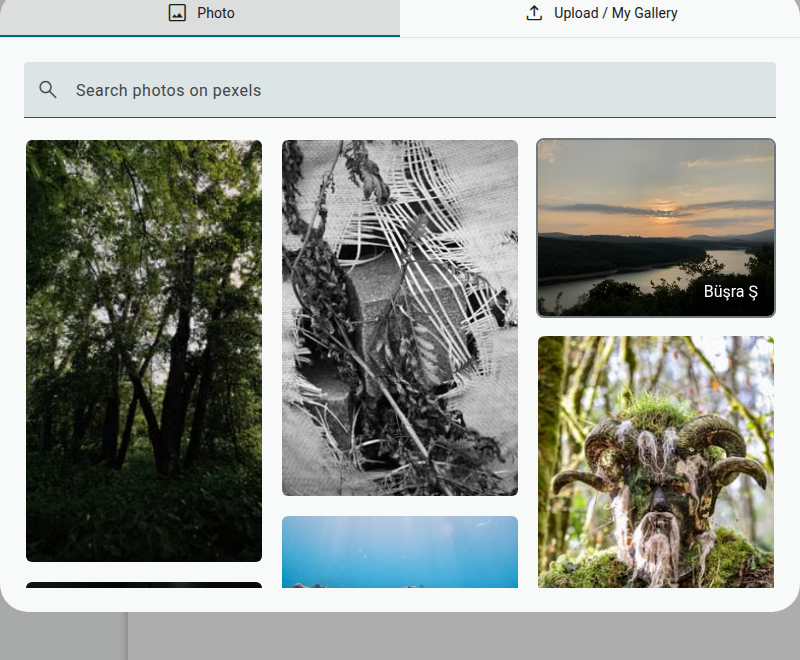
To Upload a New Image to your Library
Section titled “To Upload a New Image to your Library”- In the Image Library, switch to the ‘Upload / My Gallery’ tab
- Click ‘Browse for Files’ (or drag and drop a file onto the panel)
- Select a file from your personal system
Note: The Library also has a ‘Photo’ tab with a searchable collection of free stock photos, if you don’t have your own image to hand — this isn’t available when choosing a logo, only for images used inside your project.
To Insert Images into your Project
Section titled “To Insert Images into your Project”- Open the ‘Upload / My Gallery’ tab and click one of your previously uploaded images
Note: This will place the image where the image element field was previously.
To Delete Images from your Image Library
Section titled “To Delete Images from your Image Library”- Open the Image Library and switch to the ‘Upload / My Gallery’ tab
- Hover over the image you want to delete
- Click the delete (bin) icon that appears in its corner
- Confirm on the warning that appears
Note: Deleting an image removes it everywhere it’s used — the app explicitly warns “Deleting image will delete it from ALL FORMS it is used in. This action cannot be undone.”