
Binary Yes/No Question
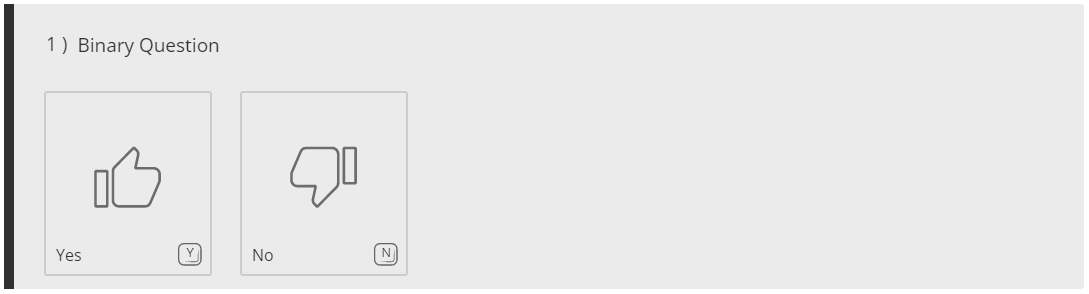
The Binary Yes/No question asks respondents to choose between two available answer choices.
For example, Yes or No and True or False.
How to add a Binary Yes/No Question
Section titled “How to add a Binary Yes/No Question”To add a Binary Yes/No question to your survey, form, or quiz:
- Open the Questions tab in the builder sidebar
- Click ‘Question’ to open the question type picker
- Under Standard Questions, select Binary Yes/No
Changing Binary Icons
Section titled “Changing Binary Icons”By default, the Binary Yes/No question will contain the thumb up and thumb down icons (as seen above). But. you can switch these to two alternative icon sets via the Question Settings Bar.
Tick and Cross Icon Set:
Section titled “Tick and Cross Icon Set:”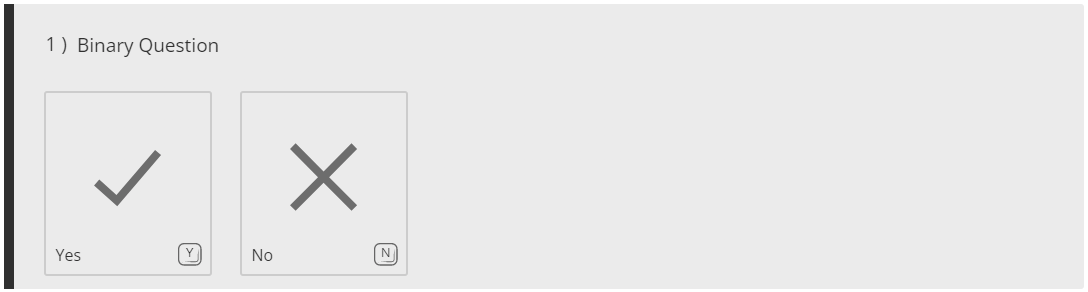 Smiley and Frowny Face Icon Set:
Section titled “Smiley and Frowny Face Icon Set:”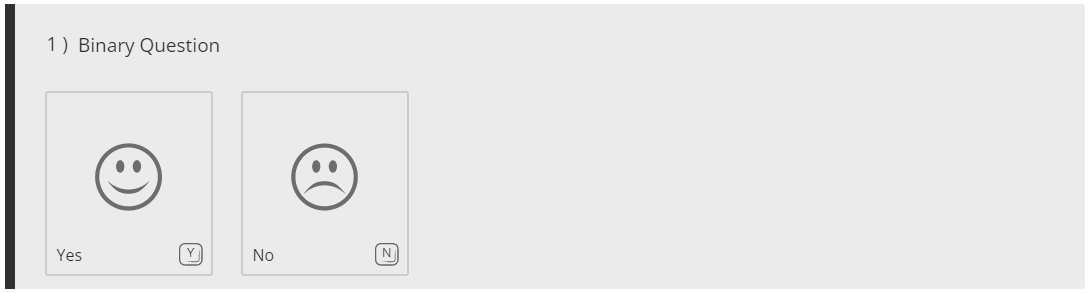
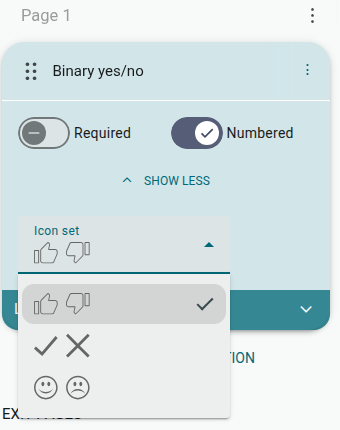
To change the icon set for the Binary Yes/No question type, follow these steps:
- Click the Binary Yes/No question in the builder to expand its settings
- Click ‘Show more settings’ if the Icon set option isn’t already visible
- Click the Icon set drop down and select an alternate icon set
Question Settings Bar for the Binary Question
Section titled “Question Settings Bar for the Binary Question”Clicking a question in the builder expands its settings directly beneath it in the outline panel. For the Binary Yes/No question these are:
- Required: Make this question required, so that respondents must answer the question before moving onto the next page or submitting a response.
- Numbered: When disabled, numbering will be removed from this question.
- Icon set: Switch the icon set displayed for the Binary Yes/No question. Click ‘Show more settings’ to reveal this option.