How to Change Text Background Colors in Emails
In this article, you’ll learn how to apply a background color (other tools may refer to this as highlighting) to a sentence or paragraph.
Highlighting text in emails
Section titled “Highlighting text in emails”To do this:
- Go to the Content section of your email
- Click and hold your left mouse button over text to select it
- Open the drop-down next to the background color icon
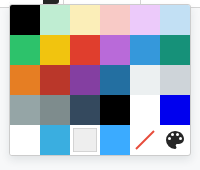
- Select a default color
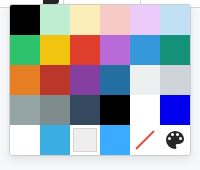
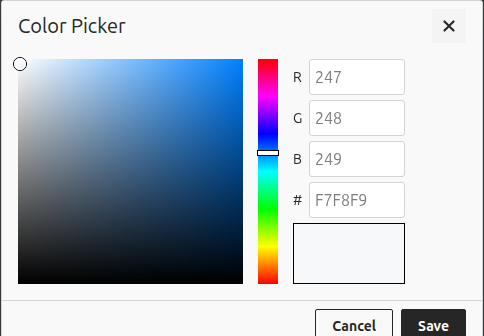
- Or click the icon in the bottom right to choose a custom color
How to remove background colors from text
Section titled “How to remove background colors from text”To remove the background color you’ve set for text, just:
- Click and hold your left mouse button over text to select it
- Open the drop-down next to the background color icon
- Select the box with the red line crossed through it