
Creating a New Report
You may want to create a new report, and pick and choose which question results to include.
Creating a New Report
Section titled “Creating a New Report”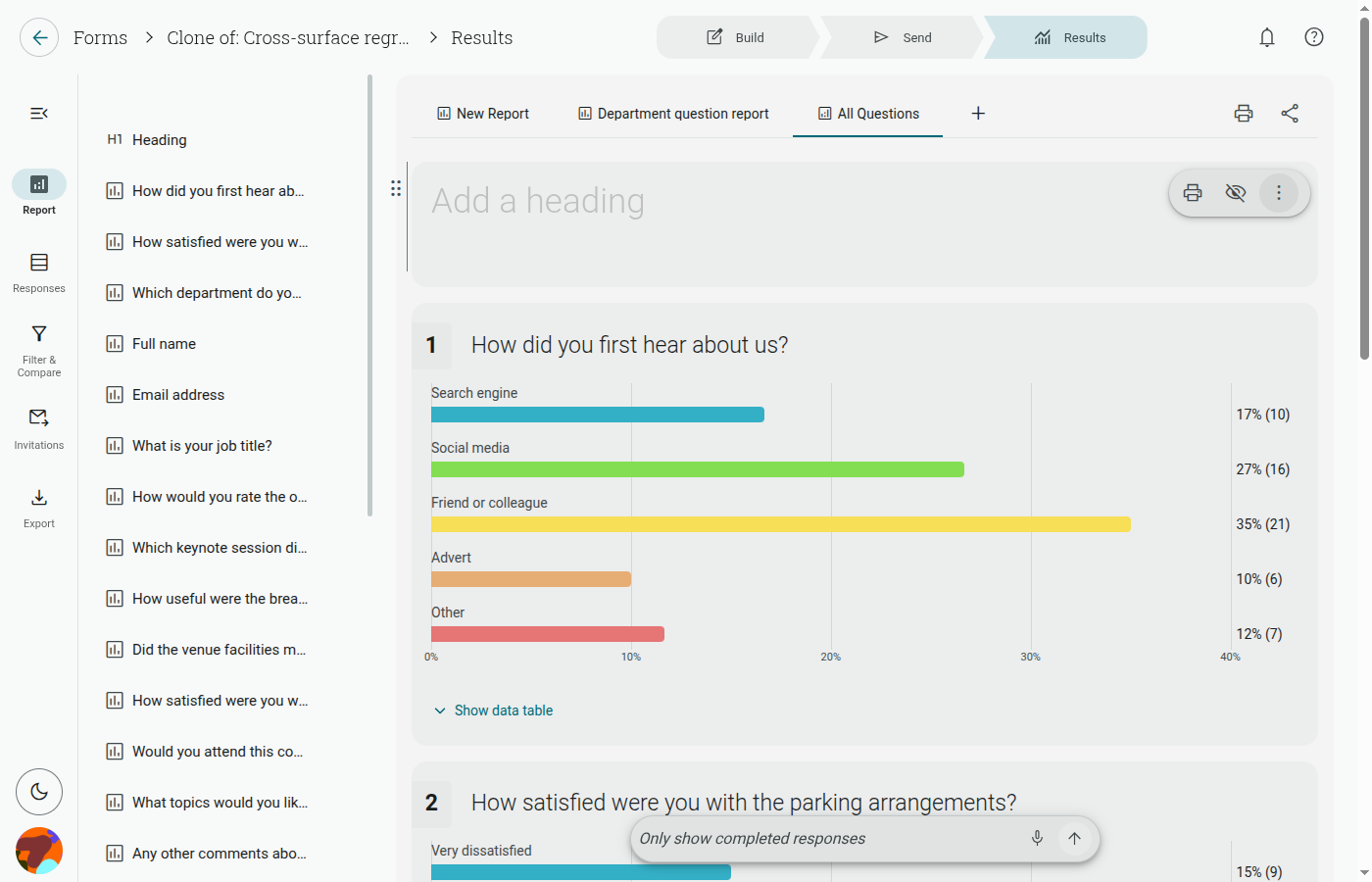
- Go to the Results section
- Use the report tabs across the top of the report canvas and choose Add Report
- Click ‘Add Report’
- Select ‘New report’, then click ‘Next’
- Name your new report in the ‘Report title’ field
- Choose which data sets should be included (use ‘Select All’/‘Deselect All’, or tick individual items)
- Click ‘Add Report’
Where can I find my Reports?
Section titled “Where can I find my Reports?”- Open a project
- Use the report tabs across the top of the report canvas
Here you will find a list of all your reports for that project, including Summary report, any new reports you have created, and any reports you copy.
Deleting a Report
Section titled “Deleting a Report”- Open the report tab’s menu
- Hover over the report you wish to delete and click the delete (bin) icon that appears next to its name
- Confirm your choice by selecting ‘Delete Report’ in the “Deleting a report is permanent” dialog
Note: Once a report has been deleted, it cannot be retrieved. Summary report cannot be deleted — only reports you’ve added.