
How to Insert a Link
You can insert a hyperlink into any section of text within a project, as well as being able to link your logo to an external website.
Insert a Link in Text
Section titled “Insert a Link in Text”Create hyperlinks to external pages in your surveys and quizzes.
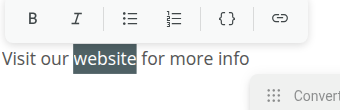
- Highlight the text you wish to link
- A formatting toolbar appears above the selection — select the link icon
- Enter a URL in the box that appears
- Click the checkmark to save
Links now open in a new tab automatically when a respondent clicks them — there’s no ‘Open Link in New Tab’ checkbox to set.
Removing a Link
Section titled “Removing a Link”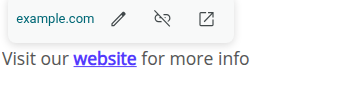
- Click the hyperlinked text
- A small popup appears showing the link’s URL — select the unlink icon (a chain-link with a slash through it)
The link will then be removed from the text. The same popup also has a pencil icon to edit the URL, and an ‘open in new tab’ icon to test the link.
Add a Link to your Logo
Section titled “Add a Link to your Logo”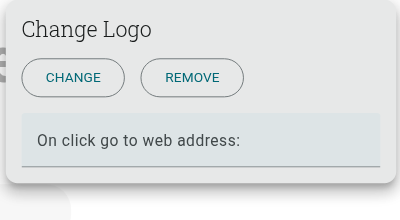
- Add a logo
- Click the logo to open the ‘Change Logo’ popup
- Enter a URL into the ‘On click go to web address:’ field
Note: Whenever a respondent clicks your logo, they will be redirected to the website you linked.
To remove this link, simply click the logo again and clear the URL from the field.