
Using Merge Tags in Emails
The information you collect through Contact Forms or add manually to the Custom Fields of contacts is linked to merge tags. These tags can be used to personalize emails and create dynamic content.
We appreciate some of these terms may be unfamiliar, so we’ll define them below:
- Custom field Personal or shared information that can be added to your Contacts and Groups, e.g. First Name, Email, Company.
- Merge tag A text-based identifier that corresponds to custom fields.
- Dynamic content The personalized content that’s displayed to contacts when a merge tag is inserted into a campaign.
How merge tags work
Section titled “How merge tags work”Your Shout contacts contain custom fields that refer to their information. A merge tag is created for each of these custom fields, which will look like this: ${name}. When you insert a merge tag into an email, we’ll automatically replace the tag with the information stored in the corresponding custom field.
For example, a merge tag for your contact’s first name is included in the email body by default.
Here’s what it looks like in the builder:

And, here’s what it looks like once it’s been sent:

How to use merge tags
Section titled “How to use merge tags”All merge tags begin with the $ character. To include them in your email body all you have to do is enter $ and a dropdown of your available merge tags will appear.
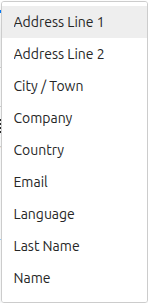
We’d recommend that you use this dropdown rather than entering the merge tag manually. If there is a typo in the merge tag, it will display as the mistyped text as opposed to the dynamic content.
You can also click Merge Tags in the text toolbar to pick a tag from a list without typing $ first.
Default merge tags in emails
Section titled “Default merge tags in emails”There are three merge tags we include in your emails by default:
- First name ${name}
- Survey URL ${survey_url}
- Physical address ${physical_address}
To help you personalize all of your email invitations, we include first names by default. You can choose to remove this.
We also include the survey URL link, so that respondents can get to your survey if the button is not responsive for some reason.
Finally, your physical address is included in the footer of all your emails.
Testing merge tags
Section titled “Testing merge tags”Choose tags from the Merge Tags dropdown and check the corresponding contact fields before sending. The campaign builder currently offers email previews, rather than a separate test-email send.
Merge tags will not be converted into dynamic content in the Email Preview.