
Drop Down List
What are Drop Down Lists?
Section titled “What are Drop Down Lists?”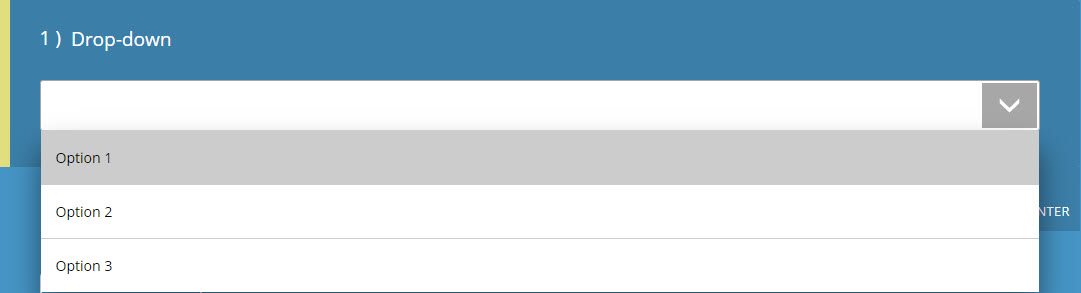
These question types are similar to the Multi-Choice (Single Select); where a list of options is provided for respondents to choose from, in relation to a question or statement.
However, instead of a list of answers directly beneath the question, the answers are hidden in an expandable drop-down box.
Why use Drop Down Lists?
Section titled “Why use Drop Down Lists?”These boxes are useful in concealing considerably longer lists of answer options. If your list of answer options is too long, the flow of your project will be affected. E.g. In a contact form, it may be necessary to obtain the location or address of a respondent and Drop Down Lists allow you to include a large list of places without overcrowding the page.
How do I create a Drop Down Lists?
Section titled “How do I create a Drop Down Lists?”- Open the Questions tab in the builder sidebar
- Click ‘Question’ to open the question type picker
- Under Standard Questions, select Drop Down List
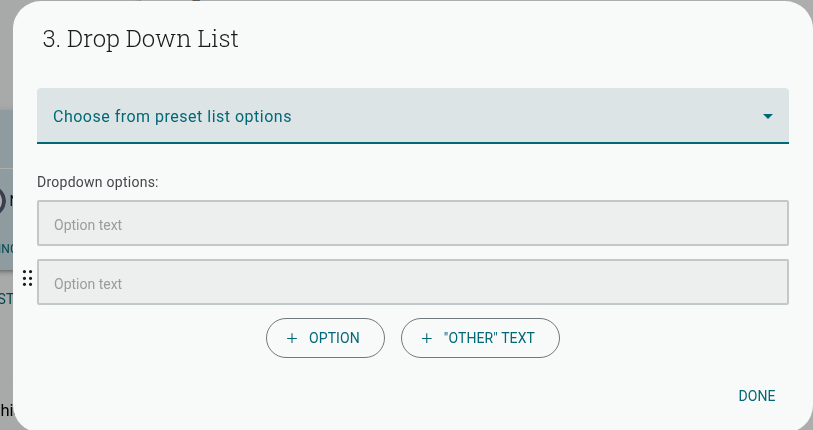
- Click the drop-down field in the canvas to open the options editor
Default Settings
Section titled “Default Settings”Two blank ‘Option text’ boxes will be provided according to the default settings of this question type, inside the options editor shown above. Click ’+ OPTION’ to create additional answer boxes, or ’+ “OTHER” TEXT’ to insert an ‘Other’ answer option. A ‘Choose from preset list options’ drop-down at the top of the editor also lets you populate the list from a built-in preset (e.g. a list of countries) instead of typing options manually.
When making a quiz, the answer options will all be assigned 0 points by default. You can assign points to answers by clicking the relevant option, then entering the settings for that option and entering a number into the ‘Points’ box.
- Where it is sometimes useful to randomize the order of your answers, if you’re providing a list of locations (or a similar list) you may want to format it alphabetically, or in some other logical order.
Question Settings Bar
Section titled “Question Settings Bar”Clicking the question in the builder expands its settings directly beneath it. For Drop Down Lists these are:
- Required: By checking this box, respondents cannot finish the survey without completing the question.
- Numbered: This button toggles the numbering for the concerned question.
- Link to Contact detail: Choose a contact field to link this question’s responses to, so answers prefill and update the contact record.
- “Other” text choice: Allow respondents to write a free-form answer to your question.
- Randomize: Randomize the order of answer options for each respondent.
- Multiple selections: Set a Minimum and Maximum number of options a respondent may choose, turning the drop-down into a multi-select list.
How respondents interact with Drop Down Lists?
Section titled “How respondents interact with Drop Down Lists?”A blank box marked with an arrow will sit below your set question, which respondents can click to reveal the full list of answer options.
Whichever option their mouse hovers over will be highlighted, and their selected answer will then appear in the blank box below the question.
How to analyze the Report
Section titled “How to analyze the Report”Answer options will be displayed in their original order, from left to right, in the Data Table of your Report (the Results tab, previously called the Quick Report). You will also receive stats on the standard deviation and the total number of responses for the question.
By default, your results will appear as a Doughnut Chart, with each answer being assigned a color within the chart. It is possible to change the chart formatting through the Question Quick Menu for this section. The other available options for this question type are Line Graph, Column Graph, Radar Chart, Pie Chart.
‘Other’ Responses
Section titled “‘Other’ Responses”Any responses gathered through the ‘Other’ answer option will be recorded in the ‘Other’ section of the data table. If text was attached to any of those answers, each response will be recorded in the ‘Text Responses’ section under the graphs.
For more detailed instructions on analyzing your report you can visit either of these articles: