
Text Content Block
The Text content block allows you to add a customizable section of text into your email body. Apply different sizes, fonts, and colors to sections of text to fully customize their design.
In this article, you’ll learn how to add and customize Text blocks.
Insert a Text block
Section titled “Insert a Text block”To add a Text block to your emails:
- Click the Content tab in the left sidebar
- Click and drag the Paragraph block into your layout
- Click the Text block to edit the text If you paste in text from an external source, ensure you paste as plain text to avoid any extra formatting or styling from being added.
Text formatting
Section titled “Text formatting”To format your text, all you need to do is click the Text content block.
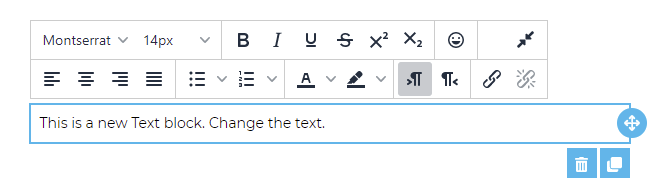 From this toolbar, you’ll be able to:
- Change font: Use the dropdown to select a font family.
- Set font size: Increase or decrease text character size.
- Bold: Bold section of text.
- Italics: Italicize sections of text.
- Underline: Underline sections of text.
- Strikethrough: Strikethrough sections of text.
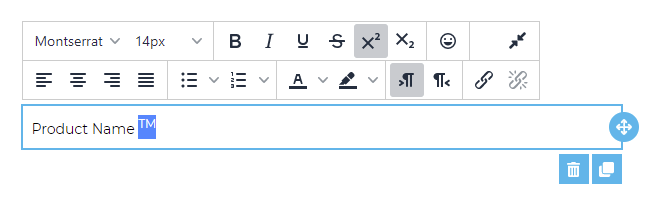
- Superscript: Add a character that is smaller than other text that is an indicator of some other information (superscript is set above other text).
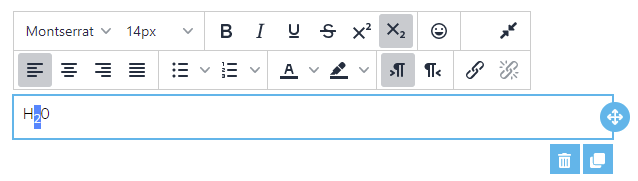
- Subscript: Add a character that is smaller than other text that is an indicator of some other information (subscript is set below other text).
- Emoticons: Add emoticons/ emojis to sections of text.
- Align: Align text to the left, right, centre, or justify.
- Bullet list: Create a bulleted list. Use the dropdown to choose between three styles.
- Numbered list: Create a numbered list. Use the dropdown to choose between six different styles.
- Text color: Change text color.
- Text background: Change the background color of text.
- Hyperlink: Embed links in text.
- Merge Tags: Insert a dynamic personalization tag (e.g. contact name) that’s replaced with the recipient’s actual data when the email sends.
- Smart Text (AI): Get AI-generated text suggestions for the selected content.
To format text you have already written, you’ll first need to highlight it before using the formatting toolbar.
Edit styles and settings
Section titled “Edit styles and settings”When you click the Text block in the email builder, the settings slideout will open. From here you can edit the following styles and settings:
- Color: Set a color for your text.
- Text Align: Align your text inside the block (left, right, centre, or justify).
- Line Height: Increase the space between lines in your text.
- Letter Spacing: Use the + and - icons (or enter a number) to adjust the spacing between characters.
- Inherit Body Styles: Disable this button customize link included in the Text block.
General
Section titled “General”- Container padding: Change the padding inside the block, around the Text (enable More Options to change top, bottom, side padding individually).
Responsive design
Section titled “Responsive design”- Hide on desktop (only shown when in the desktop view editor): Hides the block when a contact is viewing on a desktop.
- Hide on mobile (only shown when in the mobile view editor): Hides the block when a contact is viewing on a mobile device.