
List of Presentational Items
What are Presentational Items?
Section titled “What are Presentational Items?”There is a range of presentational items — grouped in the Builder as Content Items — that can be implemented in your project. These include:
- Heading / Greeting
- Paragraph (previously called ‘Text’)
- Image
- Video
- Restart Form Button (grouped under ‘Special’ rather than ‘Content Items’)
Each of these elements fulfils a different purpose, but all improve the organizational aspects of your project.
How to insert a Presentational Item
Section titled “How to insert a Presentational Item”- Open your project in the Builder
- Click ‘+ Question’ (at the top of a page in the left‑hand panel, or from the canvas)
- Find the item you want — Heading / Greeting, Paragraph, Image and Video are listed under Content Items; Restart Form Button is listed under Special. You can also type into the Search box at the top of the panel to jump straight to it.
- Click the item to add it to your page
Heading / Greeting
Section titled “Heading / Greeting”
This item inserts a heading (and an optional description underneath) into your project. It can be used to break up your project or to signal to respondents that there will be a change in the line of questioning. It’s also what’s used for the welcome message shown at the start of a project — see our Welcome Message article for more on that.
It may also be necessary for users with free accounts to employ this item, as you will only be able to include one Page in your project. Therefore, this will be the best way to split your project into smaller sections.
Paragraph
Section titled “Paragraph” If you need to provide respondents with some information, this presentational item (called ‘Paragraph’, formerly ‘Text’) will allow you to insert a chunk of text into your project.
These are useful in instances where you are required to provide a disclaimer or project description to your respondents. Similarly, you could provide longer descriptions or requirements for individual questions.
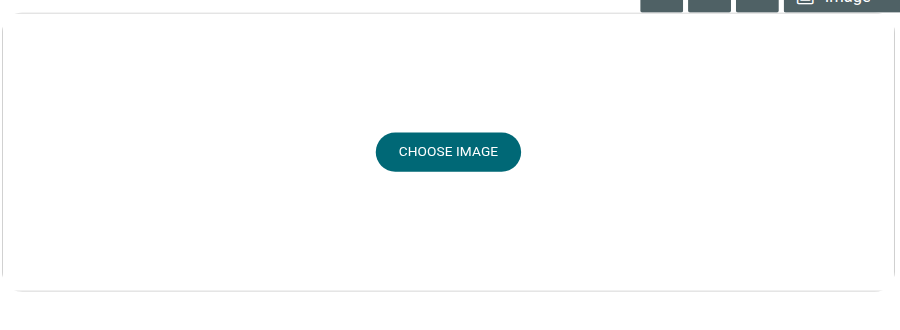 Click ‘Choose Image’ and either search free stock photos, upload a picture from your device, or pick one you’ve already used from My Gallery, then place it in your project. Images could be used as part of the question and answer process, or simply to improve the visual aspects of your Survey, Form, or Quiz.
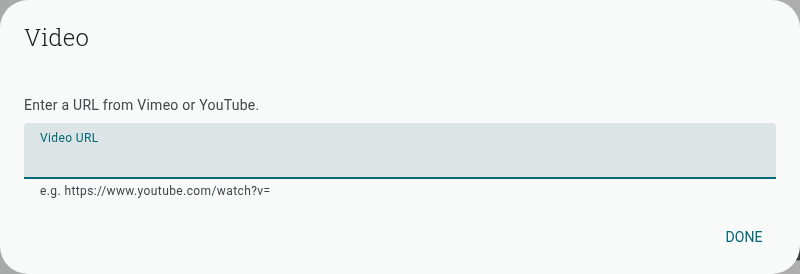 This element places a video box into your project. Click the box and a dialog will ask you to enter a URL from YouTube or Vimeo — paste the video’s link there and click Done, and respondents will be able to view the linked video when completing your project.
These can be used to provide more information on questions, or even be used as the questions themselves.
Note: Too many videos may dissuade participants from completing your project, as they can be mentally taxing.
Restart Form Button
Section titled “Restart Form Button” Insert the ‘Restart Form Button’ to provide respondents with a way of returning to the beginning of your project. They may want to do this if they feel they’ve made a mistake, or regret choosing an answer option. In the Builder this item now lives under the ‘Special’ group rather than alongside the other content items.
You are able to include one per page or one at the end of your project.